Manual · Symbol
Guía de inicio rápido del Symbol MC35
Manual2 páginasPDF 9.6 MB
Las dos páginas están más abajo, cada una con su texto.
Archivado con · 2 modelos
También archivado con estos modelos en el sitio anterior
Del manual · leído página por página
Datos clave de este manual
Cada línea indica su página en el PDF.
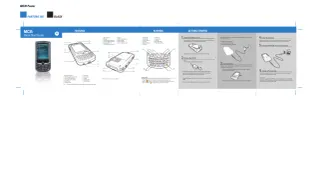
Una guía de inicio rápido de dos páginas para la Motorola (Symbol) MC35, una computadora de mano con teléfono GSM. No menciona la MC3504 ni la MC3574, con las que está archivada. Muestra cómo instalar y cargar la batería, conectarse a una computadora host con ActiveSync, configurar el teléfono y la tarjeta SIM, agregar una tarjeta de memoria y leer códigos de barras.
- Dispositivo
- Computadora de mano MC35 con teléfono GSM, pantalla táctil LCD y teclado pág. 1
- Lectura de códigos de barras
- Lee códigos de barras con la cámara, con el interruptor Camera/Bar Code en la posición Bar Code pág. 2
- Expansión y puertos
- Ranura de expansión SD/MMC, puerto infrarrojo (IR), conector para auriculares pág. 1
- Software del host
- ActiveSync 4.0 o posterior en la computadora host pág. 1
- Cámara
- La lente de la cámara y el flash son opcionales pág. 1
- Primera carga
- Unas ocho horas con el adaptador de corriente pág. 1
- Accesorios
- Kit para vehículo (kit de montaje para auto, cargador para auto, auriculares manos libres), estuche de cuero, cable USB de carga/sincronización, cargador de viaje, cubierta protectora, paquete de 3 lápices ópticos, baterías estándar y de larga duración pág. 2
- Número de pieza de la guía
- 72-93873-03, rev. A, agosto de 2008 pág. 2
Lo que este manual le explica
- Instalar el paquete de baterías pág. 1
- Cargar con el adaptador de corriente y el enchufe intercambiable pág. 1
- Conectarse a una computadora host con ActiveSync pág. 1
- Instalar la tarjeta SIM pág. 2
- Activar y desactivar la función de teléfono pág. 2
- Instalar y quitar una tarjeta de memoria pág. 2
- Leer un código de barras pág. 2
Conviene saber
- Después de la primera carga, cargue la unidad todos los días para que la batería alcance su capacidad completa. pág. 1
- Para restablecer la unidad, presione el botón de reinicio con la punta del lápiz óptico. pág. 1
Preguntas que responde este manual
¿Cómo escaneo un código de barras con la MC35?
Ponga el interruptor Camera/Bar Code en Bar Code, abra una aplicación de lectura de códigos de barras, apunte al código y presione el botón Camera. pág. 2
¿Qué significan los colores del LED de carga de la MC35?
Naranja intermitente significa que está cargando, y naranja fijo, que la carga está completa. pág. 1
¿Qué software sincroniza la MC35 con una PC?
ActiveSync 4.0 o posterior, instalado en la computadora host. pág. 1
El archivo
Tamaño y texto
Todas las páginas · 2
Léalo aquí
Cada página tal como está impresa, y su texto al lado, para que en un teléfono se pueda buscar y copiar.
Página1de 2
Abrir en el PDF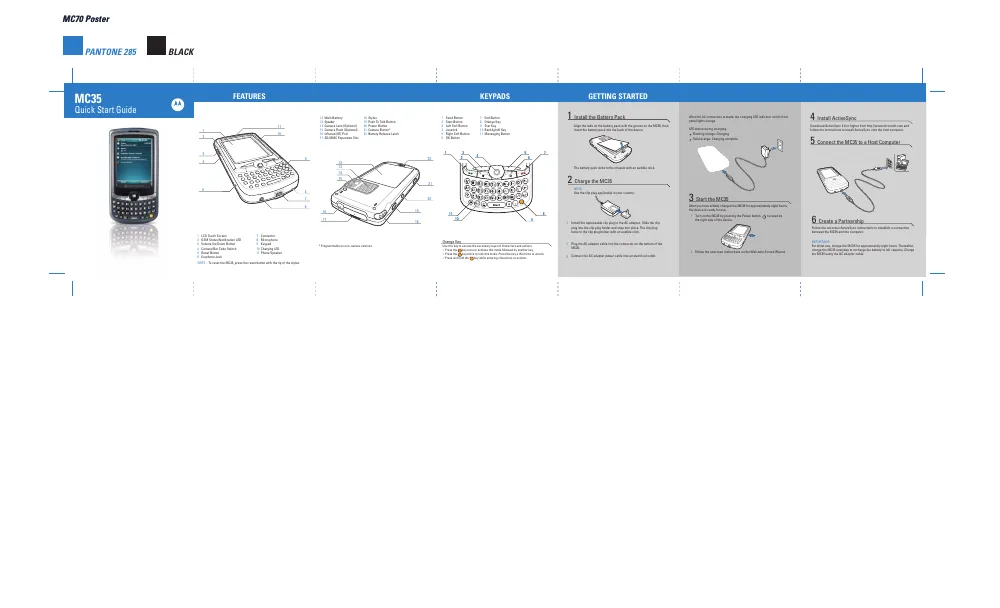
El texto de la página 1, del propio PDF
MC70 Poster PANTONE 285
BLACKMC35FEATURESQuick Start Guide 1 2GETTING STARTED
KEYPADS 12 Main Battery 13 Speaker 14 Camera Lens (Optional) 15 Camera Flash (Optional) 16 Infrared (IR) Port 17 SD/MMC Expansion Slot
11 10
18 Stylus 19 Push To Talk Button 20 Power Button 21 Camera Button* 22 Battery Release Latch
1 2 3 4 5 6
Send Button Start Button Left Soft Button Joystick Right Soft Button OK Button
13943 22212 13 14 15
1 Install the Battery Pack
7 End Button 8 Orange Key 9 Star Key 10 Backlight/0 Key 11 Messaging Button
4
Align the tabs on the battery pack with the groves on the MC35, then insert the battery pack into the back of the device.
52 Charge the MC351 2 3 4 5 6
LCD Touch Screen GSM Status/Notification LED Volume Up/Down Button Camera/Bar Code Switch Reset Button Earphone Jack
NOTE: Use the clip plug applicable in your country.
20
17
7 Connector 8 Microphone 9 Keypad 10 Charging LED 11 Phone Speaker
NOTE : To reset the MC35, press the reset button with the tip of the stylus.
- Programmable on non-camera versions.
5 Connect the MC35 to a Host Computer
The battery pack locks to the chassis with an audible click.
7 16
Download ActiveSync 4.0 or higher from http://www.microsoft.com and follow the instructions to install ActiveSync onto the host computer.
LED status during charging: Flashing orange: Charging Solid orange: Charging complete
7864 Install ActiveSync621 5
After the AC connection is made, the charging LED indicator on the front panel lights orange.
19 181110Orange Key8 9
Use this key to access the secondary layer of characters and actions. > Press the key once to activate this mode followed by another key. > Press the key twice to lock this mode. Press the key a third time to unlock. key while entering characters or actions. > Press and hold the
3 Start the MC35 After you have initially charged the MC35 for approximately eight hours, the device is ready for use.
1 Install the replaceable clip plug to the AC adapter. Slide the clip plug into the clip plug holder and snap into place. The clip plug locks to the clip plug holder with an audible click. 2 Plug the AC adapter cable into the connector on the bottom of the MC35. 3 Connect the AC adapter power cable into an electrical outlet.
1 Turn on the MC35 by pressing the Power button the right side of the device.
located on
6 Create a Partnership Follow the onscreen ActiveSync instructions to establish a connection between the MC35 and the computer.
2 Follow the onscreen instructions on the Welcome Screen Wizard.
IMPORTANT: For initial use, charge the MC35 for approximately eight hours. Thereafter, charge the MC35 everyday to recharge the battery to full capacity. Charge the MC35 using the AC adapter cable.
Página2de 2
Abrir en el PDF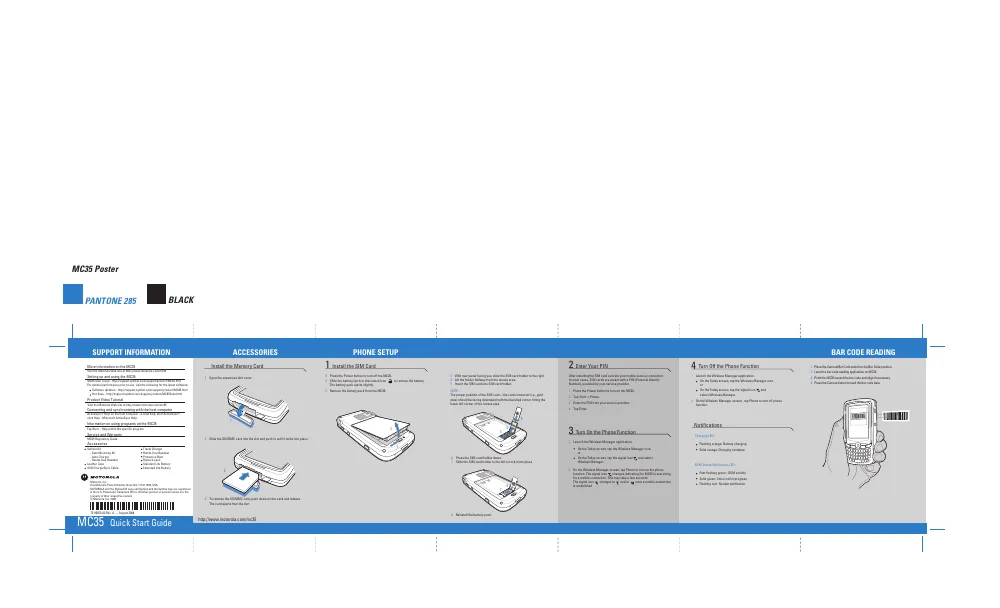
El texto de la página 2, del propio PDF
MC35 Poster BLACK
PANTONE 285
SUPPORT INFORMATION More information on the MC35 Visit the Motorola Web site at http://www.motorola.com/mc35
Setting up and using the MC35 MC35 User Guide - http://support.symbol.com/support/product/MC35.html For optimal performance prior to use, visit the following for the latest software: Software Updates - http://support.symbol.com/support/product/MC35.html Hot-fixes - http://support.symbol.com/support/product/MC35fixes.html
ACCESSORIES Install the Memory Card 1 Open the expansion slot cover.
PHONE SETUP
BAR CODE READING
1 Install the SIM Card 1 Press the Power button to turn off the MC35. 2 Slide the battery latch to the unlock icon The battery pack ejects slightly.
to remove the battery.
3 Remove the battery pack from the MC35.
Product Video Tutorial Visit the Motorola Web site at http://www.motorola.com/mc35
2 Enter Your PIN
4 Turn Off the Phone Function
3 With rear panel facing you, slide the SIM card holder to the right. 4 Lift the holder halfway from the recess area. 5 Insert the SIM card into SIM card holder.
After installing the SIM card activate your mobile service connection. In most cases, SIM cards are preset with a PIN (Personal Identity Number), provided by your service provider.
NOTE : The proper position of the SIM card - the card connector (i.e., gold area) should be facing downward with the bevelled corner fitting the lower left corner of the recess area.
1 Press the Power button to turn on the MC35.
1 Launch the Wireless Manager application. On the Today screen, tap the Wireless Manager icon. or On the Today screen, tap the signal icon and select Wireless Manager.
ActiveSync® Help on the host computer. To view help, start ActiveSync®, click Help - Microsoft ActiveSync Help.
2
Tap Start – Help within the specific program.
3
4
2 Slide the SD/MMC card into the slot and push in until it locks into place.
Accessories Vehicle Kit
- Auto Mounting Kit
- Auto Charger
- Hands-free Headset Leather Case USB Charge/Sync Cable
5
1
Information on using programs on the MC35
MC35 Regulatory Guide Travel Charger Hands-free Headset Protective Boot Stylus 3-pack Standard Life Battery Extended Life Battery
Motorola, Inc. One Motorola Plaza Holtsville, New York 11742-1300, USA MOTOROLA and the Stylized M Logo and Symbol and the Symbol logo are registered in the U.S. Patent and Trademark Office. All other product or service names are the property of their respective owners. © Motorola, Inc. 2008
Charging LED: Flashing orange: Battery charging
On the Today screen, tap the Wireless Manager icon. or 6 Press the SIM card holder down. 7 Slide the SIM card holder to the left to lock it into place.
2
7 3 To remove the SD/MMC card, push down on the card and release. The card ejects from the slot.
http://www.motorola.com/mc35
Notifications
3 Turn On the Phone Function 1 Launch the Wireless Manager application.
1
72-93873-03 Rev. A, August 2008
MC35 Quick Start Guide
2 On the Wireless Manager screen, tap Phone to turn off phone function.
3 Enter the PIN from your service provider. 4 Tap Enter.
Connecting and synchronizing with the host computer
Service and Warranty
2 Tap Start > Phone.
8 Reinstall the battery pack.
6
On the Today screen, tap the signal icon Wireless Manager.
Solid orange: Charging complete
and select
2 On the Wireless Manager screen, tap Phone to turn on the phone function. The signal icon changes indicating the MC35 is searching for a mobile connection. This may take a few seconds. The signal icon changes to and to once a mobile connection is established.
GSM Status/Notification LED: Fast flashing green: GSM activity Solid green: Voice call in progress Flashing red: System notification
1 Place the Camera/Bar Code switch to the Bar Code position. 2 Launch a bar code reading application on MC35. 3 Point the MC35 toward the bar code and align if necessary. 4 Press the Camera button to read the bar code data.