Manual · Intermec
Escáner PDF 417 Intermec
Manual2 páginasPDF 302 KB
Las dos páginas están más abajo, cada una con su texto.
Abarca · 2 modelos
Los modelos que abarca
Del manual · leído página por página
Datos clave de este manual
Cada línea indica su página en el PDF.
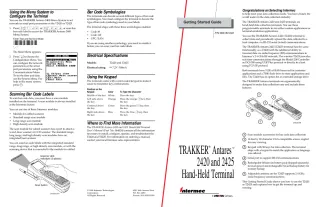
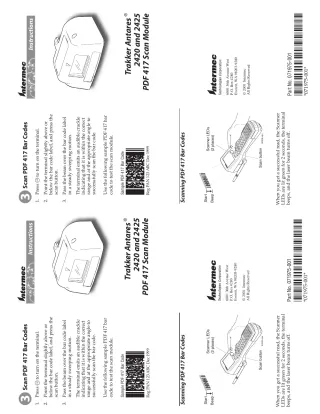
La hoja de instrucciones de Intermec para el accesorio módulo de escaneo PDF 417 de las terminales Trakker Antares 2420 y 2425. Muestra cómo cambiar el módulo de escaneo, ajustar la selección de escáner de la terminal, habilitar PDF 417 con los códigos de barras impresos y escanear etiquetas PDF 417 con un código de muestra.
- Qué es
- Accesorio módulo de escaneo PDF 417 para la 2420 y la 2425 pág. 2
- Firmware necesario
- Firmware de la terminal versión 6.20 o posterior pág. 2
- Selección de escáner
- Ajustada en Intermec 1551E en el Terminal Menu pág. 2
- Código para habilitar PDF 417
- *$+CQ1*, y luego guardar con *.+1* pág. 2
- Montaje
- Reemplaza el módulo existente; sujeto con 3 tornillos pág. 2
- Señal de lectura correcta
- Los LED del escáner se encienden en verde durante 2 segundos, suena un pitido y el láser se apaga pág. 1
- Ayuda para apuntar
- Un chasquido audible cuando la distancia y el ángulo son correctos pág. 1
- Número de pieza de la hoja
- N.º de pieza 071975-001 pág. 1
Lo que este manual le explica
- Instalar el módulo de escaneo pág. 2
- Configurar la terminal y habilitar PDF 417 pág. 2
- Escanear códigos de barras PDF 417 con una etiqueta de muestra pág. 1
Conviene saber
- No fuerce el módulo dentro del conector; puede dañar el módulo, la terminal o ambos. pág. 2
- Al instalar el módulo se deben tomar precauciones contra la electricidad estática. pág. 2
- Para la instalación, la terminal debe estar apagada y boca abajo sobre una superficie limpia y firme. pág. 2
Preguntas que responde este manual
¿Qué firmware necesita la Intermec 2420 para leer PDF 417?
El módulo de escaneo PDF 417 necesita el firmware de la terminal versión 6.20 o posterior. pág. 2
¿Qué ajuste de escáner uso para el módulo de escaneo PDF 417 de la 2420?
Ajuste Scanner Selection en Intermec 1551E, guarde, y luego escanee los códigos de barras Enable PDF 417 y Save Configuration. pág. 2
¿Cómo escaneo un código PDF 417 con una Trakker Antares?
Apunte un poco por encima o por debajo de la etiqueta, presione el botón de escaneo y pase el haz sobre ella de forma constante; los LED se encienden en verde cuando la lectura es correcta. pág. 1
El archivo
Tamaño y texto
Todas las páginas · 2
Léalo aquí
Cada página tal como está impresa, y su texto al lado, para que en un teléfono se pueda buscar y copiar.
Página1de 2
Abrir en el PDF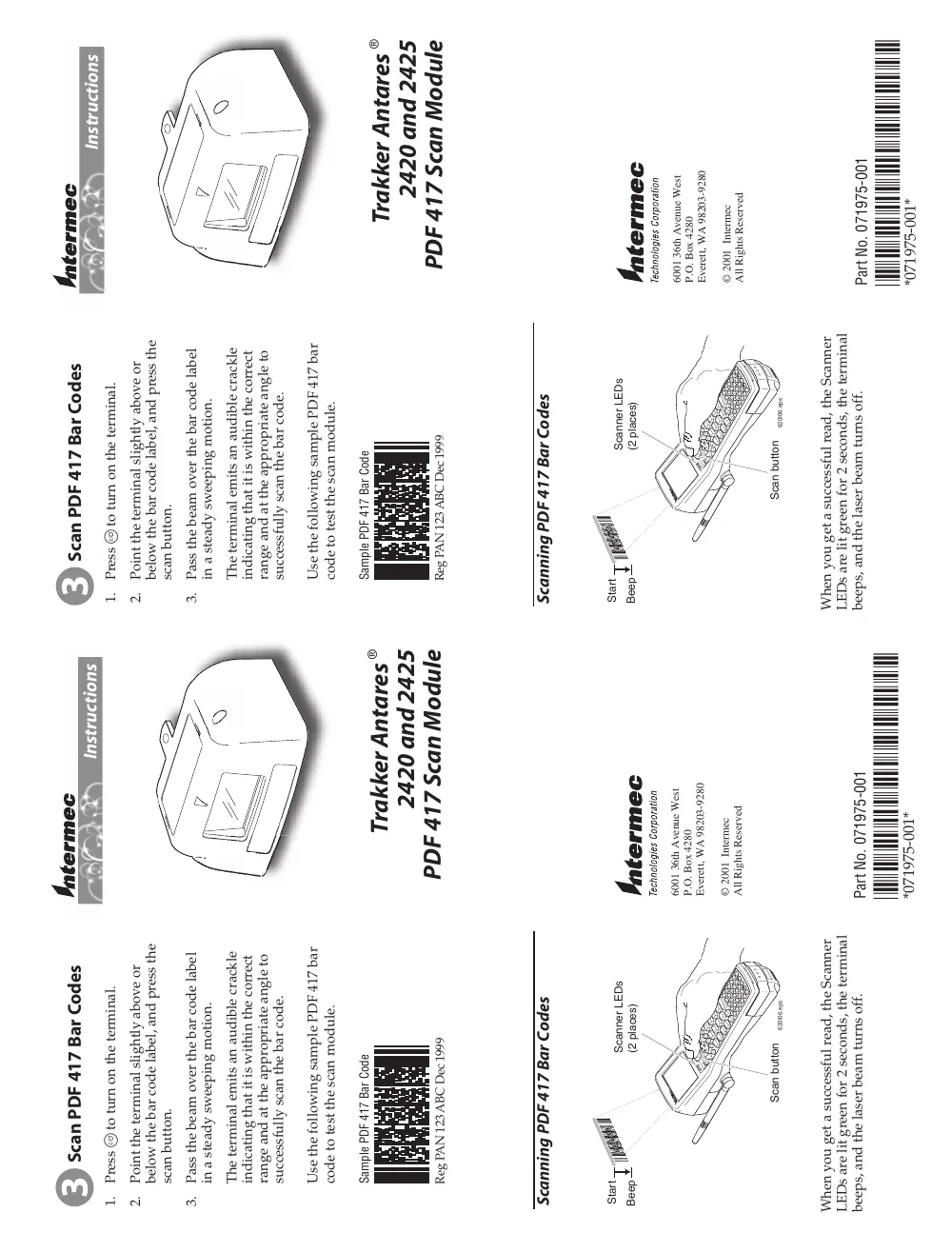
El texto de la página 1, del propio PDF
2524RK EKT R AAN TARESF2F3F4FnLAFnRBFKGCer Ent620I06.eps9PLHDUQMIENRVZJOSWTXTabYEsc
When you get a successful read, the Scanner LEDs are lit green for 2 seconds, the terminal beeps, and the laser beam turns off.
Scan buttonF184I/O7F562*071975-001**071975-001*Part No. 071975-001
© 2001 Intermec All Rights Reserved
SI/OF1F2F3F4F5AFnRBF KGCer Ent620I06.epsFnLPLHDUQMIENRVZJWSOTabXT
Scanner LEDs (2 places)
Scan buttonAN TAY Esc
When you get a successful read, the Scanner LEDs are lit green for 2 seconds, the terminal beeps, and the laser beam turns off.
BeepStart24 2 RE 5 R K E K R ABeep
Scanner LEDs (2 places)
9StartT
Scanning PDF 417 Bar Codes
7
Scanning PDF 417 Bar Codes
3
0
Reg PAN 123 ABC Dec 1999
8 4
Reg PAN 123 ABC Dec 1999
6001 36th Avenue West P.O. Box 4280 Everett, WA 98203-9280
Use the following sample PDF 417 bar code to test the scan module.
Use the following sample PDF 417 bar code to test the scan module.
5
1
Sample PDF 417 Bar Code
The terminal emits an audible crackle indicating that it is within the correct range and at the appropriate angle to successfully scan the bar code.
The terminal emits an audible crackle indicating that it is within the correct range and at the appropriate angle to successfully scan the bar code.
6 2
Trakker Antares ® 2420 and 2425 PDF 417 Scan Module
3. Pass the beam over the bar code label in a steady sweeping motion.
3. Pass the beam over the bar code label in a steady sweeping motion.
3 0
Sample PDF 417 Bar Code
2. Point the terminal slightly above or below the bar code label, and press the scan button.
2. Point the terminal slightly above or below the bar code label, and press the scan button.
Scan PDF 417 Bar Codes 1. Press q to turn on the terminal.
Instructions
1. Press q to turn on the terminal.
Scan PDF 417 Bar Codes5 1*071975-001**071975-001*Part No. 071975-001
© 2001 Intermec All Rights Reserved
6001 36th Avenue West P.O. Box 4280 Everett, WA 98203-9280
Trakker Antares ® 2420 and 2425 PDF 417 Scan Module
Instructions
Página2de 2
Abrir en el PDF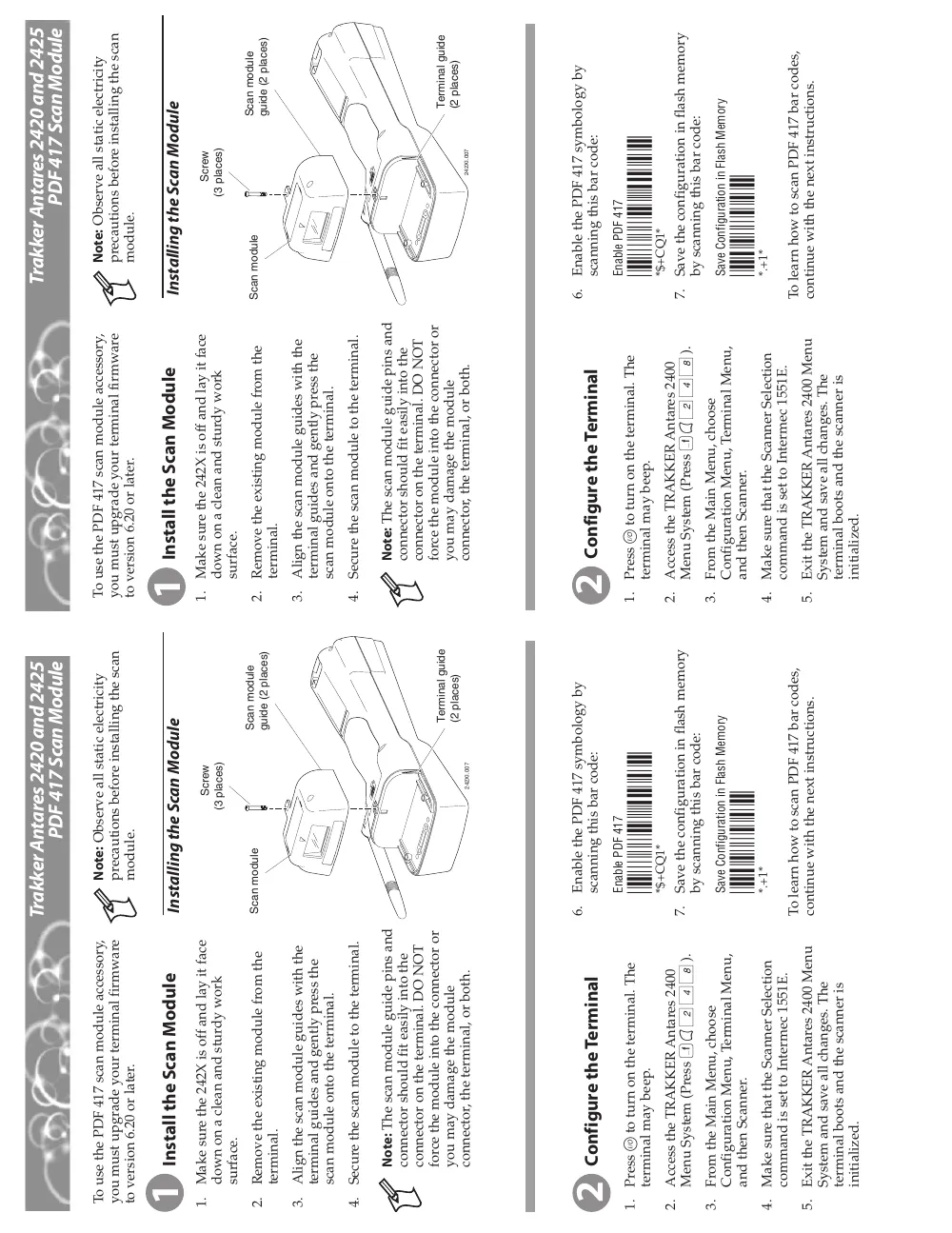
El texto de la página 2, del propio PDF
5. Exit the TRAKKER Antares 2400 Menu System and save all changes. The terminal boots and the scanner is initialized.
4. Make sure that the Scanner Selection command is set to Intermec 1551E.
3. From the Main Menu, choose Configuration Menu, Terminal Menu, and then Scanner.
2. Access the TRAKKER Antares 2400 Menu System (Press ) y 2 4 8 ).
1. Press q to turn on the terminal. The terminal may beep.
2 Configure the Terminal
Note: The scan module guide pins and connector should fit easily into the connector on the terminal. DO NOT force the module into the connector or you may damage the module connector, the terminal, or both. 242XI.007
To learn how to scan PDF 417 bar codes, continue with the next instructions.
*.+1* *.+1*
Save Configuration in Flash Memory
7. Save the configuration in flash memory by scanning this bar code:
*$+CQ1* *$+CQ1*
Enable PDF 417
6. Enable the PDF 417 symbology by scanning this bar code:
Terminal guide (2 places)
5. Exit the TRAKKER Antares 2400 Menu System and save all changes. The terminal boots and the scanner is initialized.
4. Make sure that the Scanner Selection command is set to Intermec 1551E.
3. From the Main Menu, choose Configuration Menu, Terminal Menu, and then Scanner.
2. Access the TRAKKER Antares 2400 Menu System (Press ) y 2 4 8 ).
1. Press q to turn on the terminal. The terminal may beep.
2 Configure the Terminal
Note: The scan module guide pins and connector should fit easily into the connector on the terminal. DO NOT force the module into the connector or you may damage the module connector, the terminal, or both.
4. Secure the scan module to the terminal.
2. Remove the existing module from the terminal.
4. Secure the scan module to the terminal.
Scan module guide (2 places)
1. Make sure the 242X is off and lay it face down on a clean and sturdy work surface.
1 Install the Scan Module
To use the PDF 417 scan module accessory, you must upgrade your terminal firmware to version 6.20 or later.
3. Align the scan module guides with the terminal guides and gently press the scan module onto the terminal.
Scan module
Screw (3 places)
Installing the Scan Module
Note: Observe all static electricity precautions before installing the scan module.
3. Align the scan module guides with the terminal guides and gently press the scan module onto the terminal.
2. Remove the existing module from the terminal.
1. Make sure the 242X is off and lay it face down on a clean and sturdy work surface.
1 Install the Scan Module
To use the PDF 417 scan module accessory, you must upgrade your terminal firmware to version 6.20 or later.
Trakker Antares 2420 and 2425 PDF 417 Scan Module
242XI.007
Terminal guide (2 places)
Scan module guide (2 places)
To learn how to scan PDF 417 bar codes, continue with the next instructions.
*.+1* *.+1*
Save Configuration in Flash Memory
7. Save the configuration in flash memory by scanning this bar code:
*$+CQ1* *$+CQ1*
Enable PDF 417
6. Enable the PDF 417 symbology by scanning this bar code:
Scan module
Screw (3 places)
Installing the Scan Module
Note: Observe all static electricity precautions before installing the scan module.
Trakker Antares 2420 and 2425 PDF 417 Scan Module