Manual · Zebra
Desktop Thermal Printer User's Manual 2722, 2742, 3742
Manual30 pagesPDF 3.8 MB
User's manual for the Zebra Eltron LP2722, TLP2722, LP2742, TLP2742 and TLP3742 desktop thermal label printers: setup, media, ribbon and troubleshooting.
Covers · 4 models
The models it covers
Summary
What is in it
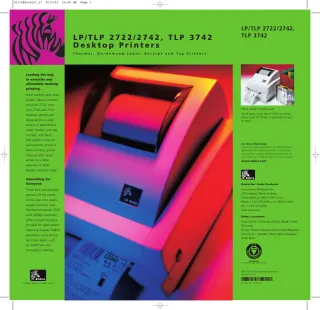
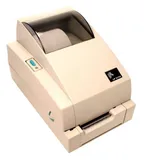
The user's manual for Zebra's (Eltron) LP2722, TLP2722, LP2742, TLP2742 and TLP3742 desktop thermal bar code printers. It walks through unpacking, the printer's parts, installation (power, interface cable, loading media and software), AutoSense, fan-fold media, the label dispense option and loading thermal transfer ribbon. Appendices cover troubleshooting, support resources, printer maintenance, serial interface cable wiring and accessories.
Its parts
- Installation and Operation
- Appendix A - Troubleshooting
- Appendix B - Accessories
From the manual · read page by page
Key facts from this manual
Some pages are scans or cannot be read; this says only what the readable text supports. Each line names its page in the PDF.
User's manual for the Zebra (Eltron) 2722, 2742 and 3742 desktop thermal printers, covering the LP2722, TLP2722, LP2742, TLP2742 and TLP3742. It shows, mostly in pictures, how to attach power and the interface cable, load roll or fan-fold labels, run AutoSense, set up the label dispense option and load a ribbon on TLP models. It ends with troubleshooting, maintenance, serial cable wiring and accessories.
- Device
- Desktop thermal bar code printer for labels, tags or continuous receipts p. 7
- Print method
- LP models: direct thermal; TLP models: thermal transfer and direct thermal p. 7
- Host computers
- DOS, Windows or ASCII-based compatible computers p. 7
- Media
- Roll labels, or fan-fold media fed from the rear p. 13, 19
- Ribbon loading
- TLP models only p. 23
- Status indicator
- Should light green at power on; lights orange or red when printing stops p. 25
- Programming language
- EPL2 (see the EPL2 Programming manual) p. 25
- Label dispensing
- Printers with the optional label taken sensor present one peeled label at a time p. 20
- Serial cables
- Female DB-9 to male DB-9: P/N 300017-006 (6') or 300017-010 (10'); female DB-25 to male DB-9: P/N 300018-006 (6') p. 28
- Serial port power
- +5 volts at 150 mA for an external device such as a KDU or scanner p. 28
What this manual walks you through
- Attaching power and the interface cable p. 10, 11
- Loading a label roll p. 12, 13, 14, 15, 16, 17
- Running AutoSense to set the label gap sensor p. 18
- Installing the printer software from the CD p. 18
- Loading fan-fold media p. 19
- Setting up the label dispense option p. 20, 21, 22
- Loading a thermal transfer ribbon (TLP models) p. 23, 24
- Troubleshooting power, print quality and stopped printing p. 25
- Cleaning the print head p. 27
- Wiring an RS-232 serial cable p. 28
Good to know
- If labels run out while printing, do not switch the power off while reloading or data may be lost; printing resumes when a new roll is loaded. p. 4
- Labels that do not lay flat on the liner can stick inside the printer and jam it. p. 4
- Never operate the printer or power supply where either can get wet. p. 4
- Do not clean the rollers with the cleaning pen. p. 27
Questions this manual answers
Why does my LP2742 feed labels but print nothing?
Check that the labels are direct thermal and loaded with the direct thermal side up, and clean the print head with the cleaning pen. On TLP models, check the ribbon is installed properly. p. 25
How do I run AutoSense on a 2742 printer?
Turn the power off, press and hold FEED, turn the power on, then release FEED. A Dump mode status printout follows. p. 18
Can an LP2742 print with a ribbon?
No. Thermal transfer ribbon loading is supported on TLP models only; LP models are direct thermal. p. 7, 23
Which serial cable fits the LP2742?
A female DB-9 to male DB-9 cable, P/N 300017-006 (6 ft) or 300017-010 (10 ft), or a female DB-25 to male DB-9 cable, P/N 300018-006 (6 ft). p. 28
Why are my labels printing faded?
Clean the print head with a cleaning pen and adjust print speed or darkness in the software. p. 25
Contents
Chapters and sections
Each line opens the PDF at its page.
The whole text · 3 parts
Read the manual here as text
Its text as extracted from the PDF, unedited, in parts; each page opens the PDF at that page.
The file