Manual · Zebra
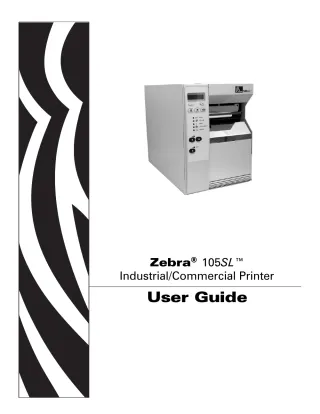
Zebra 105SL Industrial/Commercial Printer User Guide
Manual164 pagesPDF 4.5 MB
User guide for the Zebra 105SL industrial/commercial label printer: setup, media and ribbon loading, configuration, maintenance and specifications.
What this file really is
The old site listed this file as a manual for the Zebra 105S. The file is named for the Zebra 105S, but the document is the user guide for the Zebra 105SL.
Filed with · 1 model
Also filed with these models on the old site
Summary
What is in it
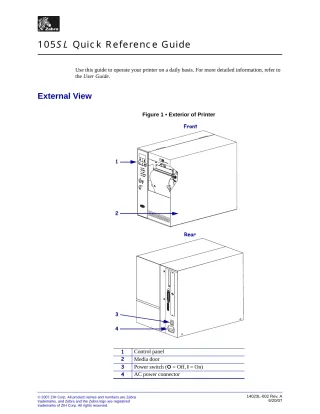
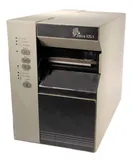
The user guide for the Zebra 105SL industrial/commercial thermal label printer. It shows the control panel and media compartment, then covers site selection, data interfaces and power, media and ribbon types, loading media in tear-off, peel-off, rewind and cutter modes, sensor and printhead adjustment, calibration, control panel configuration, PCMCIA PC cards, cleaning and fuse replacement, troubleshooting with self tests, and full printer specifications.
Its parts
- Introduction
- Printer Setup
- Operations
- Configuration
- PC Cards
- Routine Maintenance
- Troubleshooting
- Specifications
From the manual
Key facts from this manual
Each line names its page in the PDF.
User Guide 11342L-003 (revision A, 7/10/07) for the Zebra 105SL industrial/commercial thermal label printer; it names the 105SL only, not the 105S. It covers setup, data interfaces, media and ribbon, calibration, control panel settings, PC cards, maintenance, LCD error messages and troubleshooting, and the specifications.
- Printer
- Zebra 105SL industrial/commercial label printer, thermal transfer or direct thermal p. 1, 146
- Interfaces
- RS-232C DB9 serial (up to 50 ft) and IEEE 1284 bi-directional parallel, 36-pin (up to 10 ft), both standard p. 27, 147
- Network options
- Internal wired Ethernet print server (ZebraNet 10/100) or wireless print server (802.11b, Symbol and Cisco radio cards); ZebraNet PrintServer II p. 27, 147
- Resolution
- 203 dots/inch (8 dots/mm) or 300 dots/inch (12 dots/mm); 300 dpi printhead is an option p. 147, 149
- Print speed
- 2.4 in. (61 mm) through 8.0 in. (203 mm) per second, in 1 in. steps p. 149
- Print width
- 4.49 in. (114 mm) on roll media; 4.1 in. (104 mm) on fanfold p. 149
- Processor and memory
- 32 bit 133 MHz RISC; 6 MB SDRAM (3 MB available to user); flash with 2 MB non-volatile storage p. 147
- Options
- 300 dpi printhead, cutter, rewind, label peel and liner rewind, internal fanfold bin, black mark sensing, APL-I and APL-D firmware, Twinax or coax, PCMCIA Flash slot, 64 MB on-board flash p. 147
- Roll media
- 3 in. (76 mm) core; roll up to 8.0 in. (203 mm) in diameter; fanfold also supported p. 34, 150
- Minimum label length
- Tear-Off 0.7 in. (18 mm); Peel-Off 0.5 in. (13 mm); Cutter 1.5 in. (38 mm); Rewind 0.25 in. (6 mm) p. 150
- Ribbon
- 0.79 in. (20 mm) to 4.49 in. (114 mm) wide; 984 ft. (300 m) or 1476 ft. (450 m); 1.0 in. (25.4 mm) core; coated side out p. 149
- Power
- Universal power supply, 90-264 VAC, 47-63 Hz p. 146
- Operating temperature
- Thermal transfer 41° to 104°F (5° to 40° C); direct thermal 32° to 104°F (0° to 40° C); 20 to 85% humidity non-condensing p. 146
- Size and weight
- 15.5 in. (394 mm) high, 11.2 in. (283 mm) wide, 19.5 in. (495 mm) deep; 55 lb (25 kg) p. 146
What this manual walks you through
- Reading the control panel buttons and lights p. 17
- Choosing and connecting a data interface p. 27, 28, 29
- Connecting the printer to power p. 30
- Choosing media: labels, tag stock, RFID, roll and fanfold p. 33, 34
- Calibrating the printer for media and ribbon p. 79
- Installing a PCMCIA card p. 108
- Replacing the fuse p. 120
- Clearing LCD error messages p. 123, 124, 125, 126
Good to know
- Turn the printer off before connecting data cables; connecting with power on may damage it. p. 28
- Do not turn off the printer while it is defragmenting memory. p. 126
- Ethernet cables need no shielding, but all other data cables must be fully shielded. p. 28
- The cutter catch tray and the internal fanfold bin are not compatible with the rewind and peel options. p. 147
- The printhead may be hot enough to cause severe burns; let it cool first. p. 125
Questions this manual answers
What does RIBBON OUT mean on a Zebra 105SL?
In thermal transfer mode the ribbon is missing or loaded wrong. If you are using direct thermal media, set the printer for Direct Thermal mode instead. p. 123
What fuse does the Zebra 105SL use?
A metric 5 x 20 mm IEC fuse rated F5A, 250 V. p. 120
What does HEAD COLD mean on the 105SL?
The printhead is near its lower operating temperature. Keep printing; if it stays, move the printer somewhere warmer or check the printhead data cable. p. 125
Can the Zebra 105SL print over a network?
Yes, with the optional internal wired Ethernet or wireless Ethernet print server. p. 27
How wide can the 105SL print?
4.49 in. (114 mm) on roll media and 4.1 in. (104 mm) on fanfold media. p. 149
Contents
Chapters and sections
Each line opens the PDF at its page.
- Declaration of Conformity3
- About This Document9
- Introduction15
- Printer Setup23
- Operations37
- Configuration81
- PC Cards107
- Routine Maintenance111
17 more lines, from page 121 on
The whole text · 21 parts
Read the manual here as text
Its text as extracted from the PDF, unedited, in parts; each page opens the PDF at that page.
- Declaration of Conformity1-4
- Contents5-8
- About This Document9-14
- Introduction15-22
- Printer Setup23-36
- Operations, pages 37 to 4537-45
- Operations, pages 46 to 5446-54
- Operations, pages 55 to 6355-63
- Operations, pages 64 to 7264-72
- Operations, pages 73 to 8073-80
- Configuration, pages 81 to 8981-89
- Configuration, pages 90 to 9890-98
- Configuration, pages 99 to 10699-106
- PC Cards107-110
- Routine Maintenance111-120
- Troubleshooting, pages 121 to 128121-128
- Troubleshooting, pages 129 to 136129-136
- Troubleshooting, pages 137 to 144137-144
- Specifications145-152
- Glossary153-156
- Index157-164
The file