Manual · Wizcom
QuickLink-Pen Elite Operation Manual
Manual75 pagesPDF 1.8 MB
Operation manual for the WizCom QuickLink-Pen Elite, a handheld pen scanner that reads printed text and images into memory or a PC.
Covers · 1 model
The models it covers
Summary
What is in it
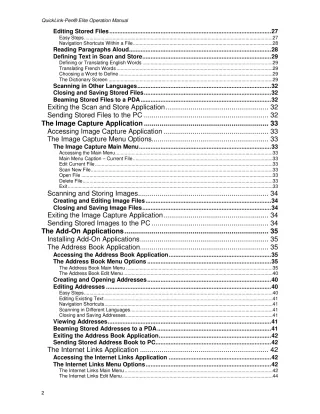
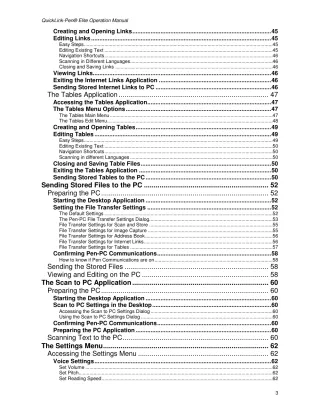
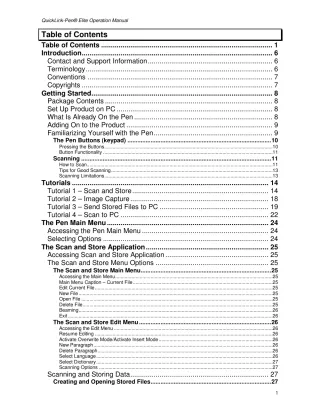
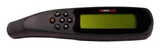
WizCom's operation manual for the QuickLink-Pen Elite, a pen-shaped scanner rolled over printed text like a highlighter. It covers the pen buttons and how to scan, four tutorials, the Scan and Store and Image Capture applications, the Address Book, Internet Links and Tables add-ons, the built-in dictionaries, sending stored files to a PC, scanning text straight into PC applications, beaming to a PDA, the settings and information menus, care, batteries, technical data and troubleshooting.
Its parts
- Introduction
- Getting Started
- Tutorials
- The Pen Main Menu
- The Scan and Store Application
- The Image Capture Application
- The Add-On Applications
- Sending Stored Files to the PC
- The Scan to PC Application
- The Settings Menu
- The Information Menu
- General Tools and Options
- Additional Information
- Troubleshooting
From the manual
Key facts from this manual
Each line names its page in the PDF.
Operation manual for the WizCom QuickLink-Pen Elite, a handheld pen scanner that scans printed text and small images, stores them, defines words in built-in dictionaries and sends data to a PC or by infrared to PDAs and smartphones. It covers setting the Pen up on a PC, its applications and settings, Pen-PC communications, care, technical data and troubleshooting.
- Device
- Handheld pen scanner that scans printed text and small images, stores them, and sends data to a PC p. 6
- PC connection
- USB cable to the PC-Link connector, using serial communications; Infra-Red as an alternative p. 7, 63
- Infrared beaming
- Sends data to IrDA OBEX-compliant PDAs or Smartphones p. 6
- Batteries
- Two AAA batteries; use only high-quality alkaline p. 71
- Scanning languages
- English, French, Spanish and German installed; more as add-ons p. 8, 9
- Dictionaries
- American Heritage Concise Dictionary, English->French and French->English p. 8
- Text to speech
- Reads aloud stored English texts p. 8
- Image sensor
- 128 pixels linear array image sensor p. 71
- Size
- Length with cover 163 mm (6.4"), width 38 mm (1.5"), height 23 mm (1") p. 71
- Memory
- Flash memory card socket in the back; memory can be extended with the WizCom Memory Extension Kit (MEK) p. 9, 71
- In the box
- Pen, USB cable, CD-ROM, pen case with Opticard, two AAA batteries, earphones with volume control, manuals p. 8
- Baud rate
- 115,200 by default for Pen-PC communications p. 63
- Infrared drivers
- ACT-IR220L, ADAPTEC, CRYSTAL, ESI, PARALLAX p. 63
- Auto shut-off
- After 2 minutes without scanning or a key press; adjustable p. 64
What this manual walks you through
- Setting the product up on a PC from the CD-ROM p. 8
- Adding applications, scanning languages and interface languages p. 9
- Setting up serial or Infra-Red Pen-PC communications p. 63
- Checking battery and memory status and compacting memory p. 65
- Caring for and cleaning the Pen p. 71
- Optimizing the Pen file system from the Desktop application p. 73
- Restoring a Pen when options are missing p. 74
- Fixing Pen-PC communication, Word not found and calibration errors p. 74
- Fixing power, read-aloud, earphone and scanning messages p. 75
Good to know
- Do not cancel the Compact Memory procedure, or the flash card will be damaged. p. 65
- Never clean, wipe or tamper with the Pen's tip; it holds a sensitive electronic eye. p. 71
- Do not abort Optimize Pen File System before it completes, or all data on the Pen may be lost. p. 73
- Lower the earphone volume control before using the earphones. p. 8
- Only text scanned with the scanning language set to English can be read aloud. p. 63
Questions this manual answers
What batteries does the WizCom QuickLink Pen use?
Two AAA batteries; the manual says to use only high-quality alkaline batteries. p. 71
How do I connect the QuickLink Pen to my computer?
Run Set Up Product on PC from the CD-ROM once, then connect the USB cable from the PC to the Pen's PC-Link connector. Infra-Red is also possible. p. 7, 8
Why does the Pen show Scanned too fast?
Scan again more slowly. p. 75
Why can't I hear the QuickLink Pen read aloud?
Reading aloud works only for English texts, so check that the scanning language is English, the volume is high enough, and the earphone plug clicks in firmly. p. 75
What should I do if the Pen shuts off when I plug in earphones?
Push the earphone plug firmly into its outlet until it clicks; a loose plug makes the Pen switch off. p. 75
The whole text · 8 parts
Read the manual here as text
Its text as extracted from the PDF, unedited, in parts; each page opens the PDF at that page.
The file