


Manual · WAY Systems
WAY Systems MTT Manual
Manual2 pagesPDF 846 KB
Both pages are below, each with its text.
Covers · 1 model
The models it covers
From the manual · read page by page
Key facts from this manual
Each line names its page in the PDF.
Two-page quick reference guide for the WAY Systems MTT 1500, a mobile card payment terminal that runs the WAY2Pay application over the GPRS network and prints receipts on an infrared printer. It walks through power and navigation, logon online or offline, a sale, printing receipts, and logoff with reconciliation.
- Device
- Mobile card payment terminal running the WAY2Pay application from the main phone menu p. 1
- Network
- GPRS, with an offline mode that stores transactions for later upload p. 2
- Printing
- Infrared link to the printer, MTT pointed at it no more than 20 inches away p. 1
- Verification
- Optional CVV2 code and AVS billing ZIP code and street number prompts p. 2
- Keys
- Cancel/Power key, pound (#) key, up/down and left/right control keys p. 1
- Printer power saving
- Printer sleeps when idle several minutes and wakes when the MTT prints p. 1
What this manual walks you through
- Turning the MTT on or off and moving through menus p. 1
- Logging on in online mode over GPRS p. 1, 2
- Working offline when out of GPRS coverage p. 2
- Running a sale transaction p. 2
- Printing a receipt or reconciliation report p. 1
- Logging off and reconciling p. 2
Good to know
- Offline transactions are run at the merchant's risk; final authorization waits until they are uploaded. p. 2
- Do not move the MTT until the receipt begins to print. p. 1
- Returns, voids, authorizations and force transactions are described in the separate MTT 1500 User Guide. p. 1
Questions this manual answers
How do I turn on the WAY Systems MTT?
Press and hold the Cancel/Power key for at least 1 second. p. 1
How do I print a receipt from the MTT 1500?
Turn the printer on, then point the MTT at the printer's infrared receiver, no more than 20 inches away, when the print prompt appears. p. 1
Can the MTT take payments without a signal?
Yes, Offline Mode stores transactions on the MTT and uploads them at logoff or reconciliation; they run at the merchant's risk. p. 2
How do I enter a sale amount on the MTT?
Enter dollars and cents with no decimal point, for example 2000 for $20.00. p. 2
The file
Size and text
Every page · 2
Read it here
Each page as it is printed, and its words beside it, so a phone can search and copy them.
Page1of 2
Open in the PDF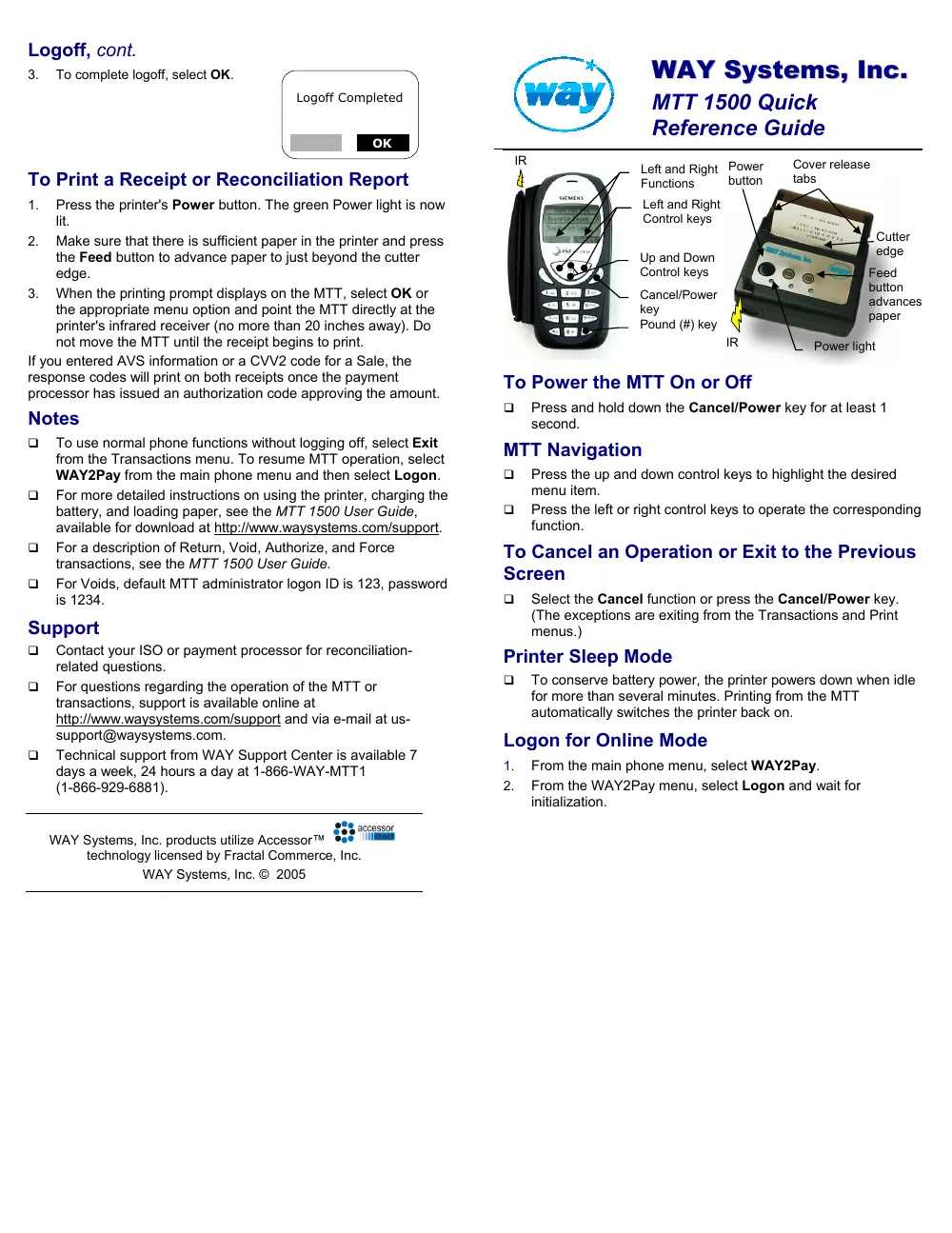
The text of page 1, from the PDF itself
Logoff, cont. 3.
WAY Systems, Inc.
To complete logoff, select OK.
MTT 1500 Quick Reference Guide
Logoff CompletedOKIR
To Print a Receipt or Reconciliation Report Press the printer's Power button. The green Power light is now lit. 2. Make sure that there is sufficient paper in the printer and press the Feed button to advance paper to just beyond the cutter edge. 3. When the printing prompt displays on the MTT, select OK or the appropriate menu option and point the MTT directly at the printer's infrared receiver (no more than 20 inches away). Do not move the MTT until the receipt begins to print. If you entered AVS information or a CVV2 code for a Sale, the response codes will print on both receipts once the payment processor has issued an authorization code approving the amount.
Left and Right Power button Functions Left and Right Control keys
1.Notes ‰‰‰ ‰
To use normal phone functions without logging off, select Exit from the Transactions menu. To resume MTT operation, select WAY2Pay from the main phone menu and then select Logon. For more detailed instructions on using the printer, charging the battery, and loading paper, see the MTT 1500 User Guide, available for download at http://www.waysystems.com/support. For a description of Return, Void, Authorize, and Force transactions, see the MTT 1500 User Guide. For Voids, default MTT administrator logon ID is 123, password is 1234.
‰
‰
Contact your ISO or payment processor for reconciliationrelated questions. For questions regarding the operation of the MTT or transactions, support is available online at http://www.waysystems.com/support and via e-mail at ussupport@waysystems.com. Technical support from WAY Support Center is available 7 days a week, 24 hours a day at 1-866-WAY-MTT1 (1-866-929-6881).
WAY Systems, Inc. products utilize Accessor™ technology licensed by Fractal Commerce, Inc. WAY Systems, Inc. © 2005
Cutter edge
Up and Down Control keys
Feed button advances paper
Cancel/Power key Pound (#) key IR
Power light
To Power the MTT On or Off ‰
Press and hold down the Cancel/Power key for at least 1 second.
MTT Navigation ‰ ‰
Press the up and down control keys to highlight the desired menu item. Press the left or right control keys to operate the corresponding function.
To Cancel an Operation or Exit to the Previous Screen ‰
Support ‰
Cover release tabs
Select the Cancel function or press the Cancel/Power key. (The exceptions are exiting from the Transactions and Print menus.)
Printer Sleep Mode ‰
To conserve battery power, the printer powers down when idle for more than several minutes. Printing from the MTT automatically switches the printer back on.
Logon for Online Mode 1. 2.
From the main phone menu, select WAY2Pay. From the WAY2Pay menu, select Logon and wait for initialization.
Page2of 2
Open in the PDF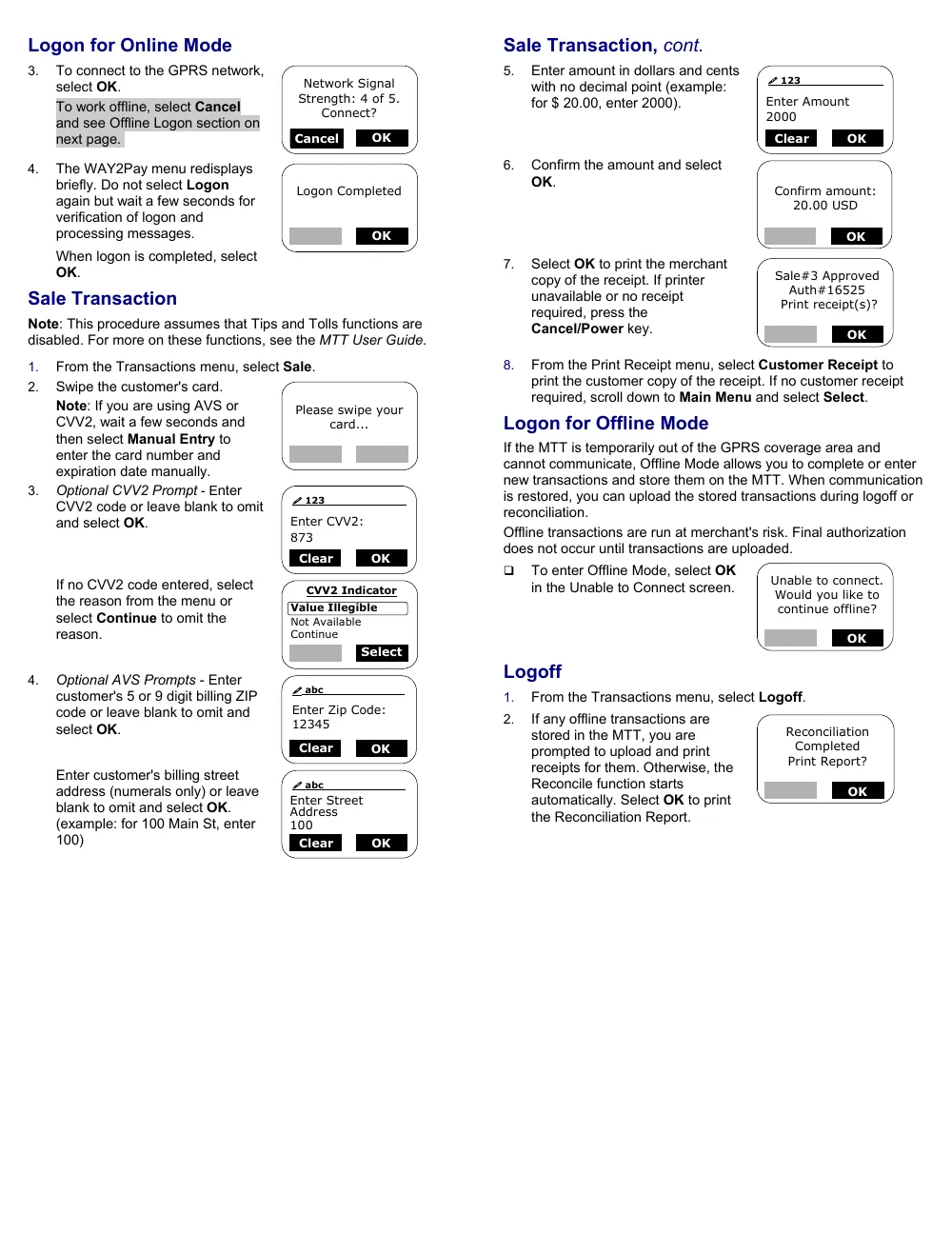
The text of page 2, from the PDF itself
Logon for Online Mode 3.
4.
To connect to the GPRS network, select OK. To work offline, select Cancel and see Offline Logon section on next page. The WAY2Pay menu redisplays briefly. Do not select Logon again but wait a few seconds for verification of logon and processing messages.
Sale Transaction, cont. Network Signal Strength: 4 of 5. Connect? Cancel
5.OKLogon Completed
Confirm the amount and select OK.
7.
From the Transactions menu, select Sale. Swipe the customer's card. Note: If you are using AVS or Please swipe your CVV2, wait a few seconds and card... then select Manual Entry to OK enter the card number and expiration date manually. Optional CVV2 Prompt - Enter 123 CVV2 code or leave blank to omit Enter CVV2: and select OK. 873
Clear
OK
Confirm amount: 20.00 USD
8.
Select OK to print the merchant copy of the receipt. If printer unavailable or no receipt required, press the Cancel/Power key.
Sale#3 Approved Auth#16525 Print receipt(s)? OK
From the Print Receipt menu, select Customer Receipt to print the customer copy of the receipt. If no customer receipt required, scroll down to Main Menu and select Select.
Logon for Offline Mode If the MTT is temporarily out of the GPRS coverage area and cannot communicate, Offline Mode allows you to complete or enter new transactions and store them on the MTT. When communication is restored, you can upload the stored transactions during logoff or reconciliation. Offline transactions are run at merchant's risk. Final authorization does not occur until transactions are uploaded. ‰
CVV2 Indicator
To enter Offline Mode, select OK in the Unable to Connect screen.
Value Illegible Not Available Continue
Unable to connect. Would you like to continue offline? OK
Select
4.
Optional AVS Prompts - Enter customer's 5 or 9 digit billing ZIP code or leave blank to omit and select OK.
Logoff abc
Enter Zip Code: 12345 Clear
Enter customer's billing street address (numerals only) or leave blank to omit and select OK. (example: for 100 Main St, enter 100)
OK
OK
Note: This procedure assumes that Tips and Tolls functions are disabled. For more on these functions, see the MTT User Guide.
If no CVV2 code entered, select the reason from the menu or select Continue to omit the reason.
Enter Amount 2000OKSale Transaction3.123Clear6.
When logon is completed, select OK.
1. 2.
Enter amount in dollars and cents with no decimal point (example: for $ 20.00, enter 2000).
OK
abc
Enter Street Address 100 Clear OK
1.
From the Transactions menu, select Logoff.
2.
If any offline transactions are stored in the MTT, you are prompted to upload and print receipts for them. Otherwise, the Reconcile function starts automatically. Select OK to print the Reconciliation Report.
Reconciliation Completed Print Report? OK