Manual · Wasp
Wasp WLP 4170 CCD Programming Guide
Manual40 pagesPDF 716 KB
Programming guide for the Wasp WLP 4170 CCD keyboard wedge bar code scanner, with setup bar codes and test symbols.
Filed with · 1 model
Also filed with these models on the old site
Summary
What is in it
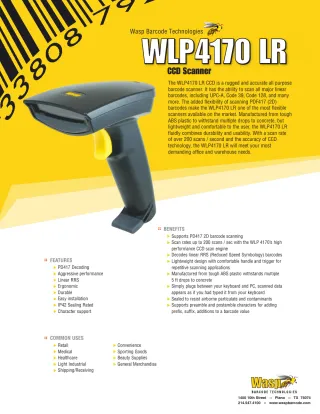
The programming guide for the Wasp WLP 4170 CCD Scanner, a handheld CCD bar code reader that connects between a PC and its keyboard. It explains installation with the keyboard Y-cable, quick start, the bar code symbologies the scanner reads, and the setup and configuration bar codes for factory default, beep volume, intercharacter delay, keyboard wedge and other options, with bar code test symbols in the appendix.
Its parts
- Introduction
- Installation
- Quick Start
- Bar Code Symbologies
- Setup & Configuration
From the manual · read page by page
Key facts from this manual
Some pages are scans or cannot be read; this says only what the readable text supports. Each line names its page in the PDF.
Programming guide (Version 1.0, 2002) for the Wasp WLP 4170 CCD Scanner, a keyboard wedge barcode reader; the guide names only the WLP 4170, not the WLP 4170 LR. It shows how to install the scanner between keyboard and PC and how to change its settings by scanning programming bar codes, symbology by symbology, with test symbols, a specification page and an ASCII table.
- Device
- WLP 4170: hand held CCD bar code reader with no moving parts, wedged between computer and keyboard p. 4
- Interface
- WLP 4170: PC AT/XT and PS/2 keyboard wedge; needs no software or drivers p. 1, 4
- Cabling
- Y-cable with Din 5 male and female ends; Din 5 to Din 6 converter cable enclosed p. 5
- Power
- WLP 4170: +5 VDC ± 0.25V; 180 mA operating, 100 mA standby, 25 mA sleep p. 37
- Optics
- WLP 4170: 3.2 in scanning width, 0 to 3 in depth of field, 200 scans/second p. 37
- Sensor and light
- WLP 4170: 2,048 pixel CCD array, 660 nm red visible LED p. 37
- Smallest bar
- X-dimensions as low as 4 mils (0.10mm) p. 7
- Symbologies
- Code 39, Code 93, Code 128, Interleaved 2 of 5, UPC-A, UPC-E, EAN/JAN-8, EAN/JAN-13, Codabar, MSI Plessey, PDF417 p. 7
- Size and weight
- WLP 4170: W3.5 x T4.5 x H7.2 in; 150 g without cable; 6 ft cable p. 37
- Environment
- WLP 4170: operating 0 to 40°C, storage -40 to 60°C, 5% to 90% humidity non-condensing p. 37
- Settings memory
- Settings kept in non-volatile memory when the PC is turned off p. 8
- Scanning modes
- Default trigger with 10 second timeout, or continuous p. 13
- Prefix and suffix
- Preamble and postamble of up to 22 characters each p. 14
- Intercharacter delay
- Default 2ms, adjustable from slowest to fastest p. 11
What this manual walks you through
- Installing the scanner between the PC and keyboard p. 5
- Programming a setting with the Begin, Set and Exit bar codes p. 8
- Restoring the factory default settings p. 9
- Setting the beep volume p. 10
- Adjusting the intercharacter delay p. 11
- Keyboard wedge options: function keys, Caps Lock, laptop or no keyboard p. 12
- Choosing trigger or continuous scanning mode p. 13
- Adding prefix and suffix characters p. 14, 39
- Enabling each symbology and setting check digit and length options p. 15, 16, 17, 18
- Testing with the printed bar code test symbols p. 33, 34, 35, 36
Good to know
- Turn off the computer before connecting the scanner. p. 5
- Enable the Laptop/No Keyboard setting when the scanner is used with a laptop or a PC without a keyboard. p. 12
- In continuous mode the same bar code cannot be read twice in a row. p. 13
- A symbology must be enabled before its test symbol will scan. p. 33
Questions this manual answers
How do I reset the Wasp WLP 4170 to factory defaults?
Scan the Begin bar code, then the Default bar code on the Factory Default page. p. 9
Why does my WLP 4170 drop or scramble characters?
Change the intercharacter delay: decrease it if characters are missing, increase it if stray or scrambled characters appear. p. 11
Does the WLP 4170 need drivers?
No. It needs no software or drivers and enters data as keyboard data. p. 1
Can I use the WLP 4170 with a laptop?
Yes, after enabling the Laptop/No Keyboard setting in the keyboard wedge options. p. 12
The whole text · 4 parts
Read the manual here as text
Its text as extracted from the PDF, unedited, in parts; each page opens the PDF at that page.
The file