Manual · Wasp
WDT2200 User Reference Guide
Manual20 pagesPDF 743 KB
User reference guide for the Wasp WDT2200 portable data collection terminal: specs, keypad, batteries, commands and FormCaching.
Covers · 1 model
The models it covers
Summary
What is in it
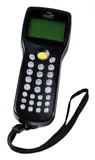
The user reference guide for the Wasp WDT2200, a small DOS compatible portable data collection terminal with a built-in laser or CCD scanner and an optional RS232 charging and communication cradle. It covers the technical specifications, a quick start (battery, cradle, charging, host connection), the interface port, the keypad modes, triggering the scanner and application development with AppGen or C, the power system and low battery warnings, operation with system commands and the SET menu, upload and download, and the built-in FormCaching application.
Its parts
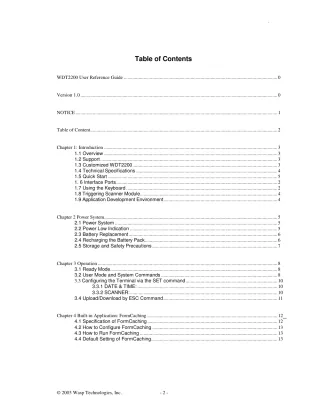
- Introduction
- Power System
- Operation
- Built-in Application: FormCaching
From the manual · read page by page
Key facts from this manual
Some pages are scans or cannot be read; this says only what the readable text supports. Each line names its page in the PDF.
Wasp user reference guide (Version 1.0) for the WDT2200 portable data collection terminal. It gives the technical specifications, battery installation, charging and replacement, the keyboard modes and User mode system commands, and file transfer by Kermit or ESC commands. It also explains how to configure and run the built-in FormCaching data entry application.
- What it is
- DOS-compatible handheld data collection terminal that runs programs written in C p. 4
- Scanner
- Laser or CCD scanner depending on the model, with a built-in decoder p. 4, 11
- Symbologies
- UPC/EAN, Code 39, Interleave 2 of 5, CODABAR, MSI, Code 128, Code 93, Code 32 p. 5
- Batteries
- 3.7V/880mAH Li-ion main battery; CR2032 3V/190mAH lithium backup battery p. 5, 12
- Interface
- RS232 port at the tail of the unit, through the charging/communication cable or a cradle p. 9
- Display
- 128 x 64 pixel LCD p. 5
- Size and weight
- 165mm x 60mm x 35mm; 230g p. 5
- Operating environment
- -5 C to 50 C; 5% to 95% RH, not condensing p. 5
- Ruggedness
- IP54 sealing; multiple 1.5M free drops to a concrete floor p. 5
- Processor
- NEC V25 (16 bit), 80XX compatible; DOS compatible operating system p. 5
- Programming
- C language, Turbo C, Visual C, Microsoft C, Borland C, AppGen, built-in FormCaching p. 5, 11
- Charging
- 2 to 3 hours, in the cradle or through the charging/communication cable p. 7
- Backup battery life
- Up to 3 years with the unit off, when the main battery stays in the unit p. 12
- Status LED
- Dual color: green for good, red for bad p. 5
What this manual walks you through
- Removing the backup battery isolator and installing the main battery p. 7
- Charging in the cradle and reading its LEDs p. 7, 13
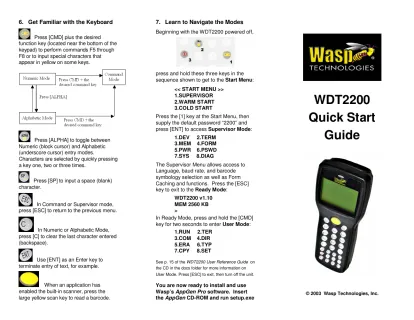
- Using the numeric, command and alpha keyboard modes p. 9, 10
- Replacing the main and backup batteries p. 13
- Running the User mode system commands p. 15, 16
- Transferring files with the Kermit server p. 16
- Using the terminal as a dumb terminal to a host p. 16
- Setting the date, time and scanner options with SET p. 17
- Uploading and downloading by remote ESC commands p. 18
- Configuring and running the FormCaching data entry application p. 19, 20
Good to know
- Once the backup battery is used up or removed, all data in the terminal is lost; back up data before replacing it. p. 12, 13
- After the main battery low warning, the battery lasts about 20 to 40 minutes before the unit may turn itself off. p. 12
- Charge the Li-Ion pack only between 32°F and 113°F (0°C to 45°C). p. 14
- A file deleted with ERA cannot be recovered. p. 16
- FormCaching cannot be redefined while the FORM.DAT data file exists. p. 20
Questions this manual answers
What barcodes can the Wasp WDT2200 read?
UPC/EAN, Code 39, Interleave 2 of 5, CODABAR, MSI, Code 128, Code 93 and Code 32. p. 5
How long does the WDT2200 battery take to charge?
2 to 3 hours. In the cradle the charge LED turns from red to green when the battery is full. p. 7, 13
What happens if the WDT2200 backup battery dies?
All data in the terminal is lost, so back up the data before replacing the CR2032 backup battery. p. 12, 13
How do I copy files between the WDT2200 and a PC?
Select COM in User mode to put the terminal in Kermit server mode, then use send, get, remote dir or remote del from the PC. p. 16
How big and heavy is the WDT2200?
165mm x 60mm x 35mm, weighing 230g. p. 5
The whole text · 2 parts
Read the manual here as text
Its text as extracted from the PDF, unedited, in parts; each page opens the PDF at that page.
The file