Manual · Wasp
CCD Scanner Programming Guide
Manual44 pagesPDF 1.8 MB
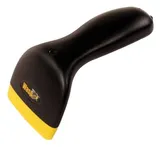
Programming guide for the Wasp WCS3900 Series CCD bar code scanners: installation on USB or PS/2 and setup bar codes.
Names · 1 model
The models it names
Filed with · 1 model
Also filed with these models on the old site
Summary
What is in it
The programming guide for the Wasp WCS3900 Series CCD hand held bar code scanners, which plug into a PC's USB or PS/2 port and enter data as keyboard data. It introduces CCD scanning and bar code symbologies, shows USB and PS/2 installation and a quick start, then gives the setup and configuration bar codes: factory default, continuous scan mode, beep and delay, case, keyboard language, preamble and postamble, terminator, and per-symbology settings. Appendices hold test symbols, an ASCII table and technical specifications.
Its parts
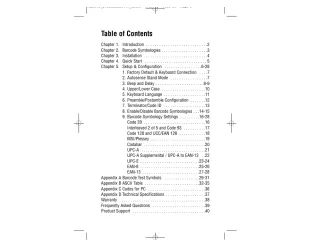
- Introduction
- Barcode Symbologies
- Installation
- Quick Start
- Setup & Configuration
From the manual
Key facts from this manual
Each line names its page in the PDF.
Wasp CCD Scanner Programming Guide (0707US) for the WCS3900 Series handheld CCD scanners, in USB and PS2 versions. It shows how to connect the scanner, reset it, and change its settings by scanning programming barcodes, and it lists the technical specifications.
- Device
- Handheld CCD barcode scanner with no moving parts; enters data as keyboard data, no software or drivers needed p. 2, 4
- Interface
- USB or PS/2; the PS2 version plugs in between the PC keyboard port and the keyboard (Din 6 male and female) p. 6, 39
- Optics
- 660 nm red visible LED; 2088 linear imager p. 39
- Scanning width
- 3.00” (76mm) p. 39
- Scan rate
- 45 scans / second; decode rate 100 scans / second p. 39
- Resolution
- X-dimensions as low as 5 mils (0.005 in/0.13mm) p. 5
- Power
- +5 VDC ± 5%; standby <30 mA, working <95 mA p. 39
- Size and weight
- L7.40” x W3.62” x H1.06”; 125 g without cable p. 39
- Cable and housing
- 6 ft cable; ABS housing p. 39
- Environment
- Operating 0˚C to 50˚C; storage -20˚C to 60˚C; 20% to 80% humidity, non-condensing p. 39
- Default symbologies
- On: Interleaved 2 of 5, Code 128, Codabar, Code 39, UPC A, UPC E, EAN 8, EAN 13; off: MSI Plessey, Code 93 p. 16, 17
- Settings memory
- Kept in non-volatile memory when the PC is turned off p. 8
- Keyboard languages
- U.S. (default), German, French, Spanish, Italian p. 13
- Terminator
- CR (default), Tab, None, Space, LF, ESC or CR + LF p. 15
What this manual walks you through
- Installing the USB or PS2 scanner p. 6
- Resetting the scanner to factory defaults p. 9
- Turning on continuous scanning for use in a stand p. 9
- Setting the beep and the interblock and intercharacter delays p. 10, 11
- Setting Caps Lock handling and keyboard language p. 12, 13
- Adding a preamble or postamble to scanned data p. 14
- Choosing the terminator and Code ID characters p. 15
- Enabling symbologies and setting minimum and maximum lengths p. 8, 16, 17
- Check digit and length settings for each symbology p. 18, 19, 20, 21, 22
- Answers to common setup questions p. 41
Good to know
- If stray or scrambled characters appear, increase the intercharacter delay. p. 10
- In continuous scan mode the trigger does nothing; scanning the default barcode turns the mode off. p. 9
- Caps Lock Auto is for PC XT/AT only and can make scanning poor on some PCs. p. 12
- Turn the computer off before connecting the PS2 scanner. p. 6
Questions this manual answers
How do I reset a Wasp WCS3900 scanner to factory settings?
Scan the Factory Default barcode in the Setup & Configuration chapter. p. 9
Does the Wasp WCS3900 need a driver?
No; it needs no software or drivers and enters data as keyboard data. p. 2
How do I use the WCS3900 hands free in a stand?
Scan the Continuous Scan Mode Enable barcode; the trigger then does nothing until the default barcode is scanned. p. 9
How do I set up the WCS3900 for a laptop?
Scan the Notebook barcode under Keyboard Connection. p. 9, 41
Why does my WCS3900 type scrambled characters?
The guide says to increase the intercharacter delay to slow the transfer rate; the default is 140us. p. 10
Contents
Chapters and sections
Each line opens the PDF at its page.
The whole text · 5 parts
Read the manual here as text
Its text as extracted from the PDF, unedited, in parts; each page opens the PDF at that page.
The file