Manual · VeriFone
PAYware Mobile User's Guide for iOS
Manual39 pagesPDF 1.6 MB
User's guide for the VeriFone PAYware Mobile iOS payment app with the Card Encryption Sleeve and e100 Secure Audio Reader.
Filed with · 1 model
Also filed with these models on the old site
Summary
What is in it
VeriFone's user's guide for PAYware Mobile, a mobile payment app for iPhone, iPod touch and iPad that works with the PAYware Connect payment gateway. It covers downloading and launching the app, the initial setup assistant and merchant settings, registering the device, live, test drive and demo modes, settings for the PAYware Mobile Card Encryption Sleeve and the e100 Secure Audio Reader, processing transactions, reports, and the merchant portal for user management and settlement.
Its parts
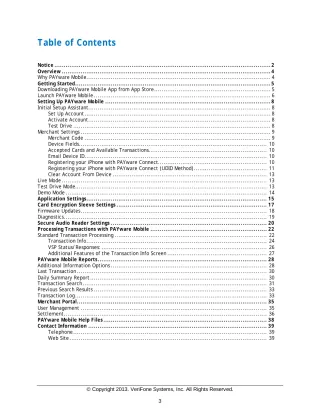
- Overview
- Getting Started
- Setting Up PAYware Mobile
- Application Settings
- Card Encryption Sleeve Settings
- Secure Audio Reader Settings
- Processing Transactions with PAYware Mobile
- PAYware Mobile Reports
- Merchant Portal
- PAYware Mobile Help Files
- Contact Information
From the manual
Key facts from this manual
Each line names its page in the PDF.
User's guide for the VeriFone PAYware Mobile application for iOS, dated May 17, 2013, used with the PAYware Mobile Card Encryption Sleeve or the PAYware Mobile e100 Secure Audio Reader (printed under those names; M087 is not printed). It covers setting up and registering the iPhone with PAYware Connect, the reader settings, firmware updates and diagnostics, and processing and reviewing card transactions.
- What it is
- VeriFone's mobile payment application for iPhone, iPod touch and iPad running OS 4.0 or higher p. 4
- Card readers
- PAYware Mobile Card Encryption Sleeve and PAYware Mobile e100 Secure Audio Reader, together called the Secure Card Reader p. 4
- Sleeve compatibility
- Card Encryption Sleeve: iPhone 3G and iPhone 3GS only; not the iPod touch p. 4, 17
- e100 compatibility
- e100 Secure Audio Reader: iPad 2, 3, 4; iPhone 3, 3G S, 4, 4.5, 5; iPod touch 1G, 2G, 3G, 4G, 5G p. 4
- Card entry
- Swipe through the Secure Card Reader, or key the card number in by hand p. 23
- Encryption
- Swiped card data is encrypted with VeriShield Protect (VSP) at the swipe p. 4
- Payment gateway
- PAYware Connect, a hosted gateway that routes transactions to U.S. payment processing companies p. 4
- App download
- Free download from the App Store p. 5
- Transaction types
- Sale, Pre-Auth, Voice-Auth and Refund; Add Tip, Refund and Void on a just-processed transaction p. 23, 25
- Operating modes
- Live Mode, Test Drive Mode and Demo Mode (Demo Mode only for specific VeriFone Partners) p. 13, 14
- Swipe timeout
- Default 30 seconds for both readers p. 17, 21
- Reader firmware
- Bootloader, firmware, VSP firmware and reader encryption are updated from the app; a button turns green when an update is needed p. 18
- Service card
- PAYware Mobile Service Card, included with the Card Encryption Sleeve, for Update Reader Encryption when advised p. 18
What this manual walks you through
- Using the Initial Setup Assistant to set up and activate an account p. 8
- Registering the iPhone with PAYware Connect, including the UDID method p. 10, 11
- Clearing the account from a device p. 13
- Switching between Live, Test Drive and Demo modes p. 13, 14
- Setting the Card Encryption Sleeve options p. 17
- Updating the reader's bootloader, firmware and encryption p. 18
- Running reader diagnostics and emailing them to support p. 19
- Setting up the e100 Secure Audio Reader p. 20, 21
- Processing a sale, pre-auth, voice-auth or refund p. 22, 23, 24
- Reading the transaction results and the VSP shield icon p. 24, 25
Good to know
- Switching between Demo Mode and Live Mode requires Clear Account From Device first. p. 13
- Clear Account From Device erases the Merchant Code and Device Key and cannot be undone. p. 13
- Running diagnostics resets the Transaction Log, which cannot be undone. p. 19
- Before live business, the guide advises a $1.00 transaction with a real card, settled and checked against the bank account. p. 22
- The manual states PAYware Mobile is PA-DSS 1.2 validated by the PCI SSC. p. 4
Questions this manual answers
Which iPhones work with the PAYware Mobile Card Encryption Sleeve?
Only the iPhone 3G and iPhone 3GS; it does not fit the iPod touch, though cards can be keyed in by hand there. p. 17
Does the VeriFone e100 Secure Audio Reader work with an iPad or iPhone 5?
Yes. It is listed as tested with iPad 2, 3 and 4, iPhone 3 through 5, and iPod touch 1G to 5G. p. 4
How do I update the firmware on a PAYware Mobile card reader?
Open Menu, then Secure Card Reader, and tap Update/Restore Firmware; the button is green when an update is needed. p. 17, 18
Can PAYware Mobile take a card without the reader attached?
Yes. The card number, expiration date, CVC/CVV and ZIP code can be keyed in by hand, then submitted. p. 24
Is the PAYware Mobile app free?
Yes, it is a free download from the App Store. p. 5
Contents
Chapters and sections
Each line opens the PDF at its page.
The whole text · 7 parts
Read the manual here as text
Its text as extracted from the PDF, unedited, in parts; each page opens the PDF at that page.
The file