Manual · VeriFone
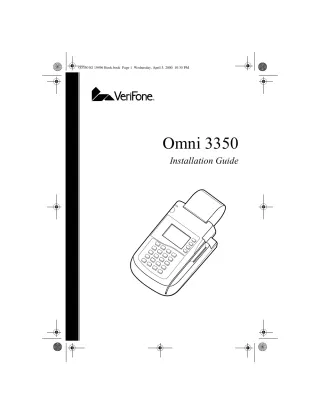
Omni 3350 Installation Guide
Manual40 pagesPDF 1.3 MB
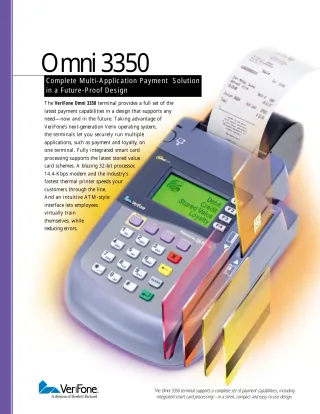
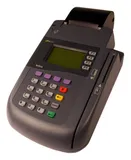
Installation guide for the VeriFone Omni 3350 card payment terminal with built-in printer, smart card and magnetic card readers.
Covers · 1 model
The models it covers
Summary
What is in it
The installation guide for the VeriFone Omni 3350 terminal. It walks through choosing a location, unpacking, the terminal's features and back-panel ports, connecting the phone line and power pack, loading printer paper, installing MSAM cards, and using the smart card and magnetic card readers. It also covers connecting a PIN pad, smart card reader, bar code wand or CR 600 check reader, cable routing, cleaning, printer troubleshooting, service, specifications and certifications.
Its parts
- Install the Omni 3350
- Connect Optional Device(s)
- Cable Routing
- Clean the Terminal and Printer
- Printer Troubleshooting
- VeriFone Service and Support
- Specifications
- Declaration of Conformity
- Product Certifications
- Accessories and Documentation
From the manual · read page by page
Key facts from this manual
Each line names its page in the PDF.
The VeriFone installation guide (part number 22131, Revision B, 2000) for the Omni 3350 countertop payment terminal with built-in printer and smart card reader. It walks through placing and unpacking the terminal, connecting the telephone line, power pack and peripherals, loading printer paper and fitting MSAM cards, and lists specifications and accessory part numbers.
- Device
- Terminal with display, internal printer, magnetic stripe card reader and primary smart card reader p. 8
- Model number
- P093-300-XX p. 33
- Keys
- 12-key telephone-style keypad, eight function keys and four ATM-style keys beside the display p. 8
- Serial ports
- Two RJ45-type jacks: RS232 (CR 600 check reader or other peripheral) and PIN Pad (PIN pad, smart card reader or bar code wand) p. 11
- Modem versions
- High-speed modem (Telco and Telset ports), ISDN, or dial/leased-line (Canada only) p. 10, 11
- SAM slots
- Four micromodule-size SAM (MSAM) cardholders, plus one standard-size merchant smart card in the SAM drawer p. 9
- Power
- Terminal 25.5 V DC, 1.2 A; power pack input 100 - 250 V AC, 50 - 60 Hz, output 25.5 V DC, 1.57 A p. 31
- Power pack
- 05790-03 DC power pack p. 36
- Printer paper
- 58 mm (2.25 in) thermal paper; CRM0039 25 m (82 ft) roll, CRM0039-01 30-roll pack, CRM0040 33 m roll; spindle 02117-03 p. 37
- Operating environment
- 0° to 55° C (32° to 131° F); 15% to 90% relative humidity, no condensation p. 31
- Size and weight
- 78.5 mm high, 150 mm wide, 294.7 mm long; 1.28 kg (2.82 lb) p. 31
- Download cables
- 05651-xx MOD10-MOD10 terminal-to-terminal; 26263-xx to PC DB25F; 26264-xx to PC DB9F p. 36
- Peripheral cables
- 07041-xx MOD10-MDIN9 for CR 600; 07042-xx MOD10-4P4C for all VeriFone PIN pads; 07458-xx to CM 450 p. 36
- Mounting and line cord
- 07129-xx plastic base; 07456-01 swivel stand; 00124-17 2.1 m (7 ft) RJ11 telephone line cord p. 36
What this manual walks you through
- Choosing a location for the terminal p. 5
- Connecting the telephone line directly or as a pass-through p. 11, 12, 13
- Connecting and locking the power pack connector p. 13, 14
- Loading a paper roll and running the power-on printer test p. 15, 16, 17, 18
- Installing or replacing MSAM cards and the merchant smart card p. 18, 19, 20, 21, 22
- Reading smart cards and magnetic stripe cards p. 22, 23
- Connecting a PIN pad, smart card reader or bar code wand p. 24, 25
- Connecting a CR 600 check reader p. 25, 26
- Cleaning the terminal and printer p. 27, 28
- Fixing a printer that does not print or has jammed paper p. 28, 29
Good to know
- The RAM is backed by a lithium battery that must not be replaced by the user. p. 2
- The terminal is for indoor use only; it is not waterproof or dustproof. p. 5
- RS232-type devices do not work on the PIN Pad port, and PIN pad devices do not work on the RS232 port. p. 24
- Cutting power during a transaction may lose transaction data not yet stored in memory. p. 14
- The smart card reader should not be cleaned by the user. p. 27
Questions this manual answers
What do the Omni 3350 LED colors mean?
Steady green means power is on and flashing green means no paper. Steady red means a memory problem and flashing red means printer files are downloading. p. 8
What paper does the Omni 3350 printer use?
Single-ply thermal paper 58 millimeters (2.25 inches) wide and about 25 meters (82 feet) long. p. 15
How do I print a test page on the Omni 3350?
Turn the terminal off, then hold down the paper feed button while turning it on. The test prints for a few seconds. p. 18
What power supply does the Omni 3350 need?
The terminal runs on 25.5 V DC at 1.2 A from a DC power pack taking 100 - 250 V AC, 50 - 60 Hz. p. 31
Which Omni 3350 port does a bar code wand plug into?
The serial port marked with the Bar Code and PIN Pad icons, which also takes a PIN pad or smart card reader. p. 11
The whole text · 4 parts
Read the manual here as text
Its text as extracted from the PDF, unedited, in parts; each page opens the PDF at that page.
The file