Manual · Unitech
PT630 Beginner's Guide
Manual5 pagesPDF 276 KB
Beginner's guide for the Unitech PT630 portable terminal: Form Caching inventory scans and PC transfer with PTComm Manager.
Covers · 1 model
The models it covers
Summary
What is in it
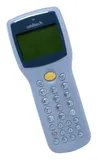
A short beginner's guide for the PT630 programmable portable terminal, aimed at the common inventory use. It gives the keypress steps to start the built-in Form Caching application and scan, answers common questions (scanner turned off, removing the QTY prompt, alphanumeric bar codes), shows how to transfer the FORM.DAT file to a PC with PTComm Manager over RS232 or the PT063 cradle, and walks through editing the Form Caching fields in Supervisor mode.
From the manual · read page by page
Key facts from this manual
Each line names its page in the PDF.
A five-page beginner's guide for the Unitech PT630 programmable portable terminal. It walks through setting the terminal up for Form Caching inventory scanning and moving the scanned FORM.DAT file to a PC with PTComm Manager. It also shows how to edit the form so it asks only for an item, and answers a few common problems.
- Device
- Programmable portable terminal that scans many barcode symbologies; most common use is inventory p. 1
- PC connection
- RS232 to the back of the PC, or the PT063 cradle connected to the PC and powered p. 2
- Cradle
- PT063 p. 2
- PC software
- UTE PTComm Manager, on the CD with the device; must be installed on the PC p. 2
- Data file
- Form Caching saves scans as FORM.DAT p. 3
- BIOS screen shown
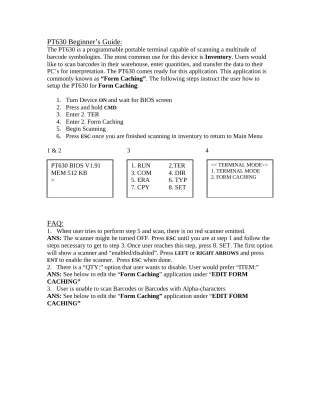
- PT630 BIOS V1.91, MEM 512 KB p. 1
- Form field limits
- Prompt 16 max; maximum data length 1 to 48 p. 4
- Data and input type
- Numeric or alphanumeric data; key only, scan only, or both p. 5
- Field delimiter
- Comma, semicolon, space or tab p. 5
- Record delimiter
- CR, LF or CRLF; CRLF is the default p. 4, 5
What this manual walks you through
- Setting up the PT630 for Form Caching inventory scanning p. 1
- Turning the scanner back on when no red beam appears p. 1
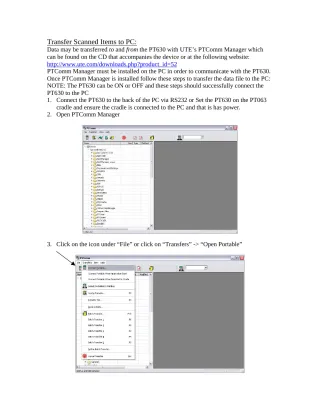
- Transferring scanned items to a PC with PTComm Manager p. 2, 3
- Editing Form Caching to remove the quantity prompt p. 4, 5
Good to know
- Before editing the form, save all scanned data to the PC if FORM.DAT already holds data. p. 4
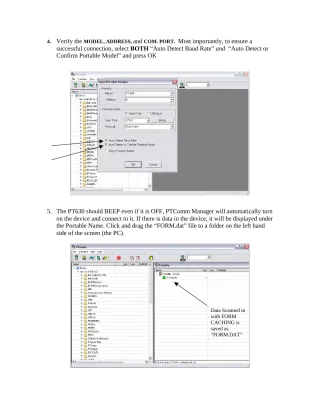
- For a reliable PC connection, select both Auto Detect Baud Rate and Auto Detect or Confirm Portable Model. p. 3
- To remove the quantity prompt, press ESC at the QTY screen, not ENT. p. 4
Questions this manual answers
How do I transfer scanned data from a PT630 to a PC?
Install PTComm Manager on the PC, connect the PT630 by RS232 or the PT063 cradle, open the portable in PTComm Manager and drag the FORM.dat file to a PC folder. p. 2, 3
Why does the PT630 show no red scan light?
The scanner might be turned off. Enable it in the SET menu with the arrow keys and ENT. p. 1
Which cradle connects the PT630 to a PC?
The PT063 cradle, connected to the PC and powered. p. 2
Where does the PT630 save Form Caching scans?
In a file named FORM.DAT. p. 3
The whole text · 1 part
Read the manual here as text
Its text as extracted from the PDF, unedited, in parts; each page opens the PDF at that page.
The file