Manual · Unitech
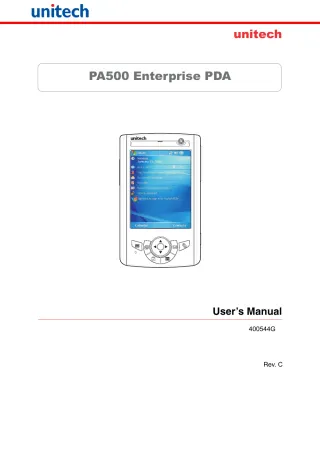
PA500 Enterprise PDA User's Manual
Manual84 pagesPDF 4.5 MB
User's manual for the unitech PA500 Enterprise PDA: setup, charging, laser scanner, ActiveSync, wireless connections and settings.
Covers · 1 model
The models it covers
Summary
What is in it
The user's manual for the unitech PA500 Enterprise PDA, a rugged Windows Mobile 5.0 handheld with an optional laser bar code scanner. It covers the package contents, the parts of the device, installing and charging the battery, the keypad, stylus, SDIO/MMC slot and laser scanner, connecting to a PC with ActiveSync, infrared, Bluetooth and Wi-Fi connections, the Scan2Key and scanner settings programs, battery and backlight settings, warm, clean and cold boots, adding programs, and full system specifications.
Its parts
- Getting Started
- Using the Hardware
- Getting Connected
- Wireless Communications
- Managing Programs
- Customizing Your PA500
From the manual
Key facts from this manual
Some pages are scans or cannot be read; this says only what the readable text supports. Each line names its page in the PDF.
User's manual for the Unitech PA500 Enterprise PDA, a Windows Mobile 5.0 handheld with a laser bar code scanner. It explains battery installation and charging, setup, the keypad, storage cards, scanning, ActiveSync, wireless connections, battery settings and resets. It ends with the system specifications and regulatory statements.
- Device
- Enterprise PDA with Windows Mobile 5.0 and an Intel PXA270 processor up to 520 MHz p. 7, 57
- Memory
- 64 MB SDRAM, 64 MB Flash ROM p. 7, 57
- Display
- 3.5-inch QVGA touch screen, 320 x 240, electroluminescent backlight p. 7, 57
- Scan engine
- Symbol SE950 laser (650 nm VLD) with Hitachi HD6433657W decoder p. 7, 57
- Main battery
- Removable 3.7 V, 2200 mAh rechargeable pack; about 4 hours of use; 3.5 hours to charge p. 10, 58
- Wireless
- 802.11b/g WLAN, Bluetooth 1.1 and 1.2 (class 2), serial infrared port p. 57, 58
- Ports and slots
- USB port, SDIO/MMC slot, 3.5 mm stereo earphone jack p. 57
- Dimensions
- 126 x 76 x 23 mm (length, width, depth) p. 59
- Weight
- 220 g p. 59
- Temperature
- Operating 0° to 50°C; non-operating -20° to 60°C p. 59
- Drop
- 120 cm without major damage p. 59
- Backup battery
- Keeps data about one hour with the main battery removed; 16 hours to charge p. 58
- In the box
- Terminal, power adapter, stylus, USB charging cable, CD-ROM, quick reference guide, battery pack, earphone; optional USB docking station, lanyard stylus and leather case p. 8
- PC software
- Microsoft ActiveSync 4.2 or higher p. 27
What this manual walks you through
- Installing the battery pack p. 11
- Charging with the USB charging cable or the docking station p. 12, 13
- First power-on, screen calibration and time zone p. 14
- Using the keypad and application buttons p. 15
- Inserting and removing an SD, SDIO or MMC card p. 17
- Scanning a bar code with Scanner Settings p. 18, 19
- Installing ActiveSync and connecting to a PC p. 27, 28, 29
- Turning on Wi-Fi and Bluetooth and exchanging files by infrared or Bluetooth p. 34, 35, 36
- Extending battery life with auto-off and backlight settings p. 49, 50
- Warm boot and clean boot p. 51
Good to know
- Charge the device for about 16 hours before first use; data may be lost if the backup battery is not fully charged. p. 12
- Charge the Lithium-Ion battery only between 0°C and 50°C; outside that range it can be damaged. p. 3
- The backup cell keeps data and settings for only up to 1 hour with the main battery removed. p. 11
- Use only the PA500 stylus on the screen. p. 16
- A clean boot cleans up the registry and resets the system to factory default. p. 51
Questions this manual answers
How do I reset a frozen Unitech PA500?
Do a warm boot: press the tip of the stylus lightly on the Reset button on the back of the device. Records are kept. p. 51
How long does the PA500 take to charge?
About 16 hours the first time; after that the main battery charges in 3.5 hours. p. 12, 58
What scan engine does the PA500 use?
A Symbol SE950 laser engine with a Hitachi HD6433657W decoder. p. 7
Which ActiveSync version does the PA500 need?
ActiveSync version 4.2 or higher, connected by the USB charging cable, Bluetooth or infrared. p. 27
Contents
Chapters and sections
Each line opens the PDF at its page.
- PA500 Enterprise PDA1
- About This Manual3
- Chapter 1 Getting Started7
- Chapter 2 Using the Hardware15
- Chapter 3 Getting Connected27
- Chapter 4 Wireless Communications34
- Chapter 5 Managing Programs42
- Chapter 6 Customizing Your PA50047
- Appendix A System Specifications57
- Appendix B Regulatory Compliance Statements78
The whole text · 11 parts
Read the manual here as text
Its text as extracted from the PDF, unedited, in parts; each page opens the PDF at that page.
- Pages 1 to 41-4
- Pages 5 to 145-14
- Chapter 2 Using the Hardware15-26
- Chapter 3 Getting Connected27-33
- Chapter 4 Wireless Communications34-41
- Chapter 5 Managing Programs42-46
- Chapter 6 Customizing Your PA50047-56
- Appendix A System Specifications, pages 57 to 6357-63
- Appendix A System Specifications, pages 64 to 7064-70
- Appendix A System Specifications, pages 71 to 7771-77
- Appendix B Regulatory Compliance Statements78-84
The file