Manual · Unitech
Unitech MS250 Quick Start Guide
Manual2 pagesPDF 639 KB
Both pages are below, each with its text.
Covers · 1 model
The models it covers
From the manual · read page by page
Key facts from this manual
Each line names its page in the PDF.
Two-page quick start guide for the Unitech MS250 linear imager scanner. It shows how to connect the scanner by USB, PS/2 or RS232, test it, and set the most common modes with printed setup bar codes.
- Device
- Linear imager bar code scanner p. 1
- Host connections
- USB, PS/2 keyboard port or RS232 p. 1
- RS232 power
- RS232 hookup uses a power supply cable plugged into the RS232 connector and an outlet p. 1
- Driver
- Plug-and-play; seen by the computer as a generic HID device, like a keyboard p. 2
- Cable lock
- Interface cable locks into the handle; a paperclip releases it p. 1
- Default modes
- Enter Mode (new line after each scan) and Trigger Mode (scans only when the button is pressed) p. 1, 2
- Flash Mode
- Scans automatically at a set interval p. 1
What this manual walks you through
- Connecting and disconnecting the interface cable p. 1
- Connecting to a host by USB, PS/2 or RS232 p. 1
- Testing the installation by scanning into a word processor p. 1
- Switching between Tab Mode and Enter Mode p. 1
- Switching between Flash Mode and Trigger Mode p. 1, 2
- Restoring factory settings p. 2
Good to know
- RS232 connections may need additional software. p. 2
Questions this manual answers
Does the Unitech MS250 need a driver?
No. It is plug-and-play and shows up as a generic HID device like a keyboard; RS232 connections may need additional software. p. 2
How do I unplug the MS250 cable?
Release the connector lock by pushing one end of a paperclip into the handle, then pull the cable. p. 1
How do I make the MS250 scan automatically?
Scan the Flash Mode bar code series; the scanner then scans on its own at a set interval. p. 1
How do I make the MS250 tab to the next column after each scan?
Scan the Tab Mode bar code series to switch from the default Enter Mode. p. 1
How do I reset the MS250 to factory settings?
Scan the Default Settings bar code in the guide. p. 2
The file
Size and text
Every page · 2
Read it here
Each page as it is printed, and its words beside it, so a phone can search and copy them.
Page1of 2
Open in the PDF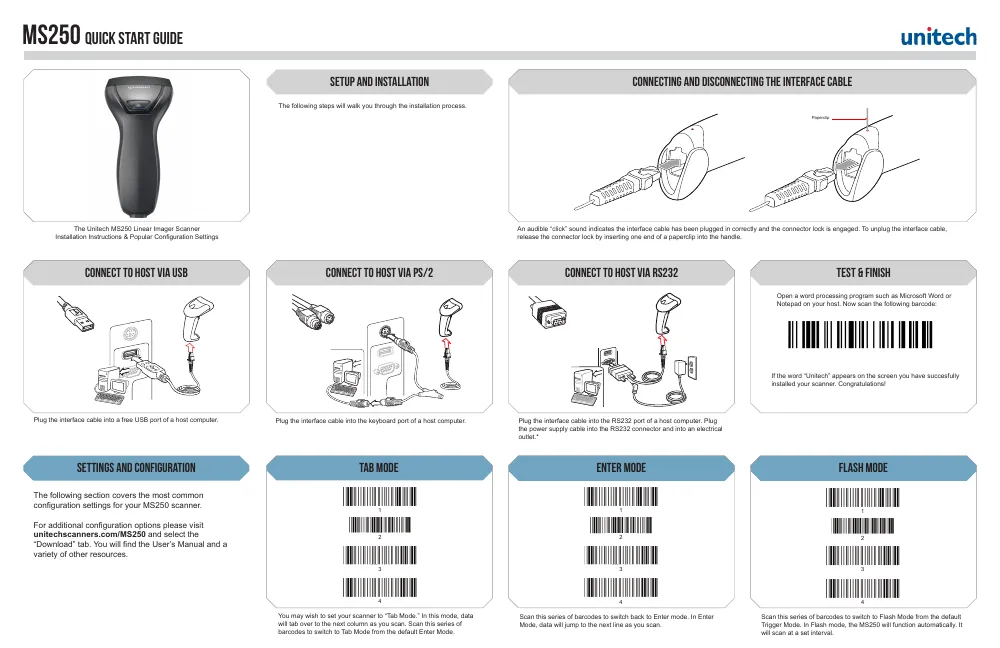
The text of page 1, from the PDF itself
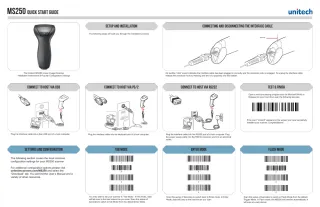
MS250 Quick Start Guide SETUP AND INSTALLATION
Connecting and disconnecting the interface cable
The following steps will walk you through the installation process. Paperclip
The Unitech MS250 Linear Imager Scanner Installation Instructions & Popular Configuration Settings
Connect to host via USB
An audible “click” sound indicates the interface cable has been plugged in correctly and the connector lock is engaged. To unplug the interface cable, release the connector lock by inserting one end of a paperclip into the handle.
Connect to host via PS/2
Connect to host via RS232
Test & Finish Open a word processing program such as Microsoft Word or Notepad on your host. Now scan the following barcode:
If the word “Unitech” appears on the screen you have succesfully installed your scanner. Congratulations!
Plug the interface cable into a free USB port of a host computer.
Settings and Configuration The following section covers the most common configuration settings for your MS250 scanner. For additional configuration options please visit unitechscanners.com/MS250 and select the “Download” tab. You will find the User’s Manual and a variety of other resources.
Plug the interface cable into the keyboard port of a host computer.
Plug the interface cable into the RS232 port of a host computer. Plug the power supply cable into the RS232 connector and into an electrical outlet.*
Tab ModeEnter ModeFlash Mode111222333444
You may wish to set your scanner to “Tab Mode.” In this mode, data will tab over to the next column as you scan. Scan this series of barcodes to switch to Tab Mode from the default Enter Mode.
Scan this series of barcodes to switch back to Enter mode. In Enter Mode, data will jump to the next line as you scan.
Scan this series of barcodes to switch to Flash Mode from the default Trigger Mode. In Flash mode, the MS250 will function automatically. It will scan at a set interval.
Page2of 2
Open in the PDF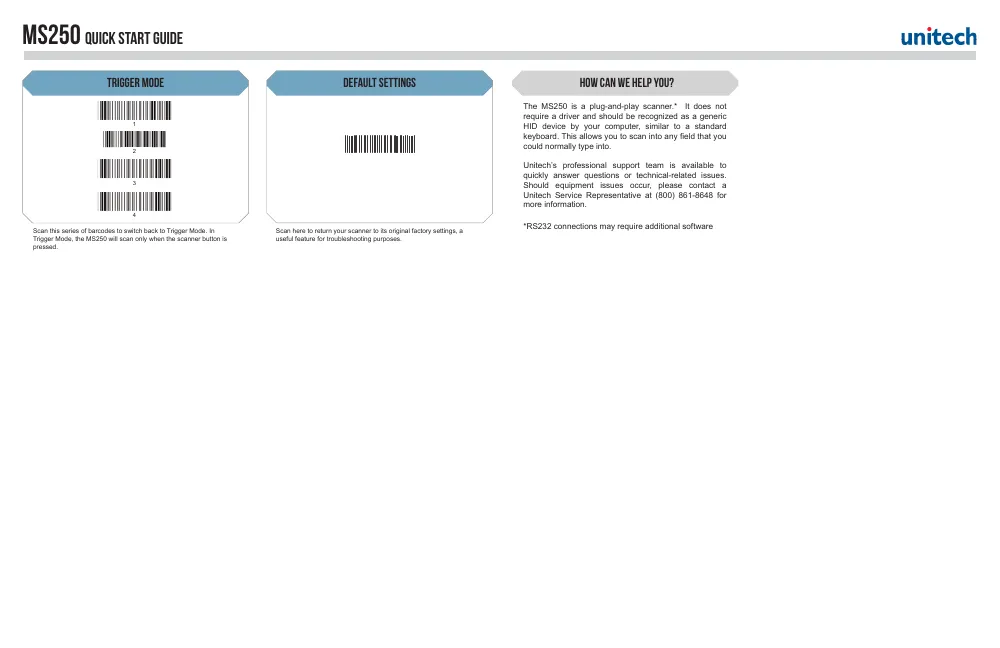
The text of page 2, from the PDF itself
MS250 Quick Start Guide Trigger Mode
Default Settings
The MS250 is a plug-and-play scanner.* It does not require a driver and should be recognized as a generic HID device by your computer, similar to a standard keyboard. This allows you to scan into any field that you could normally type into.
12How can we help you?%$+ / 2
Unitech’s professional support team is available to quickly answer questions or technical-related issues. Should equipment issues occur, please contact a Unitech Service Representative at (800) 861-8648 for more information.
3
4
Scan this series of barcodes to switch back to Trigger Mode. In Trigger Mode, the MS250 will scan only when the scanner button is pressed.
Scan here to return your scanner to its original factory settings, a useful feature for troubleshooting purposes.
*RS232 connections may require additional software