Manual · Texas Instruments
Texas Instruments CBL2 System Trouble Guide
Manual4 pagesPDF 50 KB
All 4 pages are below, each with its text.
Covers · 1 model
The models it covers
From the manual · read page by page
Key facts from this manual
Each line names its page in the PDF.
Four-page troubleshooting guide for the CBL 2 data collection interface used with TI graphing calculators and the DataMate program. It explains the error and warning screens a user may see and how to clear each one, and lists how many data points each calculator model can hold.
- What it is
- Troubleshooting guide for DataMate screens on the CBL 2 connected to a TI calculator p. 1
- Battery check
- Disconnect the calculator and press TRANSFER on the CBL 2; no sound or red LED means new batteries are needed p. 1
- Data points, TI-83 Plus
- 998 with 1 sensor, about 600 with 2 sensors, about 400 with Sonic p. 2
- Data points, TI-86
- About 3000 with 1 sensor, 2000 with 2 sensors, 1500 with Sonic p. 2
- Data points, TI-83
- About 200 with 1 sensor, 150 with 2 sensors, 120 with Sonic p. 2
- TI-89 and TI-92 Plus OS
- The 2.03 Calculator Operating System optimizes memory; upgrading to 2.03 or higher is recommended p. 2
- DataMate programs
- All subprograms must be present; their names begin with DATxxxx p. 3
- TI-83 Plus variables
- Lists L1 - L11, list C, list M; real A - Z; matrix [A]; strings Str0 - Str6 must not be archived p. 3
- Live graph or triggering
- The CBL 2 allows a live graph or triggering, not both; the one set up last is used p. 4
- TI-82 limit
- Only six lists; with a motion detector only one analog sensor, in Channel 1, can be used p. 4
- Timeout screen
- Appears after inactivity and uses the Automatic Power Down (APD) feature to save battery power p. 1
- Document number
- CBL2/RG/1L1/A, ©2000 Texas Instruments Incorporated p. 4
What this manual walks you through
- Clearing a link error by checking the cable and the CBL 2 batteries p. 1
- Retrieving or deleting data left on the CBL 2 p. 1
- Resetting the CBL 2 when old sensors or wrong values show on screen p. 1, 2
- Fixing memory errors by collecting fewer data points p. 2
- Restoring DataMate after a subprogram was deleted p. 3
- Unarchiving variables DataMate needs on a TI-83 Plus p. 3
- Avoiding a domain error in a power curve fit on Time Graph data p. 3
- Fixing a window range error by setting the graph scales p. 3
- Clearing a dimension error when running Ranger after DataMate p. 4
- Fixing a conflict with the Interactive Graphing app on a TI-83 Plus p. 4
Good to know
- Using the DataMate curve fit option leaves less memory for collecting data than the table shows. p. 2
- On a TI-89, TI-92 or TI-92 Plus, a memory error from too many points means deleting the "cbldata" data var. p. 2
- Choosing INTERFACE again without fixing the connection or batteries brings up the link error screen. p. 1
Questions this manual answers
How do I check the CBL 2 batteries?
Disconnect the calculator and press TRANSFER on the CBL 2. If it makes no sound and the red LED does not light, change the batteries. p. 1
How many data points can a TI-83 Plus collect with the CBL 2?
998 with one sensor, about 600 with two sensors and about 400 with Sonic, after a calculator RAM reset. p. 2
Why does the live graph not show when triggering is set on the CBL 2?
The CBL 2 allows a live graph or triggering, not both, and uses whichever was set up last. p. 4
How do I reset the CBL 2 when DataMate shows a sensor that is no longer connected?
Press the reset key on the DataMate main screen to return the CBL 2 to initial conditions. p. 1
The file
Size and text
Every page · 4
Read it here
Each page as it is printed, and its words beside it, so a phone can search and copy them.
Page1of 4
Open in the PDF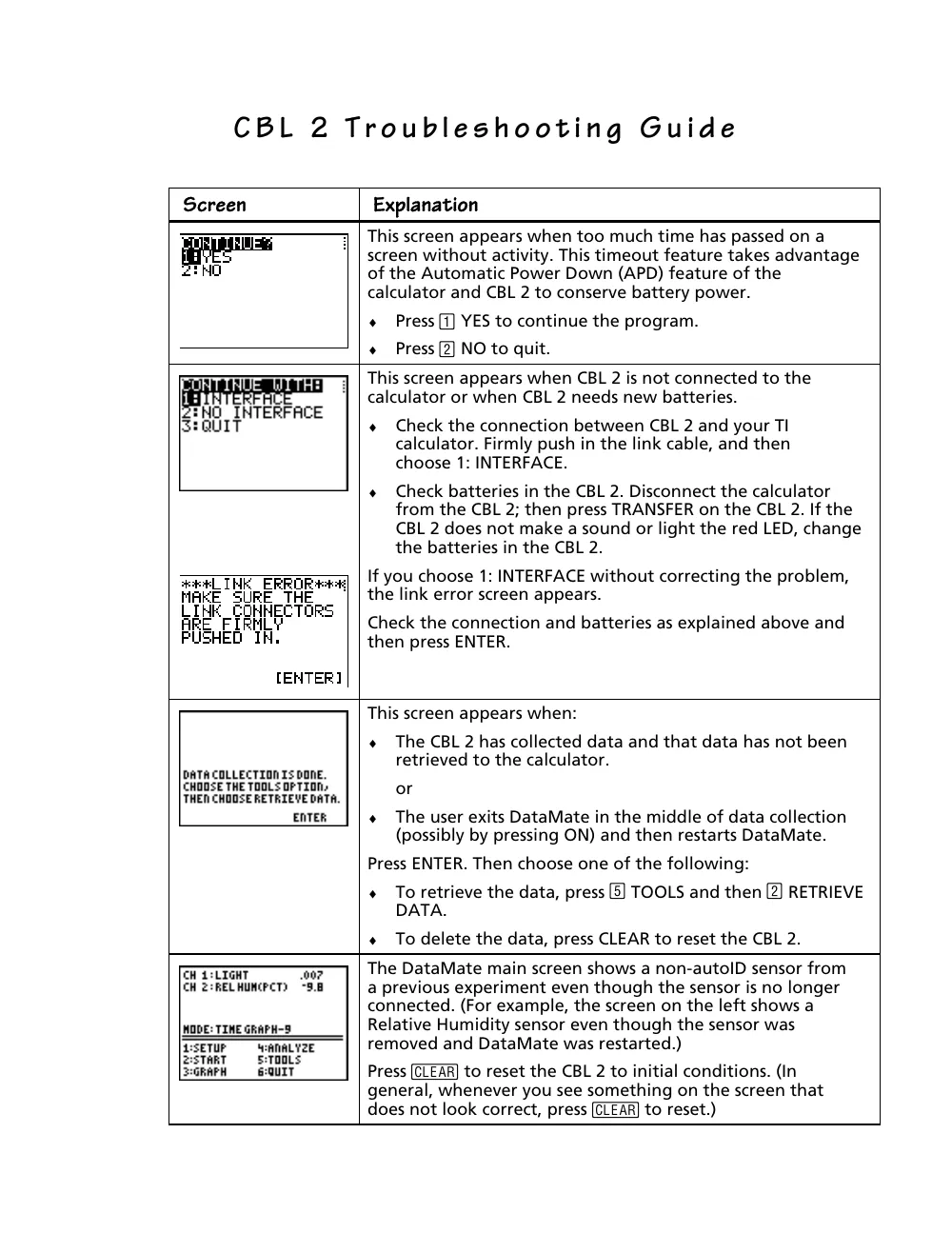
The text of page 1, from the PDF itself
CBL 2 Troubleshooting Guide Screen
Explanation This screen appears when too much time has passed on a screen without activity. This timeout feature takes advantage of the Automatic Power Down (APD) feature of the calculator and CBL 2 to conserve battery power. ♦
Press À YES to continue the program.
♦
Press Á NO to quit.
This screen appears when CBL 2 is not connected to the calculator or when CBL 2 needs new batteries. ♦
Check the connection between CBL 2 and your TI calculator. Firmly push in the link cable, and then choose 1: INTERFACE.
♦
Check batteries in the CBL 2. Disconnect the calculator from the CBL 2; then press TRANSFER on the CBL 2. If the CBL 2 does not make a sound or light the red LED, change the batteries in the CBL 2.
If you choose 1: INTERFACE without correcting the problem, the link error screen appears. Check the connection and batteries as explained above and then press ENTER.
This screen appears when: ♦
The CBL 2 has collected data and that data has not been retrieved to the calculator. or
♦
The user exits DataMate in the middle of data collection (possibly by pressing ON) and then restarts DataMate.
Press ENTER. Then choose one of the following: ♦
To retrieve the data, press · TOOLS and then Á RETRIEVE DATA.
♦
To delete the data, press CLEAR to reset the CBL 2.
The DataMate main screen shows a non-autoID sensor from a previous experiment even though the sensor is no longer connected. (For example, the screen on the left shows a Relative Humidity sensor even though the sensor was removed and DataMate was restarted.) Press ‘ to reset the CBL 2 to initial conditions. (In general, whenever you see something on the screen that does not look correct, press ‘ to reset.)
Page2of 4
Open in the PDF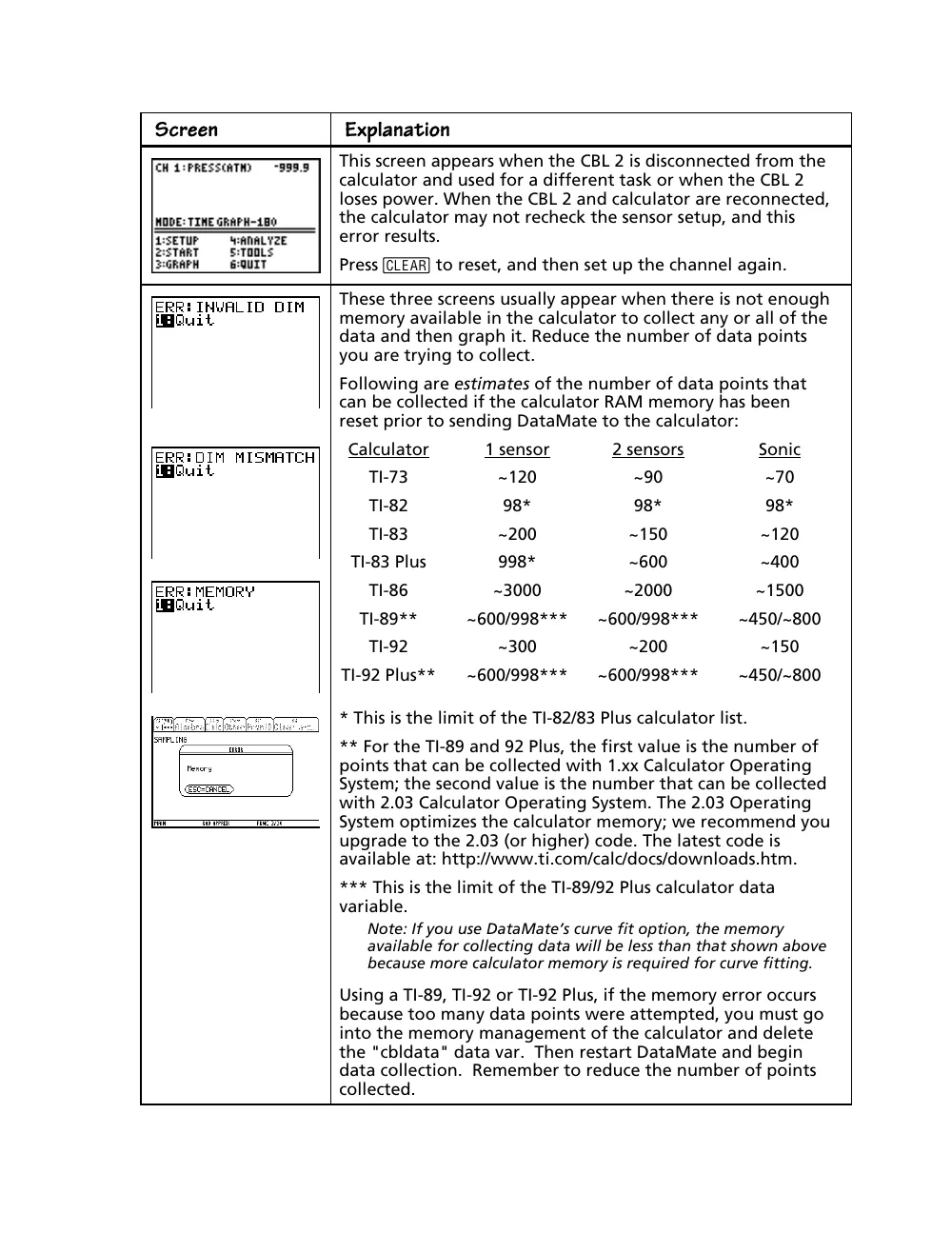
The text of page 2, from the PDF itself
Screen
Explanation This screen appears when the CBL 2 is disconnected from the calculator and used for a different task or when the CBL 2 loses power. When the CBL 2 and calculator are reconnected, the calculator may not recheck the sensor setup, and this error results. Press ‘ to reset, and then set up the channel again. These three screens usually appear when there is not enough memory available in the calculator to collect any or all of the data and then graph it. Reduce the number of data points you are trying to collect. Following are estimates of the number of data points that can be collected if the calculator RAM memory has been reset prior to sending DataMate to the calculator: Calculator
1 sensor2 sensorsSonicTI-73~120~90~70TI-8298*98*98*TI-83~200~150~120TI-83 Plus998*~600~400TI-86~3000~2000~1500TI-89**~600/998***~600/998***~450/~800TI-92~300~200~150TI-92 Plus**~600/998***~600/998***~450/~800
- This is the limit of the TI-82/83 Plus calculator list. ** For the TI-89 and 92 Plus, the first value is the number of points that can be collected with 1.xx Calculator Operating System; the second value is the number that can be collected with 2.03 Calculator Operating System. The 2.03 Operating System optimizes the calculator memory; we recommend you upgrade to the 2.03 (or higher) code. The latest code is available at: http://www.ti.com/calc/docs/downloads.htm. *** This is the limit of the TI-89/92 Plus calculator data variable. Note: If you use DataMate’s curve fit option, the memory available for collecting data will be less than that shown above because more calculator memory is required for curve fitting.
Using a TI-89, TI-92 or TI-92 Plus, if the memory error occurs because too many data points were attempted, you must go into the memory management of the calculator and delete the "cbldata" data var. Then restart DataMate and begin data collection. Remember to reduce the number of points collected.
Page3of 4
Open in the PDF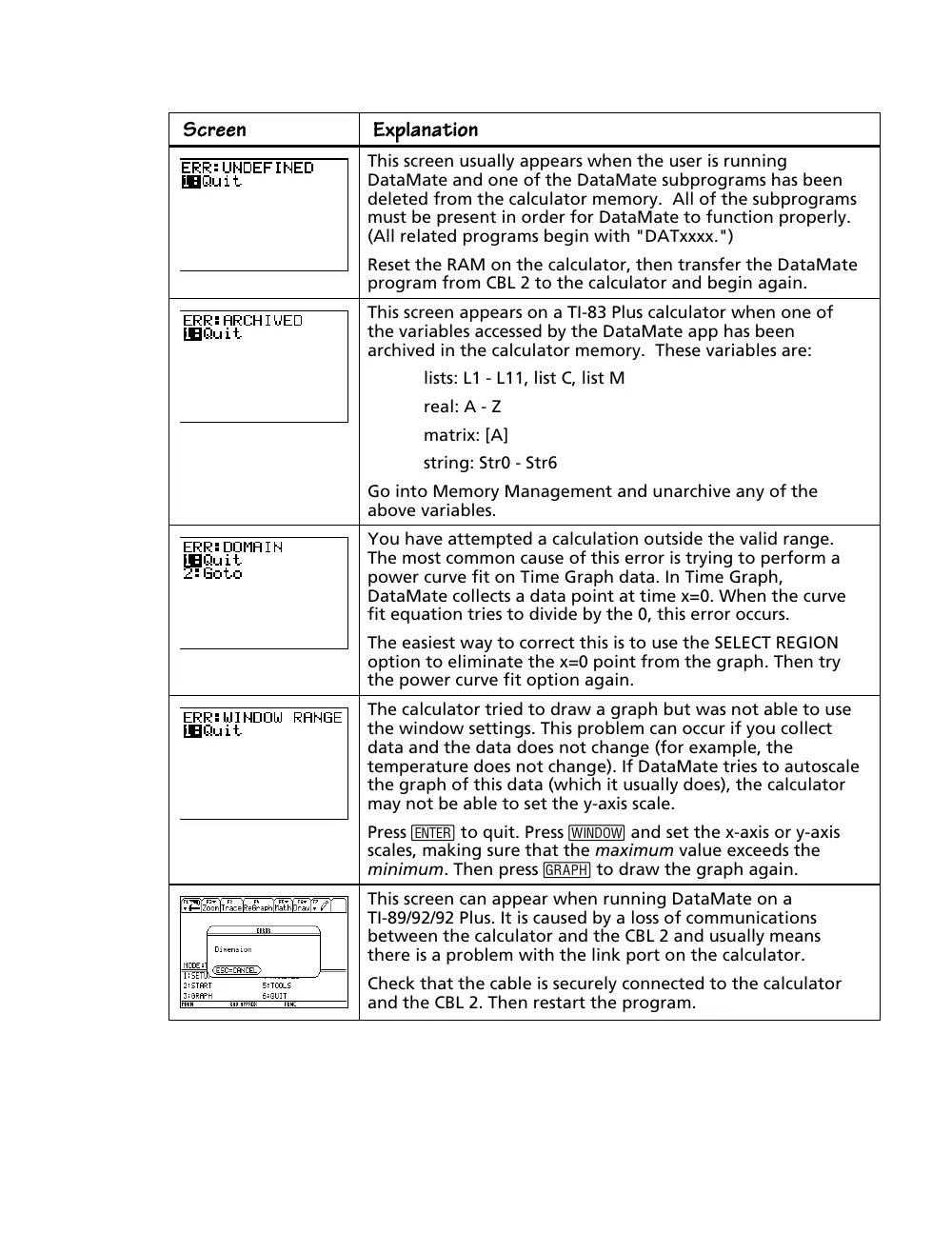
The text of page 3, from the PDF itself
Screen
Explanation This screen usually appears when the user is running DataMate and one of the DataMate subprograms has been deleted from the calculator memory. All of the subprograms must be present in order for DataMate to function properly. (All related programs begin with "DATxxxx.") Reset the RAM on the calculator, then transfer the DataMate program from CBL 2 to the calculator and begin again. This screen appears on a TI-83 Plus calculator when one of the variables accessed by the DataMate app has been archived in the calculator memory. These variables are: lists: L1 - L11, list C, list M real: A - Z matrix: [A] string: Str0 - Str6 Go into Memory Management and unarchive any of the above variables. You have attempted a calculation outside the valid range. The most common cause of this error is trying to perform a power curve fit on Time Graph data. In Time Graph, DataMate collects a data point at time x=0. When the curve fit equation tries to divide by the 0, this error occurs. The easiest way to correct this is to use the SELECT REGION option to eliminate the x=0 point from the graph. Then try the power curve fit option again. The calculator tried to draw a graph but was not able to use the window settings. This problem can occur if you collect data and the data does not change (for example, the temperature does not change). If DataMate tries to autoscale the graph of this data (which it usually does), the calculator may not be able to set the y-axis scale. Press Í to quit. Press p and set the x-axis or y-axis scales, making sure that the maximum value exceeds the minimum. Then press s to draw the graph again. This screen can appear when running DataMate on a TI-89/92/92 Plus. It is caused by a loss of communications between the calculator and the CBL 2 and usually means there is a problem with the link port on the calculator. Check that the cable is securely connected to the calculator and the CBL 2. Then restart the program.
Page4of 4
Open in the PDF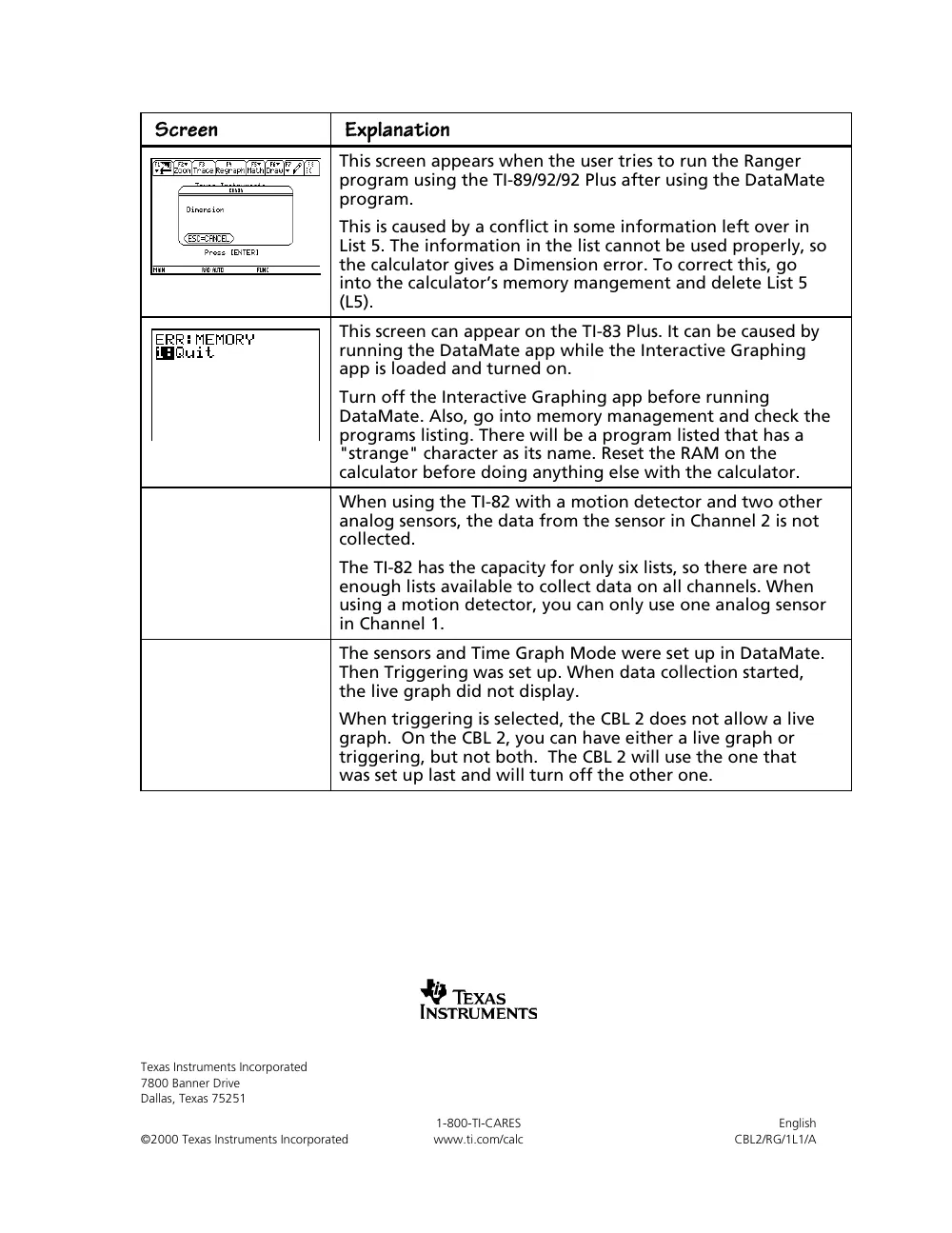
The text of page 4, from the PDF itself
Screen
Explanation This screen appears when the user tries to run the Ranger program using the TI-89/92/92 Plus after using the DataMate program. This is caused by a conflict in some information left over in List 5. The information in the list cannot be used properly, so the calculator gives a Dimension error. To correct this, go into the calculator’s memory mangement and delete List 5 (L5). This screen can appear on the TI-83 Plus. It can be caused by running the DataMate app while the Interactive Graphing app is loaded and turned on. Turn off the Interactive Graphing app before running DataMate. Also, go into memory management and check the programs listing. There will be a program listed that has a "strange" character as its name. Reset the RAM on the calculator before doing anything else with the calculator. When using the TI-82 with a motion detector and two other analog sensors, the data from the sensor in Channel 2 is not collected. The TI-82 has the capacity for only six lists, so there are not enough lists available to collect data on all channels. When using a motion detector, you can only use one analog sensor in Channel 1. The sensors and Time Graph Mode were set up in DataMate. Then Triggering was set up. When data collection started, the live graph did not display. When triggering is selected, the CBL 2 does not allow a live graph. On the CBL 2, you can have either a live graph or triggering, but not both. The CBL 2 will use the one that was set up last and will turn off the other one.
Texas Instruments Incorporated 7800 Banner Drive Dallas, Texas 75251 ©2000 Texas Instruments Incorporated
1-800-TI-CARES www.ti.com/calc
English CBL2/RG/1L1/A