Manual · Symbol
VRC 40xx/50xx Quick Reference
Manual16 pagesPDF 714 KB
Quick reference guide for Symbol VRC 4000 and 5000 series fixed and vehicle-mounted touchscreen computers: parts, booting, troubleshooting.
Names · 1 model
The models it names
Filed with · 1 model
Also filed with these models on the old site
Summary
What is in it
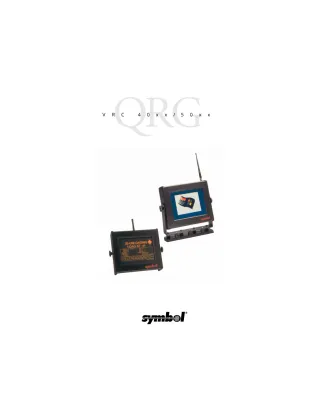
Quick reference guide for the Symbol VRC 40xx and 50xx systems, rugged fixed or vehicle-mounted PC-compatible computers with a touchscreen and SVGA display. It shows the front and rear panels of the VRC 4000 and VRC 5000, lists supplied and optional accessories, explains power up, booting, warm and cold reboots, guidelines for touch-based applications, troubleshooting of common problems and regulatory and warranty information.
Its parts
- Introduction
- About this Guide
- Parts of the VRC
- Accessories
- Basic Operation
- Touch-Based Applications
- Troubleshooting
- Specific Problems
- Regulatory Information
From the manual · read page by page
Key facts from this manual
Some pages are scans or cannot be read; this says only what the readable text supports. Each line names its page in the PDF.
Quick reference for the Symbol VRC 40xx/50xx rugged fixed or vehicle-mount PC-compatible computers with touchscreens; it shows the VRC 4000 and VRC 5000 rear panels and does not name the VRC 4040. It covers the panels and accessories, powering up, warm and cold boots, touch-based applications and troubleshooting.
- Device
- Rugged fixed or vehicle-mount PC-compatible computer with touchscreen and full SVGA display (electroluminescent or color LCD) p. 3
- Operating systems
- MS-DOS 6.22, Windows 98, Windows 2000, Windows NT p. 3
- Networks
- Fixed mount: wired Ethernet or Token Ring, or wireless; vehicle mount: Spectrum 24 2.4 GHz radio p. 3
- VRC 4000 rear panel
- Com1 and COM2 serial ports, LPT1 parallel port, network connection, PCMCIA card slot, DC PWR port, reset switch p. 4
- Power
- Fixed mount: wall power supply in a surge-protected 110V AC outlet; vehicle mount: power converter from the vehicle battery p. 3, 6, 9
- Power switch
- None on the VRC; it powers up as soon as it gets power p. 6
- Boot drive
- Flash Drive (C:\), running config.sys and autoexec.bat p. 6, 7
- Antenna
- Patch or "rubber duck"; supplied for wireless configurations p. 3, 5
- Sold separately
- Power supply (AC to DC, DC to DC, UPS, NEMA), mounting brackets, Floppy-BP-MOD2 floppy drive, Backpack-CD-ROM p. 5
- NEMA keyboard
- External NEMA keyboard, p/n 11NSSO203-0300 p. 5
- Manuals
- Software manual 70-19723-xx; Product Reference Guide 70-19725-xx; Installation Guide 70-32536-xx p. 5
- Ethernet settings
- I/O 240, interrupt 15, DMA 3 (vehicle-mounted unit troubleshooting) p. 12
- Guide part number
- 72-52859-01, Revision A, May 2001 p. 16
What this manual walks you through
- Powering up the VRC for the first time p. 6
- What happens during boot-up p. 6, 7
- Warm boot with CTRL-ALT-DEL p. 7
- Cold boot of a fixed or vehicle-mounted VRC p. 7, 8
- Designing touch-based applications p. 8, 9
- Checking power on fixed and vehicle-mounted units p. 9
- Troubleshooting touchscreen, PCMCIA, modem and network problems p. 10, 11, 12
Good to know
- In freezer applications, do not power up a color-display VRC in the cold; it can damage the fluorescent bulbs. p. 6
- Unplug the power supply from the wall before connecting or disconnecting it at the rear panel. p. 6
- Make all peripheral connections before powering up. p. 6
- A warm boot needs a keyboard or keyboard emulator attached. p. 7
- Remote or stand-alone antennas must stay at least 20 cm from all persons. p. 15
Questions this manual answers
How do I turn on a VRC 4000?
It has no ON/OFF switch; it starts as soon as it receives power, so make all connections first. p. 6
How do I reboot a frozen VRC?
Cold boot it: unplug and replug a fixed unit, switch the DC power converter off and on in a vehicle, or push the rear RESET button. p. 7, 8
What are the Ethernet settings for the VRC?
The troubleshooting table for vehicle-mounted units says to set I/O 240, interrupt 15 and DMA 3 and enable Ethernet. p. 12
What is the part number of the VRC external NEMA keyboard?
p/n 11NSSO203-0300, sold separately. p. 5
Contents
Chapters and sections
Each line opens the PDF at its page.
The whole text · 2 parts
Read the manual here as text
Its text as extracted from the PDF, unedited, in parts; each page opens the PDF at that page.
The file