Manual · Symbol
VRC 3910 Terminal Quick Reference
Manual16 pagesPDF 464 KB
Operator quick reference for the Symbol VRC 3910 vehicle-mount radio terminal: power, scanners, keyboard and troubleshooting.
Names · 1 model
The models it names
Filed with · 1 model
Also filed with these models on the old site
Summary
What is in it
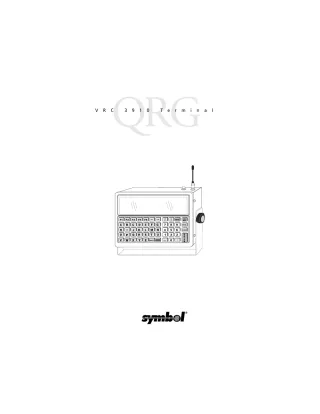
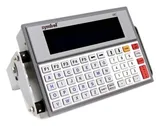
Symbol's quick reference guide for operators of the VRC 3910, a weather-resistant vehicle-mount or fixed-site data collection terminal that sends data by radio to a base station and host computer. It covers turning the terminal on and off, the bottom panel and master switch, the backup battery, display brightness, attaching and using laser and contact wand scanners, the keyboard, troubleshooting messages, service contacts and warranty, ergonomic recommendations and regulatory information.
Its parts
- Overview
- About This Guide
- Power On and Off
- Bottom Panel
- Back-Up Battery
- Display Brightness
- Attaching a Scanner
- Using a Laser Scanner
- Using a Contact Wand Scanner
- The Keyboard
- Troubleshooting
- Ergonomic Recommendations
- Regulatory Information
From the manual · read page by page
Key facts from this manual
Some pages are scans or cannot be read; this says only what the readable text supports. Each line names its page in the PDF.
Operator quick reference for the Symbol VRC 3910, a weather-resistant vehicle-mount or fixed-site radio terminal; the document names only the VRC 3910, not the VRC 3940. It covers power on and off, the master switch and backup battery, display brightness, attaching and using a scanner, the keyboard and troubleshooting.
- Device
- Weather-resistant vehicle-mount or fixed-site data collection terminal that sends data by radio to a base station p. 3
- Scanner port
- DE-9 plug on the bottom of the terminal p. 7
- RS-232 port
- For loading software only p. 7
- Scanners
- Laser scanner with trigger, or contact wand p. 8
- Power
- Vehicle's main power source; master on-off switch on the bottom panel p. 5, 6
- Backup battery
- Internal five-cell NiCad pack, keeps data about 300 hours p. 6
- Fuse
- In the bottom panel; replacement P/N 5109123-00 p. 5, 11
- Display
- Brightness adjustable in eight steps: FUNC J brighter, FUNC I darker p. 6
- Keyboard
- Programmable; modifier keys SHIFT, FUNC and CTRL p. 10
- Heating blanket
- Some units use a heating blanket p. 5
- Related manual
- VRC 3910 System Administration Manual (61068-00-90) p. 3
- Guide part number
- 61068-00-89, Revision B, October 1999 p. 16
What this manual walks you through
- Turning the terminal on and off, and forcing power off p. 4
- Using the master on-off switch when the vehicle is parked p. 5
- Adjusting display brightness p. 6
- Attaching a scanner p. 7
- Scanning with a laser scanner or contact wand p. 8
- Using the keyboard and modifier keys p. 10
- Troubleshooting messages such as Power Fault, Double Key Error and Low NiCad p. 11
Good to know
- After forcing power off, do not keep using the terminal; return it to the system administrator to recover data. p. 4
- Only an authorized Symbol representative may replace the backup battery. p. 6
- If the fuse keeps failing, send the terminal for repair. p. 11
- Pulling the vehicle battery with the terminal on causes a Power Fault. p. 11
Questions this manual answers
What fuse does the VRC 3910 use?
Replacement fuse P/N 5109123-00, in the bottom panel; if it keeps blowing, send the terminal for repair. p. 5, 11
What does Low NiCad mean on the VRC 3910?
The internal backup battery is low; leave main power on at least 24 hours to recharge it. p. 11
How do I force a VRC 3910 to power off?
Hold the ON/OFF key for 15 seconds until it shuts down, then give it to the system administrator. p. 4
How long does the VRC 3910 backup battery keep data?
About 300 hours, from an internal five-cell NiCad pack charged by vehicle power. p. 6
Contents
Chapters and sections
Each line opens the PDF at its page.
The whole text · 2 parts
Read the manual here as text
Its text as extracted from the PDF, unedited, in parts; each page opens the PDF at that page.
The file