Manual · Symbol
iPOS TC Quick Reference
Manual12 pagesPDF 327 KB
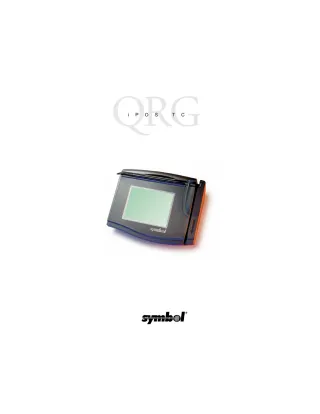
Quick reference for the Symbol iPOS TC interactive payment terminal: features, parts, screen guard and quick start setup.
Names · 1 model
The models it names
Filed with · 1 model
Also filed with these models on the old site
Summary
What is in it
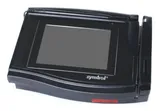
The quick reference guide for the Symbol iPOS TC interactive payment terminal, used at the point of sale for electronic payments with HTML-based applications. It lists the terminal's features and labels its parts, explains how to install and replace the screen guard, walks through the quick start (power, setup button, screen calibration, password and exiting setup), and gives regulatory, warranty and service information.
Its parts
- Introduction
- Parts
- Installing the Screen Guard
- iPOS TC Quick Start
- Regulatory Information
From the manual · read page by page
Key facts from this manual
Some pages are scans or cannot be read; this says only what the readable text supports. Each line names its page in the PDF.
Symbol's Quick Reference card for the iPOS TC interactive payment terminal (part 72-61344-01, Revision A, March 2003). It lists the terminal's main features and parts, shows how to fit and replace the screen guard, and gives the first steps into the setup program. For connection details it points to the iPOS TC Product Reference Guide.
- Device
- Interactive payment terminal for point-of-sale, runs HTML-based applications p. 3
- Processor
- 206 MHz Intel StrongARM p. 3
- Display and input
- Color 1/4 VGA LCD; pressure-sensitive touchpad with stylus p. 3, 4
- Interfaces
- RS-232/RS-485 port, USB port, PCMCIA Type II slot, onboard Ethernet port p. 3, 4
- Card reader
- 3-track magnetic stripe reader for credit and debit cards p. 3
- Software
- posPortal transaction application; iPOS TC Software Suite for Windows and IBM-based hosts p. 3
- Rear controls
- Reset button and Setup button p. 4, 7
- Full manual
- iPOS TC Product Reference Guide, p/n 72-61362-xx p. 3
- Regulatory
- The card states the unit meets FCC Part 15 Class A limits and Canadian ICES-003 Class A p. 8
What this manual walks you through
- Identifying the parts of the terminal p. 4
- Installing the screen guard p. 5, 6
- Replacing a worn screen guard p. 6
- Entering and leaving the setup program p. 7
Good to know
- Press the Setup button before the start-up message disappears; otherwise power down and start again. p. 7
- When replacing the screen guard, do not remove the graphical overlay under it. p. 6
- Do not spray liquid directly onto the terminal when cleaning it. p. 5
- The unit must be configured for the facility's network and applications before use. p. 12
Questions this manual answers
How do I get into setup on the iPOS TC?
Power the terminal and, while the message to press SETUP shows, press the rear Setup button once with the stylus; then calibrate and enter the password. p. 7
How do I replace the iPOS TC screen guard?
Peel the worn guard off from its upper-left corner, clean and dry the screen, then press the new guard's adhesive side onto the screen overlay. p. 5, 6
What ports does the iPOS TC have?
An RS-232/RS-485 port, a USB port, a PCMCIA Type II slot and an onboard Ethernet port. p. 3, 4
Where are the full iPOS TC instructions?
The card refers to the iPOS TC Product Reference Guide, p/n 72-61362-xx. p. 3
Contents
Chapters and sections
Each line opens the PDF at its page.
The whole text · 2 parts
Read the manual here as text
Its text as extracted from the PDF, unedited, in parts; each page opens the PDF at that page.
The file