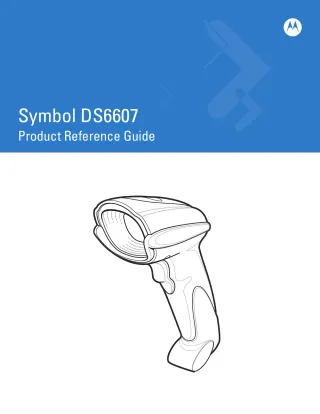
Manual · Symbol
Symbol 6607 Quick Start
Manual2 pagesPDF 3.2 MB
Both pages are below, each with its text.
Covers · 1 model
The models it covers

From the manual · read page by page
Key facts from this manual
Each line names its page in the PDF.
Two-page quick start poster (72-68400-02 Revision B, December 2007) for the Symbol DS6607 scanner. It shows the scanner parts, accessories and host connections, gives programming bar codes for defaults, host types, baud rates and suffix, and explains the LED and beeper signals, troubleshooting, scanning posture and regulatory information.
- Host interfaces
- RS-232/SSI and USB; cables may vary by configuration p. 1
- Accessories
- IntelliStand, wall mount, desk cup p. 1
- Host-type bar codes
- HID Keyboard Emulation, IBM Hand-Held USB, SNAPI with or without imaging, RS-232 (no variant), Nixdorf RS-232 Mode A and B, ICL RS-232, Fujitsu RS-232, OPOS/JPOS p. 1
- Baud rate bar codes
- 9600, 38,400 or 115,200 p. 1
- Parts
- LED indicators, scan window, scan trigger p. 1, 2
- LED signals
- Off: on and ready to scan, or no power; green: bar code decoded; red: transmission error p. 2
- Laser label
- Class 2 laser product, 630-680nm, 1mW p. 2
- Document number
- 72-68400-02 Revision B, December 2007 p. 2
What this manual walks you through
- Attaching and removing the cable p. 1
- Setting defaults, host type, baud rate and carriage return/line feed with bar codes p. 1
- Troubleshooting power, decoding and data transmission problems p. 1
- Reading the LED and beeper indications p. 2
- Scanning and imaging positions and posture p. 2
Good to know
- Interface cables may vary depending on configuration. p. 1
- The poster states the device complies with the limits for a Class B digital device under Part 15 of the FCC rules. p. 2
- Users should avoid staring directly into the Class 2 laser beam. p. 2
Questions this manual answers
What accessories are there for the DS6607?
The poster shows the IntelliStand, a wall mount and a desk cup. p. 1
Why does my DS6607 scan but send no data to the PC?
The scanner may not be programmed for the correct host interface, or the interface cable is loose; scan the right host parameter bar codes and secure all cables. p. 1
What does a red LED mean on the DS6607?
In standard use, a red LED signals a transmission error. p. 2
How do I reset the DS6607 to its defaults?
Scan the SET DEFAULTS programming bar code printed on the poster. p. 1
The file
Size and text
Every page · 2
Read it here
Each page as it is printed, and its words beside it, so a phone can search and copy them.
Page1of 2
Open in the PDF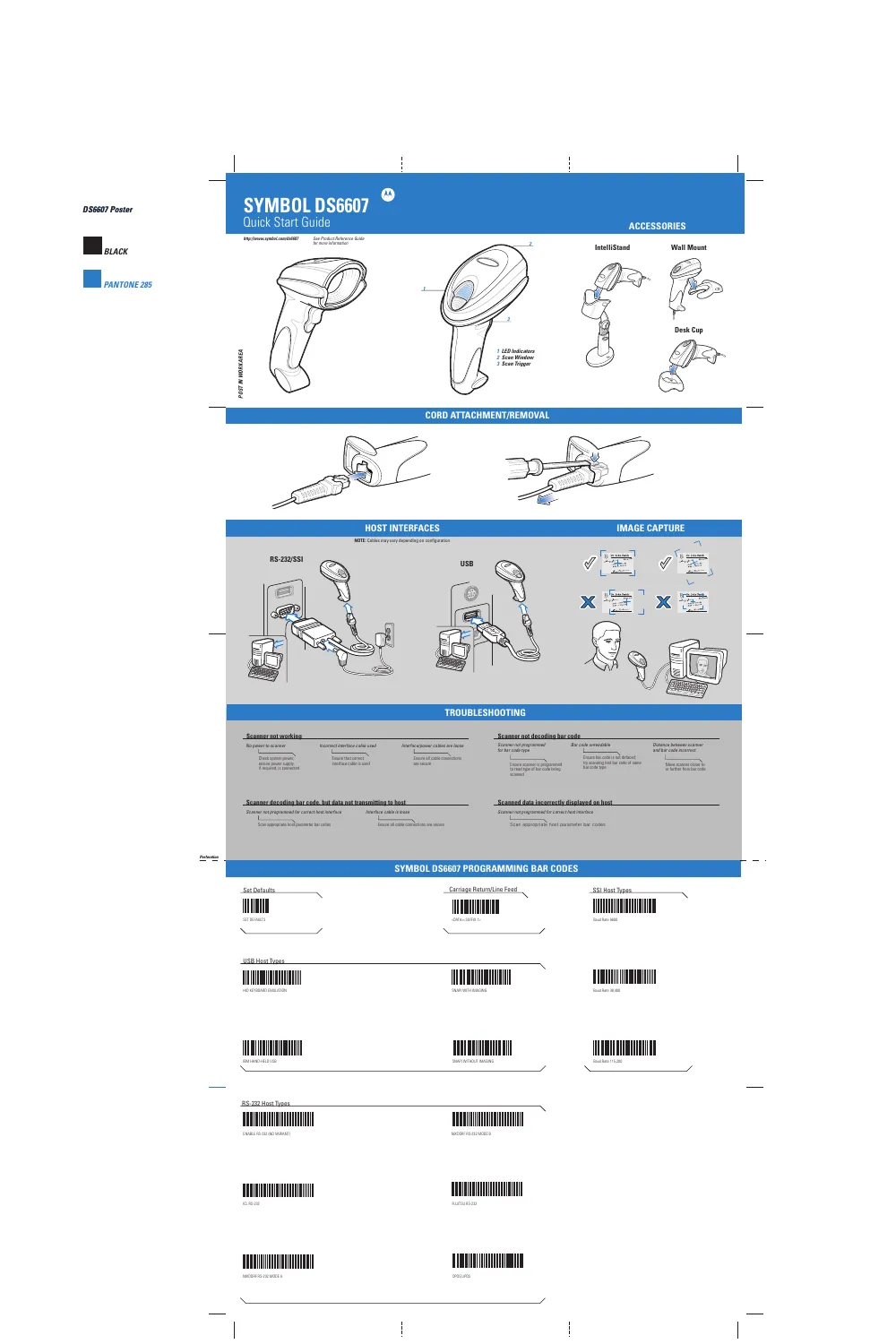
The text of page 1, from the PDF itself
SYMBOL DS6607
DS6607 Poster
Quick Start Guide http://www.symbol.com/ds6607
ACCESSORIES
See Product Reference Guide for more information
2BLACKPANTONE 285IntelliStandWall Mount13
Desk Cup POST IN WORK AREA
1 LED Indicators 2 Scan Window 3 Scan Trigger
CORD ATTACHMENT/REMOVAL
HOST INTERFACES
IMAGE CAPTURE
NOTE: Cables may vary depending on configuration
RS-232/SSI
USB
TROUBLESHOOTING Scanner not working No power to scanner
Scanner not decoding bar code Incorrect interface cable used
Check system power; ensure power supply, if required, is connected
Interface/power cables are loose
Ensure that correct interface cable is used
Ensure all cable connections are secure
Scanner not programmed for bar code type
Bar code unreadable
Ensure scanner is programmed to read type of bar code being scanned
Ensure bar code is not defaced; try scanning test bar code of same bar code type
Scanner decoding bar code, but data not transmitting to host
Scanned data incorrectly displayed on host
Scanner not programmed for correct host interface
Scanner not programmed for correct host interface
Scan appropriate host parameter bar codes
Interface cable is loose Ensure all cable connections are secure
Scan appropriate host parameter bar codes
Perforation
SYMBOL DS6607 PROGRAMMING BAR CODES Set Defaults
Carriage Return/Line Feed
SSI Host TypesSET DEFAULTS<DATA><SUFFIX 1>Baud Rate 9600HID KEYBOARD EMULATIONSNAPI WITH IMAGINGBaud Rate 38,400IBM HAND-HELD USBSNAPI WITHOUT IMAGINGBaud Rate 115,200USB Host TypesRS-232 Host Types
ENABLE RS-232 (NO VARIANT)
NIXDORF RS-232 MODE BICL RS-232FUJITSU RS-232NIXDORF RS-232 MODE AOPOS/JPOS
Distance between scanner and bar code incorrect Move scanner closer to or further from bar code
Page2of 2
Open in the PDF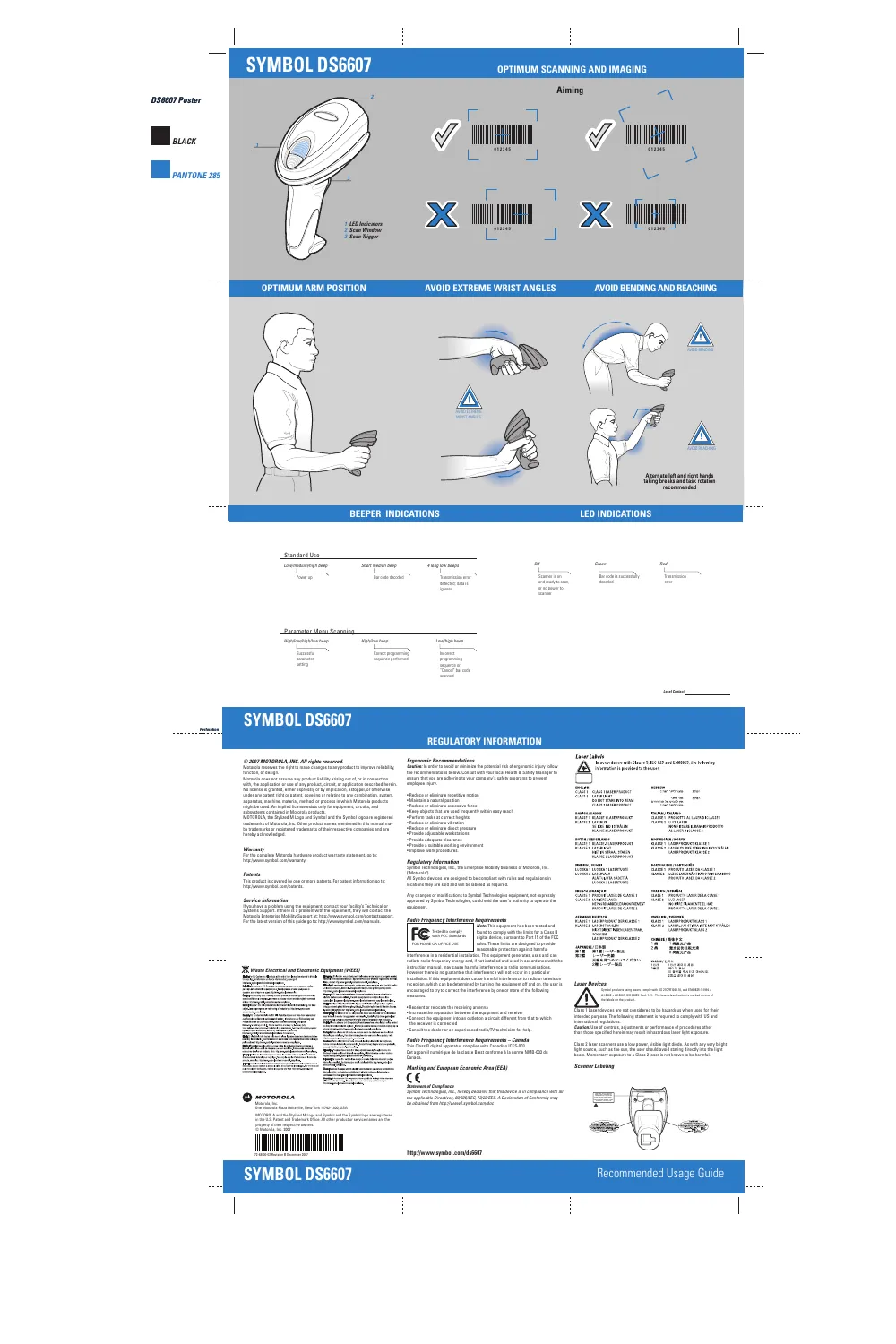
The text of page 2, from the PDF itself
SYMBOL DS6607Aiming2DS6607 PosterBLACK
OPTIMUM SCANNING AND IMAGING
1PANTONE 2850123450123450123450123453
1 LED Indicators 2 Scan Window 3 Scan Trigger
OPTIMUM ARM POSITION
AVOID EXTREME WRIST ANGLES
AVOID BENDING AND REACHING
AVOID BENDING
AVOID EXTREME WRIST ANGLES
AVOID REACHING
Alternate left and right hands taking breaks and task rotation recommended
BEEPER INDICATIONS
LED INDICATIONS
Standard Use Low/medium/high beep Power up
Short mediun beep4 long low beepsBar code decoded
Transmission error detected; data is ignored
Off Scanner is on and ready to scan, or no power to scanner
Green Bar code is successfully decoded
Red Transmission error
Parameter Menu Scanning High/low/high/low beep Successful parameter setting
High/low beep
Low/high beep
Correct programming sequence performed
Incorrect programming sequence or “Cancel” bar code scanned Local Contact:
Perforation
SYMBOL DS6607 REGULATORY INFORMATION © 2007 MOTOROLA, INC. All rights reserved.
Ergonomic Recommendations
Warranty
- Reduce or eliminate repetitive motion
- Maintain a natural position
- Reduce or eliminate excessive force
- Keep objects that are used frequently within easy reach
- Perform tasks at correct heights
- Reduce or eliminate vibration
- Reduce or eliminate direct pressure
- Provide adjustable workstations
- Provide adequate clearance
- Provide a suitable working environment
- Improve work procedures.
Motorola reserves the right to make changes to any product to improve reliability, function, or design. Motorola does not assume any product liability arising out of, or in connection with, the application or use of any product, circuit, or application described herein. No license is granted, either expressly or by implication, estoppel, or otherwise under any patent right or patent, covering or relating to any combination, system, apparatus, machine, material, method, or process in which Motorola products might be used. An implied license exists only for equipment, circuits, and subsystems contained in Motorola products. MOTOROLA, the Stylized M Logo and Symbol and the Symbol logo are registered trademarks of Motorola, Inc. Other product names mentioned in this manual may be trademarks or registered trademarks of their respective companies and are hereby acknowledged.
For the complete Motorola hardware product warranty statement, go to: http://www.symbol.com/warranty.
Caution: In order to avoid or minimize the potential risk of ergonomic injury follow the recommendations below. Consult with your local Health & Safety Manager to ensure that you are adhering to your company's safety programs to prevent employee injury.
Regulatory Information
Patents
Symbol Technologies, Inc., the Enterprise Mobility business of Motorola, Inc. ("Motorola"). All Symbol devices are designed to be compliant with rules and regulations in locations they are sold and will be labeled as required.
Service Information
Any changes or modifications to Symbol Technologies equipment, not expressly approved by Symbol Technologies, could void the user's authority to operate the equipment.
This product is covered by one or more patents. For patent information go to: http://www.symbol.com/patents.
If you have a problem using the equipment, contact your facility’s Technical or Systems Support. If there is a problem with the equipment, they will contact the Motorola Enterprise Mobility Support at: http://www.symbol.com/contactsupport. For the latest version of this guide go to: http://www.symbol.com/manuals.
Radio Frequency Interference Requirements
Note: This equipment has been tested and found to comply with the limits for a Class B digital device, pursuant to Part 15 of the FCC rules. These limits are designed to provide FOR HOME OR OFFICE USE reasonable protection against harmful interference in a residential installation. This equipment generates, uses and can radiate radio frequency energy and, if not installed and used in accordance with the instruction manual, may cause harmful interference to radio communications. However there is no guarantee that interference will not occur in a particular installation. If this equipment does cause harmful interference to radio or television reception, which can be determined by turning the equipment off and on, the user is encouraged to try to correct the interference by one or more of the following measures: Tested to comply with FCC Standards
Waste Electrical and Electronic Equipment (WEEE)
- Reorient or relocate the receiving antenna
- Increase the separation between the equipment and receiver
- Connect the equipment into an outlet on a circuit different from that to which the receiver is connected
- Consult the dealer or an experienced radio/TV technician for help.
Radio Frequency Interference Requirements – Canada
This Class B digital apparatus complies with Canadian ICES-003. Cet appareil numérique de la classe B est conforme à la norme NMB-003 du Canada.
Marking and European Economic Area (EEA)
Motorola, Inc. One Motorola Plaza Holtsville, New York 11742-1300, USA
Statement of Compliance Symbol Technologies, Inc., hereby declares that this device is in compliance with all the applicable Directives, 89/336/EEC, 73/23/EEC. A Declaration of Conformity may be obtained from http://www2.symbol.com/doc
Laser Devices Symbol products using lasers comply with US 21CFR1040.10, and EN60825-1:1994 + A1:2002 + A2:2001, IEC 60825-1(ed. 1.2). The laser classification is marked on one of the labels on the product.
Class 1 Laser devices are not considered to be hazardous when used for their intended purpose. The following statement is required to comply with US and international regulations: Caution: Use of controls, adjustments or performance of procedures other than those specified herein may result in hazardous laser light exposure. Class 2 laser scanners use a low power, visible light diode. As with any very bright light source, such as the sun, the user should avoid staring directly into the light beam. Momentary exposure to a Class 2 laser is not known to be harmful.
Scanner Labeling
LASER LIGHT- DO NOT STARE INTO BEAM . CLASS 2 LASER PRODUCT. LASERSTRAHLUNG - NICHT IN DEN STRAHL BLICKEN. LASER KLASSE 2. LUMI»RE LASER - NE PAS REGARDER DANS LE FAISCEAU. APPAREIL ¿ LASER DE CLASSE 2 630-680nm, 1mW
MOTOROLA and the Stylized M Logo and Symbol and the Symbol logo are registered in the U.S. Patent and Trademark Office. All other product or service names are the property of their respective owners. © Motorola, Inc. 2007
72-68400-02 Revision B December 2007
SYMBOL DS6607
http://www.symbol.com/ds6607
Recommended Usage Guide