Manual · Seiko
Smart Label Printer Administration Notes 7.1 Documentation
Manual17 pagesPDF 987 KB
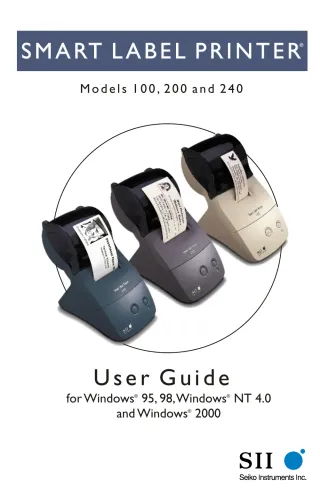
Administration notes for the Seiko Smart Label software, for SLP 100, 200, 240, 410 to 450 and 620/650 label printers.
Filed with · 1 model
Also filed with these models on the old site
Summary
What is in it
Seiko Instruments' administration notes for the Smart Label Printer software, written for system administrators and advanced users. It covers the SLP 100/410, 200/420, 240/430, 440/450 and 620/650/650SE printers and explains default file paths, setting alternate paths with SLPAdmin.xml, configuration settings, running a program each time a label prints, remote desktop printer names, diagnostic logging, driver polling, changing a printer's serial baud rate, launching in another language, silent installation and 2D bar codes.
Its parts
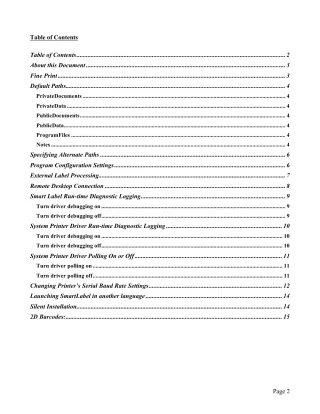
- About this Document
- Fine Print
- Default Paths
- Specifying Alternate Paths
- Program Configuration Settings
- External Label Processing
- Remote Desktop Connection
- Smart Label Run-time Diagnostic Logging
- System Printer Driver Run-time Diagnostic Logging
- System Printer Driver Polling On or Off
- Changing Printer's Serial Baud Rate Settings
- Launching SmartLabel in another language
- Silent Installation
- 2D Barcodes
From the manual · read page by page
Key facts from this manual
Each line names its page in the PDF.
Administration notes, version 7.1, from Seiko Instruments for the Smart Label software and its system printer driver. The cover lists the SLP 100/410, SLP 200/420, SLP 240/430, SLP 440/450 and SLP 620/650/650SE printers. It shows administrators where the program keeps its files and how to change paths, logging, driver polling, serial baud rate, language and silent installation.
- Document
- Smart Label Printer administration notes, version 7.1, for system administrators and advanced users p. 1, 3
- Printers covered
- SLP 100/410, SLP 200/420, SLP 240/430, SLP 440/450, SLP 620/650/650SE p. 1
- Serial baud rates
- SLP 440, 450 and 650SE: 9600, 19200, 38400, 57600 or 115200 on COM1 to COM4, set with SlpSelect.exe p. 12
- Factory baud rate
- SLP 440: 115,200; SLP 450: 38,400 on early models, 115,200 on later models p. 12
- Label library
- LABELS.SLL, looked for in the private Documents folder first, then the public one p. 4
- Settings file
- SLPConfig.xml holds printer and SmartCapture settings, in the PublicData folder by default p. 6
- Path override file
- SLPAdmin.xml, a Unicode file that sets alternate paths and the Run-On-Print feature p. 6, 7
- Interface languages
- /Lang= switch: CNY, DEU, ENU, ESP, FRA, ITA, JPN, NLD, PTB, RUS p. 14
- Silent install features
- Application, Driver or All (default) p. 14
- 2D barcodes
- Maxicode, PDF417 and DataMatrix, with Mode and Security settings p. 15, 16
- PDF417 capacity
- About 2700 digits, 1800 text characters or 1100 bytes p. 15, 16
- DataMatrix
- ECC200 symbols only; about 3100 digits, 2300 text characters or 1550 bytes p. 16, 17
- Support tool
- SLPTechSupport.exe turns debug logging on and off p. 9
What this manual walks you through
- Finding where the program stores its label library, settings and logs p. 4, 5
- Storing files on another drive or server with SLPAdmin.xml p. 6
- Keeping printer settings per user p. 6
- Running your own program each time a label prints p. 7, 8
- Connecting to a printer from Citrix or remote desktop sessions p. 8
- Turning application and driver debug logging on and off p. 9, 10
- Turning driver polling off when printing fails after Hibernate p. 11
- Changing the printer's default serial baud rate p. 12
- Starting the software in another language and installing it silently p. 14
- Mode and security settings for Maxicode, PDF417 and DataMatrix p. 15, 16, 17
Good to know
- The driver debug log grows even when the printer is idle, has no size limit, and slows the system slightly. p. 10
- The driver logging and polling steps need administrator privileges and a restart of the print spooler. p. 10
- Making the program wait for the per-label user program lowers printer throughput. p. 8
- When changing the baud rate the printer must be on the serial port with the USB cable not attached. p. 12
- The language switch does not change text that comes from Windows itself, such as common dialogs. p. 14
Questions this manual answers
How do I change the baud rate on a Seiko SLP 440 or 450?
With the printer on the serial port and the USB cable unplugged, run SlpSelect.exe /default with the COM port and baud rate, then follow the on-screen steps. p. 12
What is the factory baud rate of the SLP 450?
Early SLP 450 models use 38,400 and later models 115,200; the SLP 440 uses 115,200. p. 12
Where does Smart Label keep the label library?
It looks for LABELS.SLL in the Smart Label Printer folder under the user's documents first, then under the shared documents folder. p. 4
How do I install the Smart Label driver silently?
Run setupSlpInstaller.exe with the silent switches and ADDLOCAL set to Driver, Application or All. p. 14
Seiko Smart Label printer will not print after Hibernate
The notes say turning off the system printer driver's status polling with the supplied .reg file solves this, followed by a spooler restart. p. 11
The whole text · 2 parts
Read the manual here as text
Its text as extracted from the PDF, unedited, in parts; each page opens the PDF at that page.
The file