Manual · Schlumberger
Schlumberger MagIC 9000 Quick Reference
Manual2 pagesPDF 104 KB
The text of both pages is below; the pictures of the pages are in the PDF.
Covers · 1 model
The models it covers
From the manual · read page by page
Key facts from this manual
Each line names its page in the PDF.
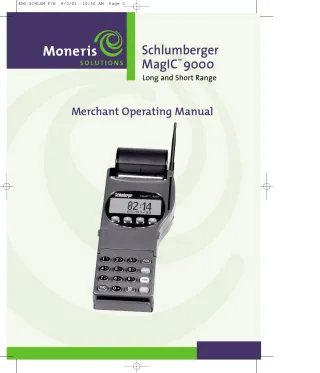
This two-page Moneris quick reference guide covers debit card and credit card procedures on the Schlumberger MagIC 9000 payment terminal. It walks a merchant through logon and logoff, purchases, refunds and corrections, tip processing, balancing, closing the batch and terminal initialization.
- Device
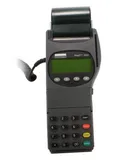
- Point-of-sale terminal for debit and credit card transactions, with a card swipe and receipt printer p. 1, 2
- Keys
- FCN, CANC, CORR, OK, CHQ, SAV and arrow keys p. 1
- Receipts
- Two printed copies of each transaction p. 2
- Amount entry
- Entered without a decimal point, for example 2500 = $25.00 p. 2
- Debit accounts
- Customer picks CHQ or SAV with the arrow keys and enters a PIN p. 2
- Tip processing
- Optional, turned on or off in Term Config p. 1
What this manual walks you through
- Logging the terminal on and off p. 1
- Credit card purchase, refund and correction p. 2
- Debit card purchase, refund and correction with customer PIN entry p. 2
- Turning tip processing on or off p. 1
- Closing the debit and credit card batch p. 1
- Balancing by printing transactions since the last Close Batch p. 1
- Initializing the terminal with the bank p. 1
Good to know
- No financial transactions can be processed while the terminal is logged off. p. 1
- If a credit card cannot be read, the guide says to take an imprint and keep the signed draft with the terminal receipt. p. 2
- Refunds and corrections need a manager password and the original authorization code. p. 2
Questions this manual answers
How do I close the batch on a MagIC 9000?
Press FCN, select OTH, open HOST ADMIN, enter the manager ID and password, then choose CLOSE BATCH. p. 1
How do I turn on tips on the Schlumberger MagIC 9000?
Press FCN, select ADM, open TERM CONFIG, highlight TIPS and choose YES. p. 1
How do I enter an amount on the MagIC 9000?
Type the amount without a decimal point: 2500 means $25.00. p. 2
What if the MagIC 9000 cannot read a credit card?
Take an imprint of the card and keep the customer's signed, imprinted sales draft with the merchant receipt. p. 2
The file
Size and text
Every page · 2
Read it here
The words of each page, so a phone can search and copy them. The pages themselves are in the PDF.
Page1of 2
Open in the PDFThe text of page 1, from the PDF itself
T I P S / C L O S I N G
S T A R T I N GO U TTIP PROCESSING
TERMINAL INITIALIZATION
This terminal can be set up to process tips on Debit/Credit card transactions. This feature is turned ON/OFF in Term Config. Step 1. Press FCN. 2. Press the $ arrow to select ADM. 3. Use the " and ! arrows to highlight TERM CONFIG and press OK. 4. Use the " and ! arrows to highlight TIPS and press OK. 5. Press the $ arrow to select NO and press OK. or # arrow to select YES and press OK. 6. Press CANC twice to return terminal to main menu. When a transaction is processed with “Tip On” the additional prompt for the cardholder appears as follows:
- Customer to confirm transaction amount by pressing OK.
- Customer to enter the tip amount and press OK.
- Customer to press OK to confirm total with tip included.
This function (re)establishes parameter settings between the merchant’s POS terminal and your Bank. Step 1. Press FCN. 2. Press the ! arrow to select OTH. 3. Use the " and ! arrows to highlight HOST ADMIN and press OK. 4. Enter MANAGER ID and press OK. 5. Enter MANAGER PW and press OK. 6. Use the " and ! arrows to highlight INITIALIZE and press OK. 7. Press the # arrow to select YES to RETAIN PARAM. 8. Terminal will display MERCHANT ID, press OK. 9. Terminal will display TERMINAL ID, press OK. 10. Terminal will display END OF DAY, press OK. 11. Terminal will display PRT DETAIL select # YES. 12. INIT COMPLETE PLEASE LOGON.
DEBIT/CREDIT CARD CLOSE BATCH Step 1. Press FCN. 2. Press the ! arrow to select OTH. 3. Use the " and ! arrows to highlight HOST ADMIN and press OK. 4. Enter MANAGER ID and press OK. 5. Enter MANAGER PW and press OK. 6. Use the " and ! arrows to highlight CLOSE BATCH and press OK. The terminal will print a detailed listing of all transactions if enabled. 7. Press CANC twice to return terminal to main menu.
BALANCING Step 1. Press FCN. 2. Press the ! arrow to select OTH. 3. Use the " and ! arrows to highlight LOCAL INQ and press OK. 4. Enter MANAGER ID and press OK. 5. Enter MANAGER PW and press OK. 6. Use the " and ! arrows to highlight PRINT TRANS and press OK. The terminal will print all the transactions made since the last Close Batch. 7. Terminal will prompt DEL DETAIL? NO OR YES No to leave sales data so you can print again. Yes to delete the sales data. 8. Press CANC twice to return terminal to main menu.
Schlumberger MagIC 9000
Quick Reference Guide For Debit Card & Credit Card Procedures Your VISA Merchant Number is
Your MasterCard Merchant Number is
TERMINAL LOGON Step 1. Press FCN. 2. Press the ! arrow to select OTH. 3. Use the " and ! arrows to highlight LOG ON and press OK. 4. Enter MANAGER ID and press OK. 5. Enter MANAGER PW and press OK.
PROMPT SCREENTERMINAL LOGOFFARROW KEYS
Financial transactions cannot be processed when the terminal has been logged off. For security reasons, you should “logoff” your terminal at the end of each business day. Step 1. Press FCN. 2. Press the ! arrow to select OTH. 3. Use the " and ! arrows to highlight LOG OFF and press OK. 4. Terminal will now display LOGOFF APPROVED.
FCN CANC
To download additional copies of this Quick Reference Guide go to www.moneris.com/merchant/qrguides and open the PDF file schlumbergerqrg.pdf
CORROKCHQ
For Technical Assistance Contact INTERPOS
SAV
1-877-550-5553 0010275
Page2of 2
Open in the PDFThe text of page 2, from the PDF itself
C R E D I T
C A R D
T R A N S A C T I O N S
PURCHASE
REFUND
PURCHASE/REFUND CORRECTION
Step 1. Press FCN. 2. Press the # arrow to select RET. 3. Use the " and ! arrows to highlight PURCHASE and press OK. 4. Enter USER ID and press OK. (optional) 5. Enter purchase amount (e.g. 2500 = $25.00) and press OK. 6. AMOUNT OK? Merchant to approve and press OK. 7. SWIPE CUSTOMER CARD. 8. PLEASE WAIT. Terminal will print out two copies of transaction. Provide one copy to customer and have customer sign the other copy (compare signature to card) and retain for your own record. 9. Press CANC to return terminal to main menu.
Step 1. Press FCN. 2. Press the # arrow to select RET. 3. Use the " and ! arrows to highlight REFUND and press OK. 4. Enter USER ID and press OK. (optional) 5. Enter MANAGER PW and press OK. 6. Enter ORIGINAL AUTH CODE and press OK. 7. Enter amount to be refunded (e.g. 2500 = $25.00) and press OK. 8. AMOUNT OK? Merchant to approve and press OK. 9. SWIPE CUSTOMER CARD. 10. PLEASE WAIT. Terminal will print out two copies of transaction. Merchant to sign a copy and give to customer, retain other copy for your own record. 11. Press CANC to return terminal to main menu.
Step 1. Press FCN. 2. Press the # arrow to select RET. 3. Use the " and ! arrows to highlight PURCH CORR or REFUND CORR and press OK. 4. Enter USER ID and press OK. (optional) 5. Enter MANAGER PW and press OK. 6. Enter ORIGINAL AUTH CODE and press OK. 7. Enter the entire amount of the transaction being corrected (e.g. 2500 = $25.00) and press OK. 8. AMOUNT OK? Merchant to approve and press OK. 9. SWIPE CUSTOMER CARD. 10. PLEASE WAIT. Terminal will print out two copies of transaction. Merchant to sign a copy and give to customer, retain other copy for your own record. 11. Press CANC to return terminal to main menu.
IMPORTANT: IF YOUR CUSTOMER’S CARD CANNOT BE READ THROUGH THE TERMINAL YOU MUST TAKE AN IMPRINT OF THE CARD & RETAIN THE CUSTOMER’S SIGNED, IMPRINTED SALES DRAFT WITH THE (MERCHANT) RECEIPT FROM THE POS TERMINAL.
D E B I T
C A R D
T R A N S A C T I O N S
PURCHASE
REFUND
PURCHASE/REFUND CORRECTION
Step 1. Press FCN. 2. Press the # arrow to select RET. 3. Use the " and ! arrows to highlight PURCHASE and press OK. 4. Enter USER ID and press OK. (optional) 5. Enter purchase amount (e.g. 2500 = $25.00) and press OK. 6. Pass terminal to the customer to follow prompts.
- AMOUNT OK? Customer to approve and press OK.
- SWIPE CUSTOMER CARD. Customer to swipe card.
- Customer to select the appropriate account. Press the $ arrow for CHQ and # arrow for SAV.
- Customer to enter their PIN and press OK.
- Customer to return terminal to merchant. 7. PLEASE WAIT. Terminal will print out two copies of transaction. Provide one copy of receipt to customer and retain other copy for your own record. 8. Press CANC to return terminal to main menu.
Step 1. Press FCN. 2. Press the # arrow to select RET. 3. Use the " and ! arrows to highlight REFUND and press OK. 4. Enter USER ID and press OK. (optional) 5. Enter MANAGER PW and press OK. 6. Enter ORIGINAL AUTH CODE and press OK. 7. Enter amount to be refunded (e.g. 2500 = $25.00) and press OK. 8. Pass terminal to the customer to follow prompts.
- AMOUNT OK? Customer to approve and press OK.
- SWIPE CUSTOMER CARD. Customer to swipe card.
- Customer to select the appropriate account. Press the $ arrow for CHQ and # arrow for SAV.
- Customer to enter their PIN and press OK.
- Customer to return terminal to merchant. 9. PLEASE WAIT. Terminal will print out two copies of transaction. Provide one copy of receipt to customer and retain other copy for your own record. 10. Press CANC to return terminal to main menu.
Step 1. Press FCN. 2. Press the # arrow to select RET. 3. Use the " and ! arrows to highlight PURCH CORR or REFUND CORR and press OK. 4. Enter USER ID and press OK. (optional) 5. Enter MANAGER PW and press OK. 6. Enter ORIGINAL AUTH CODE and press OK. 7. Enter the entire amount of the transaction being corrected (e.g. 2500 = $25.00) and press OK. 8. Pass terminal to the customer to follow prompts.
- AMOUNT OK? Customer to approve and press OK.
- SWIPE CUSTOMER CARD. Customer to swipe card.
- Customer to select the appropriate account. Press the $ arrow for CHQ and # arrow for SAV.
- Customer to enter their PIN and press OK.
- Customer to return terminal to merchant. 9. PLEASE WAIT. Terminal will print out two copies of transaction. Provide one copy of receipt to customer and retain other copy for your own record. 10. Press CANC to return terminal to main menu.