Manual · PSC
SP*ACE User's Guide
Manual46 pagesPDF 2.1 MB
User's guide for the PSC SP*ACE presentation bar code scanner: controls, countertop, pedestal and wall installation, and specifications.
Covers · 1 model
The models it covers
Summary
What is in it
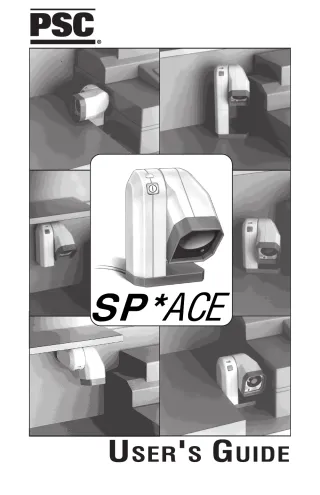
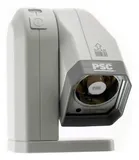
PSC's user's guide for the SP*ACE scanner, a compact presentation laser scanner with an asterisk scan pattern, a rotating scan head and a motion sensor that wakes it from Sleep Mode. It explains the operating modes, controls, indicator lamp, speaker tones and connectors, unpacking and checking the scanner, countertop, pedestal and wall mount installation, connecting and powering up, problem isolation, how to scan, changing tone and volume, cleaning, specifications, laser safety and the warranty.
Its parts
- Product Overview
- Operational Overview
- Controls, Indicators & Connectors
- Unpacking
- Verify Scanner Operation
- Installation
- Connecting the Scanner
- Power-Up Procedure
- Problem Isolation
- Isolated Scanner Test
- How to Scan
- Customizing Your Scanner's Operation
- Cleaning
- Other Programmable Features
- Specifications
From the manual
Key facts from this manual
Some pages are scans or cannot be read; this says only what the readable text supports. Each line names its page in the PDF.
User's guide for the PSC SP*ACE presentation barcode scanner used at checkstands. It explains the controls, lamp and tones, countertop, pedestal and wall mounting, connecting and powering up, problem isolation, tone and volume labels, and cleaning, and lists the specifications. Its own pages also carry laser safety cautions in several languages.
- Device
- Presentation barcode scanner with an asterisk scan pattern, for checkstands p. 5, 25
- Read zone
- Extends eight inches in front of the window, labels read in any orientation p. 25
- Mounting
- Countertop, pedestal or wall; scan head rotates 270° (180° forward, 90° backward) p. 3, 6
- Power required
- 450mA at +12 VDC; about 250mA in Sleep Mode p. 32
- Power source
- External power supply, or from the host through the interface cable (power-off-terminal) p. 32
- External supply
- 115 - 240VAC, 50/60Hz, 4.0 Watts p. 32
- Operating environment
- 10°C (50°F) to 40°C (104°F); 5 - 90 % humidity, non-condensing p. 31
- Storage temperature
- -40°C (-40°F) to 70°C (158°F) p. 31
- Laser
- Visible laser diode at 670nm, less than 348µW peak output p. 36
- Connectors
- Interface connector to the host and a DC power connector for the optional supply p. 7, 11
- Controls
- One operator switch (wake-up, Programming Mode, volume), indicator lamp, speaker, motion sensor p. 7, 8
- Symbologies
- UPC/EAN/JAN with two and five digit add-ons, Code 39, Codabar, Interleaved 2 of 5, Code 128, Code 93 p. 29
- Programming guide
- SP*ACE Programming Guide, PSC Part Number R44-1140 p. 22
- In the box
- User's Guide, scanner, mounting hardware kit, AC to DC power supply (if required), interface cable (if ordered) p. 12
What this manual walks you through
- Rotating the scan head p. 6
- Reading the indicator lamp and the speaker tones p. 9, 10
- Checking the scanner works before installing it p. 13
- Countertop installation p. 15
- Pedestal installation p. 17
- Wall mounting with the drilling template p. 19, 20
- Connecting the scanner and powering up the POS terminal p. 21, 22
- Problem isolation and the isolated scanner test p. 23, 24
- Changing the tone and volume with labels or the switch p. 8, 26, 27
- Cleaning the scan window p. 28
Good to know
- Indoor use only. p. 30
- A volume chosen with the operator switch is lost when power is removed; use the programming labels to keep it. p. 8
- Without a host connected, the scanner may read only one or two labels before it must be reset. p. 13
- The window is optical grade plastic; abrasives can scratch it. p. 28
- If a stationary laser beam is ever emitted, disconnect the unit from power until a qualified technician repairs it. p. 36
Questions this manual answers
What power does the PSC SP*ACE scanner need?
450mA at +12 VDC, from an external power supply or from the host through the interface cable. p. 32
How far from the SP*ACE window will it read a barcode?
The Read Zone extends eight inches in front of the window, and a label is read in any orientation there. p. 25
How do I wake the SP*ACE from Sleep Mode?
Wave a hand or an item in front of the window, or press and release the operator switch quickly. p. 8, 11
Why is the SP*ACE lamp flashing twice a second?
The scanner is in Programming Mode and will not read regular barcodes or send data to the host. p. 9
Contents
Chapters and sections
Each line opens the PDF at its page.
- Product Overview5
- Operational Overview5
- Controls, Indeicatiors & Connetions7
- Unpacking12
- Verifying Scanner Operation13
- Installation14
- Connecting The Scanner21
- Power-Up Procedures22
- Problem Isloation23
- Isolated Scanner Test24
- How to scan25
- Customizing Your Scanner's Operation26
- Cleaning28
- Other Programmable Features29
- Specifications30
- Laser and Product Safety33
- International Cautions37
- Symbols Definitions44
- Standard Warranty45
The whole text · 5 parts
Read the manual here as text
Its text as extracted from the PDF, unedited, in parts; each page opens the PDF at that page.
The file