Manual · PSC
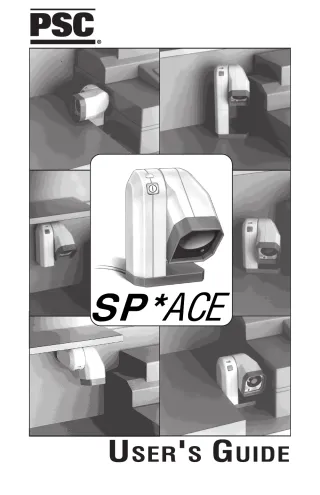
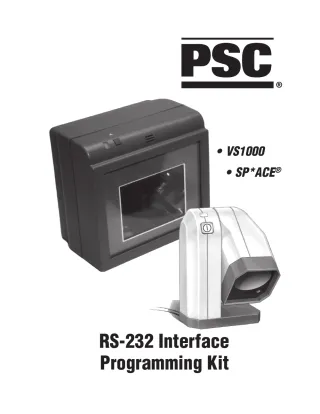
VS1000 / SP*ACE RS-232 Interface Programming Kit
Manual28 pagesPDF 601 KB
RS-232 interface programming kit for the PSC SP*ACE and VS1000 scanners: bar code labels for baud rate, parity and more.
Covers · 1 model
The models it covers
Summary
What is in it
PSC's programming kit for the RS-232 interface of the VS1000 and SP*ACE scanners. It explains how to enter and leave Programming Mode with the Switch Label, how settings are stored, and the restrictions on data bit, parity and stop bit combinations. The rest of the booklet is a set of programming labels, one per option: baud rate (2400, 4800, 9600 or 19200), stop bits, Clear to Send, parity, data bits, label IDs and host echo, so the scanner can be matched to a POS terminal.
Its parts
- Programming Your Scanner
- Programming Conventions
- RS-232 Restrictions
- Interface Requirements
- RS-232 Interface Specifications
From the manual · read page by page
Key facts from this manual
Each line names its page in the PDF.
RS-232 Interface Programming Kit (R44-1141) for the PSC VS1000 and SP*ACE scanners. It explains how to enter and leave Programming Mode with the Switch label, then gives one barcode for each RS-232 setting: baud rate, stop bits, CTS, parity, data bits, label IDs and host echo.
- Document
- RS-232 interface programming labels for the VS1000 and SP*ACE scanners p. 1
- Baud rates
- 2400, 4800, 9600 or 19200 p. 3
- Stop bits
- 1 or 2 p. 3
- Parity
- Space, even, mark, odd or none p. 3
- Data bits
- 7 or 8 p. 3
- Flow control
- CTS/RTS hardware flow control, enable or disable p. 14, 15
- Label IDs
- Code 39 '*', UPC-A 'A', UPC-E 'E0', EAN-8 'FF', EAN-13 'F' p. 23
- Host echo
- Retransmits all received data to the host when enabled p. 25
- Power
- Power cord into an electrical outlet of the appropriate voltage p. 4
- Programming timeout
- Returns to Operating Mode after five minutes idle, keeping the changes p. 6
- Document number
- R44-1141 (Rev. C) p. 28
What this manual walks you through
- Entering Programming Mode and saving changes with the Switch label p. 4, 27
- Setting the RS-232 baud rate p. 8, 9, 10, 11
- Setting stop bits, parity and data bits p. 12, 13, 16, 17, 18, 19, 20, 21
- Turning CTS/RTS flow control on or off p. 14, 15
- Sending or not sending symbology label IDs p. 23, 24
- Turning host echo on or off p. 25, 26
Good to know
- With 7 data bits and no parity, stop bits must be 2; with 8 data bits and odd or even parity, stop bits must be 1. p. 6
- Clear To Send and Host Echo cannot be used at the same time. p. 14
- Host echo needs all handshaking turned off, and host commands cannot be used with it. p. 25
- Labels for features the scanner's software revision lacks are rejected with a low tone. p. 5
- Cover the facing label so the scanner does not read both when changing a feature. p. 27
Questions this manual answers
How do I put a PSC SP*ACE scanner into programming mode?
Scan the Switch label on the inside back cover; the green LED flashes. Scan the Switch label again to save and return to normal operation. p. 4, 27
What baud rates can the SP*ACE RS-232 interface use?
The kit has labels for 2400, 4800, 9600 and 19200 baud. p. 3
What happens if I leave the SP*ACE in programming mode?
After five minutes without activity it goes back to normal Operating Mode and keeps the options already set. p. 6
Are SP*ACE settings kept after power off?
Yes. Options set in Programming Mode are stored and kept when the scanner is powered down. p. 5
The whole text · 3 parts
Read the manual here as text
Its text as extracted from the PDF, unedited, in parts; each page opens the PDF at that page.
The file