Manual · PSC
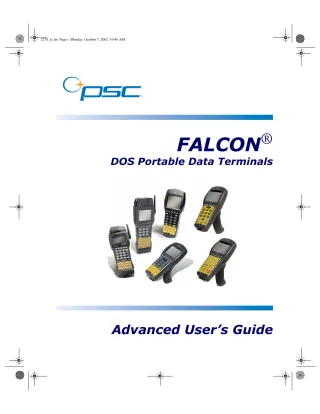
Falcon DOS Portable Data Terminals Advanced User's Guide
Manual184 pagesPDF 10 MB
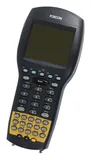
Advanced user's guide for PSC Falcon DOS portable data terminals (Falcon 310 to 345, including the Falcon 330) for administrators and developers.
Covers · 2 models
The models it covers
Summary
What is in it
A technical supplement to the Falcon DOS Portable Terminals User's Guide, written for system administrators, developers and programmers. It covers the Falcon DOS portable models (310, 315, 320, 325, 330, 335, 340, 345), programming the laser triggers and Enter keys, PC cards, serial and IR ports, the Falcon Configuration Utility, the XFER and XFER32 file transfer programs, the Falcon 4-Slot Dock, disk drives and system software, system utilities and resetting the terminal. Appendices give connector pin-outs, ROM-DOS commands, bar code programming parameters and programming bar codes.
Its parts
- About this Guide
- Using Falcon DOS Portable Terminals
- The Falcon Configuration Utility
- Using File Transfer Programs
- The Falcon 4-Slot Dock
- Disk Drives, Organization, Software, & Configurations
- System Utilities
- Resetting the Falcon
- Using PC Cards
From the manual
Key facts from this manual
Each line names its page in the PDF.
The Advanced User's Guide for PSC Falcon DOS portable data terminals, a supplement to the Falcon User's Guide written for system administrators, developers and programmers. It covers the Falcon 310, 315, 320, 325, 330, 335, 340 and 345. It explains PC cards, the serial and IR ports, the disk drives, configuration, file transfer, resetting, connector pinouts, DOS commands and setting bar codes.
- What it is
- Handheld DOS computer for data collection (Falcon DOS portable data terminal) p. 12
- Batch or RF
- Falcon 330: batch portable; Falcon 335: RF portable p. 13
- Serial port
- Falcon 33x: half duplex IR port, set by software for IrDA or modified RS-232 p. 24, 25
- Disk drives
- A and B read-only, C flash disk (read and write), D RAM disk for data p. 25, 26
- Docking pads
- Falcon 33x: three pads underneath; right and center recharge the batteries, left is RS-232 input in the dock p. 124, 125
- Host connection
- Falcon serial cable or Falcon Dock; the Falcon 4-Slot Dock is only for models 31x and 32x p. 27
- File transfer
- XFER utility with Xmodem or Zmodem; on the Falcon 33x Zmodem defaults to Xon/Xoff flow control p. 25, 27
- Configuration utility
- Falcon Configuration Utility for Windows 95, 98, 2000, ME and NT p. 26
- PC cards
- PC card slot; PhoenixCARD Manager Plus drivers; ATA flash cards act as a hard disk p. 23, 26
- Hardware reset
- Falcon 33x: small reset hole at the bottom of the keypad, pressed with a paper clip p. 115
- RS-232 signals
- Falcon 33x: RTS, CTS, DTR, DSR, RI and DCD hardware signals are not passed through p. 25
- Serial jack
- Falcon 31x/32x: COM1, a 10-pin telephone-style RS-232 jack at the base p. 24
- Scanner connector
- Falcon 31x/32x without integrated laser: 9-pin scanner input, 5V out 300mA max p. 122, 123
- 4-Slot Dock cable
- RS-232 host-interface cable, standard length 6 feet (2 meters) p. 127
What this manual walks you through
- Inserting, configuring and removing PC cards p. 22, 23, 24
- Using the IR serial port in IrDA or modified RS-232 mode p. 24, 25
- What each disk drive holds p. 25, 26
- Transferring files with the XFER utility p. 27
- Warm boot, cold boot, safe boot and hardware reset p. 112, 113, 114, 115
- Connector pinouts for the terminals, the Falcon Dock and the 4-Slot Dock p. 122, 123, 124, 125, 126, 127
- Linking several 4-Slot Docks in a dock network p. 127
Good to know
- Turn the Falcon off before inserting or removing a PC card. p. 22
- Falcon 33x: never use a sharp instrument in the reset hole; puncturing the keypad can compromise its industrial specifications. p. 115
- Removing and reinserting the battery pack does not force a cold boot, because the backup battery keeps the unit running. p. 113
- A cold boot loses transient data and the state of any running application. p. 113
- The guide is not meant for first-time Falcon users. p. 12
Questions this manual answers
How do I reset a locked-up Falcon 330?
Try a warm boot first, then a cold boot; if two cold boots fail, press a paper clip gently into the reset hole at the bottom of the keypad. p. 112, 113, 115
Does a cold boot erase data on the Falcon?
Transient data and the running application state are lost, but files on drive C, drive D and an ATA flash card stay; a dead backup battery may lose the RAM drive. p. 113
What is the difference between the Falcon 330 and 335?
The Falcon 330 is the batch portable model and the Falcon 335 is the RF (wireless) model. p. 13
How does the Falcon 330 talk to a PC?
Through its IR port, either as IrDA or as modified RS-232, which is the mode used with the dock for host communications. p. 24, 25
How do I transfer files to a Falcon terminal?
Connect it to the host with a Falcon serial cable or dock and use XFER; the Falcon Configuration Utility runs XFER automatically. p. 27
Contents
Chapters and sections
Each line opens the PDF at its page.
- FALCON® DOS PDT Adv User's Guide1
- About this Guide11
- Using Falcon DOS Portable Terminals17
- The Falcon Configuration Utility29
- Using File Transfer Programs53
- The Falcon 4-Slot Dock87
- Drives, Organization, Software, & Configuration93
- System Utilities103
- Resetting the Falcon111
- Using PC Cards117
- Connector Configurations121
- ROM-DOS Commands129
- Programming Parameters151
- Bar Codes159
- Index173
The whole text · 19 parts
Read the manual here as text
Its text as extracted from the PDF, unedited, in parts; each page opens the PDF at that page.
- Pages 1 to 101-10
- Pages 11 to 2011-20
- Pages 21 to 3021-30
- Pages 31 to 4031-40
- Pages 41 to 5041-50
- Pages 51 to 6051-60
- Pages 61 to 7061-70
- Pages 71 to 8071-80
- Pages 81 to 9081-90
- Pages 91 to 10091-100
- Pages 101 to 110101-110
- Pages 111 to 120111-120
- Pages 121 to 130121-130
- Pages 131 to 140131-140
- Pages 141 to 150141-150
- Pages 151 to 160151-160
- Pages 161 to 170161-170
- Pages 171 to 180171-180
- Pages 181 to 184181-184
The file