Manual · Proxim
RangeLAN2 Extension Point Models 7540 and 7541 User's Guide
Manual84 pagesPDF 965 KB
User's guide for the Proxim RangeLAN2 7540 and 7541 Extension Points that wirelessly extend a RangeLAN2 network.
Covers · 1 model
The models it covers
Summary
What is in it
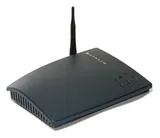
Proxim's user's guide for the RangeLAN2 Extension Point, models 7540 and 7541, a two-radio unit that extends the coverage of an existing RangeLAN2 wireless network. It covers quick and physical installation, antenna and mounting options, wireless topologies and roaming, local and remote configuration, configuration parameters, statistics and status menus, SNMP management, performance hints, the site survey and antenna pointing tools, troubleshooting, LED indicators and U.S. specifications.
Its parts
- Introduction
- Quick Installation
- Physical Installation
- Wireless Topologies
- Configuration
- Configuration Parameters
- Statistics Menu
- Status Menu
- SNMP Management
- Performance Hints
- Site Survey, Antenna Pointing Tool, and Master Search Tool
- Troubleshooting
From the manual
Key facts from this manual
Some pages are scans or cannot be read; this says only what the readable text supports. Each line names its page in the PDF.
This is the 1999 user's guide for the Proxim RangeLAN2 Extension Point, covering models 7540 and 7541. It explains fitting the two antennas, planning wireless topologies, and configuring the unit over its serial port, telnet or SNMP. It also covers firmware downloads, the LEDs and troubleshooting with the built-in diagnostics.
- What it is
- Two-radio wireless extension point that extends a RangeLAN2 network without a wired backbone link p. 8
- Output power
- 7541: 500 mW from each of the two antennas (the 7540 has 100 mW) p. 9
- Radios
- BSA radio (a Master, for wireless clients) and Backbone radio (a Station, for the link to an access point) p. 9
- Frequency band
- 2.4-2.5 GHz frequency hopping spread spectrum, 15 independent channels p. 78
- Data rate
- 1.6 Mbps per port p. 78
- Power
- External UL listed Class 2 supply rated min. 1A at 12VDC p. 78
- Antennas
- Two antennas, bought separately, on custom antenna connectors p. 12, 14
- Operating temperature
- -20 C to +60 C p. 78
- Management port
- DB-9 Local Management Port; null modem RS-232 cable at 9600 bps N81 p. 26, 27
- Remote management
- Telnet, SNMP (MIB-II and IEEE 802.1d Bridge MIB) or dial-up modems p. 26, 28
- Needs
- A RangeLAN2 7510/752x/753x Access Point with V1.3 software on the network backbone p. 10
- Firmware updates
- Xmodem (serial only), TFTP or FTP; one unit can push its image to other Extension Points p. 71, 72
- Default BSA settings
- Domain 0, Channel 2, Subchannel 2, Master Name EP_MASTER p. 12
- In the box
- Extension Point, user's guide and power adapter p. 10
What this manual walks you through
- Quick installation with the default settings p. 12
- Choosing antennas and indoor or outdoor mounting p. 14, 15
- Planning one-hop, linear, tree and building-to-building topologies p. 18, 19
- Configuring the unit from a terminal on the serial port p. 26, 27
- Configuring the unit remotely over telnet p. 27
- Using the diagnostics menu: versions, ping, discovering access points p. 57, 58
- Working through the installation checklist p. 61
- Reading the front and back panel LEDs p. 63, 64
- Downloading new firmware and updating other units p. 71, 72
- Parameter ranges and default values p. 75, 76, 77
Good to know
- There is no default IP address: set one over the serial port or by BOOTP before using telnet. p. 27
- Use only antennas Proxim certified for this unit. p. 12
- Each antenna must be operated at least 20 cm (8 inches) from any person. p. 78
- Keep the two antennas at least 6 feet apart. p. 61
- Only one telnet session at a time, and none while the unit is being configured locally. p. 27
Questions this manual answers
What output power does the Proxim 7541 have?
500 mW from each of its two antennas. The sister model 7540 has 100 mW. p. 9
Does the 7541 extension point come with antennas?
No. It needs two antennas bought separately; most installations use one directional antenna for the Backbone radio and one omnidirectional for the BSA radio. p. 10, 14
Why is the status LED on the 7541 flashing yellow?
The Backbone radio cannot synchronize to a Master. Check that it is in range of a Master listed as First, Second or Third Master to Sync To. p. 62
What terminal settings does the 7541 serial port use?
Use a null modem cable and set the terminal to 9600 bps, N81, with TTY as the terminal type. p. 27, 62
What power supply does the RangeLAN2 Extension Point need?
An external UL listed Class 2 power supply rated at least 1A at 12VDC. p. 78
Contents
Chapters and sections
Each line opens the PDF at its page.
- 1. Introduction1
- The RangeLAN2 Family1
- Extension Point Radios2
- System Requirements3
- The Product Package3
- 2. Quick Installation5
- 3. Physical Installation7
- Antenna Options7
- Outdoor Packaging and Mounting Options7
- Indoor Mounting Options8
- 4. Wireless Topologies11
- Planning and Maintaining the Installation11
- One Hop12
- Multiple Linear13
- Tree14
- Building-to-Building15
- Roaming16
- Roaming Scenarios17
- How to Configure 7510/752x/753x Access Points When Using17
- 5. Configuration19
- Locally (Out-of-band)19
- Remotely (In-band)20
- Main Menu21
- SNMP Management21
- Modem Support22
- 6. Configuration Parameters23
- TCP/IP Configuration Menu24
- Bridge Configuration Menu25
- BSA Radio Configuration Menu26
- Backbone Radio Configuration Menu29
- SNMP Management30
- Reset Extension Point to Factory Defaults30
- Dump Configuration to Screen30
- 7. Statistics Menu31
- BSA Radio Statistics Menu32
- Backbone Radio Statistics Menu32
- Bridge Statistics Menu32
- Reset Statistics32
- 8. Status Menu33
35 more lines, from page 34 on
- BSA Radio Status Menu34
- Backbone Radio Status Menu34
- Bridge Status Menu35
- TCP/IP Status Menu35
- Forwarding Database Table35
- 9. SNMP Management37
- SNMP Supported Traps39
- 10. Performance Hints41
- Microwave Ovens41
- Range41
- 11. Site Survey, Antenna Pointing Tool,43
- and Master43
- 12. Troubleshooting49
- How to Obtain Help with Your LAN Installation49
- Diagnostics Menu49
- Versions51
- Technical Support Parameters51
- Ping IP Host51
- Discover APs/EPs51
- Display Wireless Network Tree52
- Power Outages / Brownouts53
- Installation Checklist54
- Commonly Asked Technical Support Questions55
- LED Indicators56
- A. Menu Structure59
- B. Download Menu64
- C. Glossary66
- D. Parameters68
- TCP/IP Parameters68
- Bridge Parameters68
- BSA Radio Parameters69
- Backbone Radio Parameters70
- E. U.S. Specifications71
- F. How to Reach Technical Support72
- Index73
The whole text · 9 parts
Read the manual here as text
Its text as extracted from the PDF, unedited, in parts; each page opens the PDF at that page.
The file