Manual · Proxim
RangeLAN2 7400 High Performance Wireless LAN Adapter for PCMCIA Type II Equipped Portables User's Guide
Manual84 pagesPDF 1.1 MB
User's guide for the Proxim RangeLAN2 7400 PC Card wireless LAN adapter: antennas, Windows and DOS drivers, setup and troubleshooting.
Covers · 1 model
The models it covers
Summary
What is in it
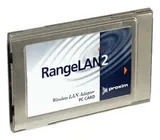
The user's guide for the Proxim RangeLAN2 7400, a wireless LAN adapter on a PCMCIA Type II PC Card with a snap-on or dipole antenna. It covers installing the card and antennas, installing drivers on Windows 95/98, 2000, NT 4.0 and CE and under DOS with ODI or NDIS drivers, ad hoc and infrastructure topologies and roaming, the RangeLAN2 software parameters, performance hints, troubleshooting and LEDs, plus the site survey and configuration utilities and specifications.
Its parts
- Introduction
- Installing the RangeLAN2 Hardware
- Windows Installation Procedure
- DOS Installation
- Wireless Topologies
- Understanding RangeLAN2
- Performance Hints
- Troubleshooting
From the manual
Key facts from this manual
Each line names its page in the PDF.
User's guide for the Proxim RangeLAN2 7400, a PC Card (PCMCIA Type II) wireless LAN adapter for portable computers. It covers installing the card and its snap-on or dipole antenna, loading drivers for Windows and DOS, wireless network layouts and RangeLAN2 settings, range and performance hints, troubleshooting, and specifications.
- Device
- Wireless LAN adapter card for a portable computer's PCMCIA Type II slot p. 7
- Radio
- 2.4-2.483 GHz (in the U.S.) spread spectrum frequency hopping; OpenAir CSMA/CA p. 80
- Data rate
- 1.6 Mbps p. 80
- Range
- Up to 500' indoors, up to 1000' outdoors p. 80
- Bus interface
- PCMCIA 2.0, Type II slot p. 80
- Antennas
- Flexible snap-on antenna (extends less than one inch) or tethered dipole antenna, interchangeable p. 9, 12
- Output power
- 100 mW p. 80
- Channels
- 15 independent channels, each a unique hopping sequence; default 1 p. 53
- Operating systems
- Windows 95, 98, 2000, NT, CE, or a network operating system using ODI or NDIS drivers p. 10
- Requirements
- Card and Socket Services 2.1 or higher, or an Intel 82365SL or compatible controller; at least one other RangeLAN2 product on the network p. 10
- In the box
- PC Card, antenna unit, four 3 1/2" disks (DOS, Windows 95 and 98, Windows 2000, Windows NT drivers) and user's guide p. 9
- LEDs
- Yellow: exchanging data with another radio; green: another unit is transmitting p. 63
- Domain
- 0 to 15, default 0; all devices that talk must share it p. 52, 53
- Manual part number
- Part # 7630.0080 Rev. F p. 1
What this manual walks you through
- Installing the card in a PCMCIA Type II slot p. 11
- Attaching and removing the snap-on antenna p. 12
- Choosing Master, Alternate Master or Station p. 52
- Setting the Domain and Channel p. 52, 53
- Estimating range and placing the antenna p. 61
- Reading the two LEDs on the card p. 63
- Fixing a card that loads but cannot reach the network, or an IRQ conflict p. 64
- Solving problems synchronizing with an Access Point or in an Ad Hoc network p. 65
Good to know
- Microwave ovens use the same frequency band and may slow the network, though both keep working. p. 61
- Leaving the snap-on antenna attached at all times increases connector life. p. 12
- Radios on different Domains cannot communicate with each other. p. 52
- For ETS 300 328 type testing the card was tested in host computers from +5C to +35C. p. 80
Questions this manual answers
Is my computer compatible with the Proxim RangeLAN2 7400?
It needs a PCMCIA Type II slot. Computers sold with Windows 95, 98, 2000 or NT should work; under DOS, Windows 3.1 or Windows for Workgroups it needs Card and Socket Services 2.1 or higher. p. 10, 64
What antenna does the RangeLAN2 7400 use?
Either a flexible snap-on antenna or a tethered dipole antenna; they work interchangeably and may be ordered with the card or separately. p. 9
What is the range of the RangeLAN2 7400?
Up to 500' indoors and up to 1000' outdoors with a clear line of sight; walls can cut it to about 300'. p. 61, 80
Why can't my 7400 card connect to the Access Point?
The card may not have the same Domain and Security ID as the Access Point; also check that the Access Point works and shows a solid green Status LED. p. 65
What do the green and yellow LEDs on the 7400 mean?
Yellow means the card is exchanging data with another radio; green means it detects another unit transmitting. p. 63
Contents
Chapters and sections
Each line opens the PDF at its page.
- 1. Introduction1
- The RangeLAN2 Family2
- The Product Package2
- System Requirements4
- 2. Installing the RangeLAN2 Hardware5
- Installing the RangeLAN2 7400 Card5
- Attaching the Snap-On Antenna6
- Detaching the Snap-On Antenna6
- Attaching the Dipole Antenna8
- Storage Position of the Dipole Antenna10
- 3. Windows Installation Procedure11
- Installing the Windows 95/98 Drivers & Tools11
- Reinstalling the Windows 95/98 Driver20
- Installing the Windows 2000 Driver & Tools20
- Reinstalling the Windows 2000 Driver25
- Installing the Windows NT 4.0 Driver & Tools26
- Reinstalling the Windows NT 4.0 Driver30
- RangeLAN2 7400 Windows CE Driver31
- 4. DOS Installation33
- Installing Drivers Using RL2SETUP33
- Installing Drivers Using the NOS Installation34
- Setting Parameters for ODI and NDIS Drivers35
- ODI - NET.CFG35
- NDIS - PROTOCOL.INI36
- 5. Wireless Topologies39
- Ad Hoc39
- Infrastructure40
- Guidelines for Roaming44
- 6. Understanding RangeLAN245
- RangeLAN2 Software Parameters45
- Station_Type45
- Domain46
- Channel47
- Subchannel48
- Master_Name48
- Security ID48
- MAC_Optimize49
- Roam_Config50
- Peer_to_Peer51
29 more lines, from page 51 on
- Node_Override51
- PC Card Options52
- Inactivity Timeout52
- Card and Socket Services52
- 7. Performance Hints53
- Running Large Executable Files Efficiently53
- Designating Devices as Masters and Alternate Masters53
- Microwave Ovens55
- Range55
- 8. Troubleshooting57
- How to Obtain Help with Your LAN Installation57
- RangeLAN2 7400 LEDs57
- Commonly Asked Technical Support Questions58
- Other61
- A. RangeLAN2 Utilities62
- The RangeLAN2 Site Survey & Configuration Tool and RL2SETUP62
- Diagnostics62
- Site Survey64
- Point to Point Site Survey65
- Master Search67
- Snoop68
- Configuration Changes69
- Setting the RangeLAN2 Security ID69
- RangeLAN2 Status Monitor70
- B. Glossary72
- C. Parameters73
- D. Specifications74
- E. How to Reach Technical Support75
- Index76
The whole text · 9 parts
Read the manual here as text
Its text as extracted from the PDF, unedited, in parts; each page opens the PDF at that page.
The file