Manual · POS-X
ION Linear Barcode Scanner User's Guide
Manual69 pagesPDF 17 MB
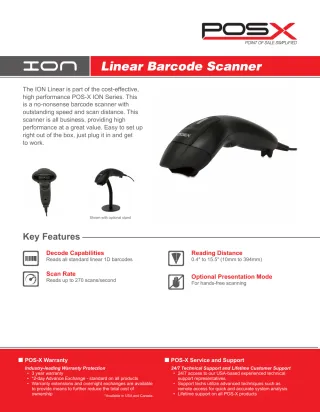
Programming guide for the POS-X ION Linear barcode scanner: interface, keyboard, RS-232 and symbology settings by bar code.
Covers · 1 model
The models it covers

Summary
What is in it
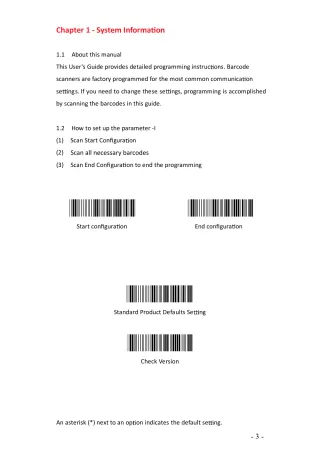
The user's guide for the POS-X ION Linear barcode scanner, made up of programming bar codes. A reader sets up the scanner by scanning Start Configuration, the wanted option bar codes and End Configuration. It covers choosing the interface (keyboard, RS-232, USB or USB COM), keyboard emulation and language, RS-232 settings, scanning mode, beeper tone, prefix and suffix strings, and the options for each symbology from UPC-A and EAN-13 to Code 128, Code 11, Telepen and GS1 DataBar.
Its parts
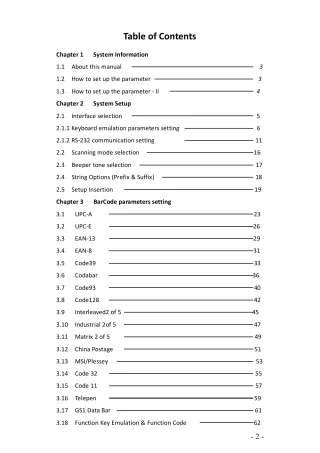
- System Information
- System Setup
- BarCode parameters setting
From the manual · read page by page
Key facts from this manual
Some pages are scans or cannot be read; this says only what the readable text supports. Each line names its page in the PDF.
User's guide for the POS-X ION Linear barcode scanner, made up mostly of programming barcodes. It shows how to set the interface, keyboard and RS-232 options, scanning mode, beeper, prefix and suffix, character insertion and the settings for each barcode type.
- Setup method
- Programmed by scanning the configuration barcodes in the guide p. 3
- Interfaces
- Keyboard, RS-232, USB (default) and USB COM p. 5
- USB setup
- No configuration needed; plug in and scan p. 5
- RS-232 baud rates
- 1200 to 38400 bps, default 9600 p. 11
- RS-232 handshaking
- None (default), RTS/CTS, ACK/NAK or Xon/Xoff p. 13
- Keyboard languages
- USA (default), Italian, Spanish, French, German, Japanese p. 7
- Keyboard types
- IBM AT (default), IBM XT, IBM PS/2 30-80, IBM 5550, PS/2 25/30, NEC 9801 p. 6
- Scanning modes
- Trigger, continuous and flash modes; default trigger on, good read off p. 16
- Prefix and suffix
- Up to 10 characters each p. 18
- Symbologies
- UPC-A, UPC-E, EAN-13, EAN-8, Code39, Codabar, Code93, Code128, Interleaved 2 of 5, Industrial 2 of 5, Matrix 2 of 5, China Postage, MSI/Plessey, Code 32, Code 11, Telepen, GS1 Data Bar p. 2
- Function keys
- Function key emulation from Full ASCII Code 39 labels p. 62
What this manual walks you through
- Programming the scanner with configuration barcodes p. 3, 4
- Choosing the interface p. 5
- Setting keyboard emulation options p. 6, 7, 8, 9, 10
- Setting RS-232 communication p. 11, 12, 13, 14, 15
- Choosing the scanning mode p. 16
- Setting the beeper tone and duration p. 17
- Adding a prefix or suffix p. 18
- Inserting characters into the output p. 19, 20, 21
- Enabling and tuning each barcode type p. 23, 33, 42
- Emulating function keys p. 62, 63
Good to know
- After enabling Emulate External Keyboard, the computer must be restarted. p. 8
- Insertion is limited to 10 characters at a time and two insertion groups. p. 19
- Full ASCII Code 39 must be enabled to scan function key labels. p. 62
Questions this manual answers
How do I program the POS-X ION Linear scanner?
Scan the Start Configuration barcode, then the setting barcodes you need, then End Configuration. Two beeps confirm a new setting. p. 3, 4
Does the ION Linear need setup to work over USB?
No. USB is the default interface; plug the scanner in and scan. p. 5
How do I reset the ION Linear to factory defaults?
Scan the Standard Product Defaults barcode on the setup page of the guide. p. 3
What baud rates does the ION Linear support on RS-232?
1200 to 38400 bps; 9600 is the default. p. 11
How long can an ION Linear prefix or suffix be?
Up to 10 characters, added in front of or after the scanned barcode. p. 18
The whole text · 7 parts
Read the manual here as text
Its text as extracted from the PDF, unedited, in parts; each page opens the PDF at that page.
The file