Manual · Pertech
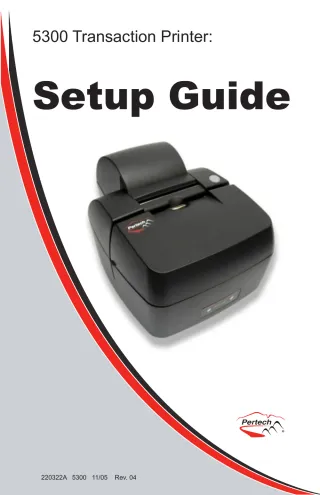
5300 Transaction Printer: Setup Guide
Manual9 pagesPDF 1.0 MB
Setup guide for Pertech 5300 Series ink jet and impact transaction printers: cables, cartridge, paper, LEDs, self-test and configuration.
Filed with · 1 model
Also filed with these models on the old site
Summary
What is in it
A short setup guide for the Pertech 5300 Series transaction printers, in ink jet and impact versions. It covers unpacking, choosing a location, connecting the RS-232, USB, cash drawer and power cables with pinouts, the printer controls, installing the ink jet or impact cartridge, loading roll paper and clearing jams, reading the LED indicators, running the self-test and changing settings in configuration mode (with a sample 5351 configuration report), preventive maintenance and power supply requirements.
From the manual · read page by page
Key facts from this manual
Each line names its page in the PDF.
This is the Pertech setup guide for the 5300 Transaction Printer series, in ink jet and impact models; it is written for the 5300 series and does not name the 5371 itself. It walks through unpacking, connecting the serial, USB, power and cash drawer cables, installing the print cartridge, loading paper, reading the LED indicators, running the self-test and configuration menu, and routine cleaning.
- Device
- 5300 series transaction printer, in ink jet and impact models p. 1, 3
- Interfaces
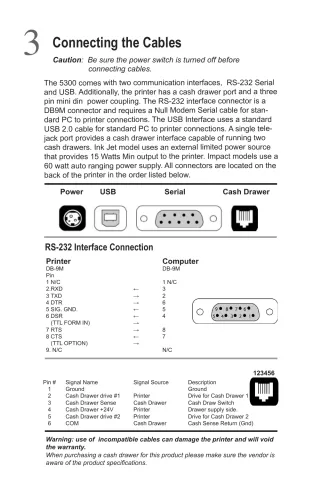
- RS-232 serial (DB9M, needs a Null Modem cable) and USB 2.0 p. 3
- Cash drawer port
- Single telejack port that drives two cash drawers, +24V drawer supply p. 3
- Power
- Ink jet: external limited power source, 15 Watts min; impact: 60 watt auto ranging supply; three pin mini din connector p. 3
- Power source rating
- Input 100 - 240 Vac, 1.5 A, 50/60 Hz; output 24Vdc, 2.5 A and 60W maximum p. 9
- Print cartridges
- Ink jet: 108541001; impact: 100629011 black, 100629012 purple p. 4
- Paper roll
- 3 inches wide, 3.5 inches maximum diameter; ink jet 1 ply, impact 1 or 2 ply p. 5
- Paper part numbers
- Ink jet: 103292057; impact: 2 ply 103292061, 1 ply 103292062 p. 5
- Serial cable length
- 20 feet maximum to host and power supply (RS-232) p. 2
- Controls
- Paper feed button and power switch p. 4
- Indicators
- Two color LEDs showing paper, error, ink low, form in and power on p. 5
- Interface cable
- Shielded (360 degree) cable, shield grounded at each end p. 9
What this manual walks you through
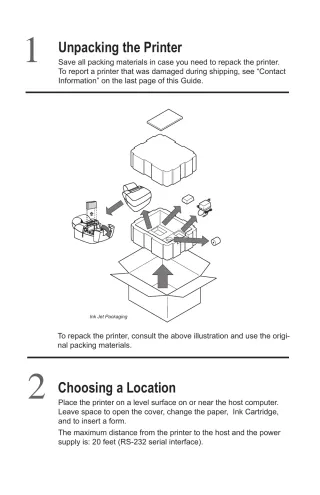
- Unpacking and choosing a location p. 2
- Connecting cables, with serial and cash drawer pinouts p. 3
- Installing an ink jet or impact print cartridge p. 4
- Loading paper and clearing a paper jam p. 5
- Reading the LED status indicators p. 5
- Running the self-test and changing configuration settings p. 6
- Choosing automatic or manual ink status reset p. 7
- Preventive cleaning p. 8
Good to know
- Turn the power switch off before connecting cables. p. 3
- The printer ships without a print cartridge; remove the ink cartridge before shipping or moving the printer. p. 4
- Turning the printer off before finishing Configuration Mode erases the changes. p. 6
- Do not spray or clean the print head or the inside of the printer with any cleaner. p. 8
- Validation only printers have no Configuration Mode. p. 6
Questions this manual answers
How do I print a self-test on a Pertech 5300 printer?
Hold the Paper Feed Button, switch the power on, and release the button after 4 seconds; the printer tests itself and prints its configuration. p. 6
What ink cartridge does the Pertech 5300 ink jet printer use?
Replacement ink jet cartridge 108541001; impact models use ribbon cartridge 100629011 (black) or 100629012 (purple). p. 4
What size paper roll fits the Pertech 5300?
Rolls 3 inches wide with a diameter of no more than 3.5 inches; ink jet paper is part number 103292057. p. 5
What serial cable does the Pertech 5300 need?
A Null Modem Serial cable to its DB9M RS-232 connector, up to 20 feet long. p. 2, 3
How do I clear a paper jam?
Open the front cover and pull the paper backwards out of the mechanism, or forwards if it will not come out; cycle power if needed. p. 5
The whole text · 1 part
Read the manual here as text
Its text as extracted from the PDF, unedited, in parts; each page opens the PDF at that page.
The file