Manual · Palm
Getting Started with Palm m500 Series Handhelds
Manual56 pagesPDF 541 KB
Getting started guide for Palm m500 Series handhelds: cradle setup, charging, Palm Desktop, HotSync, data entry and basic apps.
Names · 2 models
The models it names
Filed with · 3 models
Also filed with these models on the old site
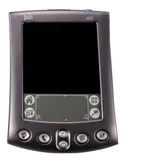
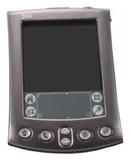
Summary
What is in it
Getting started guide for the Palm m500 Series handhelds. It explains connecting the USB HotSync cradle, charging, setting up the handheld, installing Palm Desktop software on Windows or Macintosh, the first HotSync operation and using SD or MMC expansion cards. It then covers entering data with the onscreen keyboards, Graffiti writing and Note Pad, using Address Book, Date Book, To Do List, Memo Pad, Clock and Mail, preferences, beaming, installing add-on applications, soft and hard resets, and answers to common problems.
Its parts
- Get Started
- Enter Data
- Get to Work
- Frequently Asked Questions
From the manual
Key facts from this manual
Each line names its page in the PDF.
Palm's printed getting-started guide (P/N 406-2698-A-US) for the Palm m500 series handhelds. It walks through connecting the USB HotSync cradle, charging, installing Palm Desktop software and the first HotSync, then basic use of the built-in applications, resets and troubleshooting.
- Device
- Palm OS handheld with Date Book, Address Book, To Do List, Note Pad, e-mail and expense tracking p. 7
- Expansion slot
- Secure Digital (SD) or MultiMedia Card (MMC) cards, for added software, memory or backup p. 14
- HotSync cradle
- USB cradle with power cord to an AC adapter p. 9
- Serial option
- Serial cradle with a 25-pin or Macintosh serial adapter, for computers without USB or with Windows 95, Windows NT or an older Macintosh p. 9
- Charging
- Two hours in the cradle for the first charge, then a few minutes each day p. 9
- Flat battery
- About a week to recharge after a full discharge before data is lost p. 9
- Universal connector
- For peripherals such as a modem, portable keyboard or GPS receiver p. 15
- IR port
- Beams data and applications to a nearby infrared-enabled Palm OS handheld p. 7
- Backlight
- Hold the power button about two seconds to turn it on or off p. 21
- Desktop software
- Palm Desktop for Windows or Macintosh on CD-ROM, with HotSync Manager p. 10, 11, 12
- Reset tool
- Reset tip inside the stylus; reset button in a hole on the back panel p. 51, 52
- External keyboard
- Optional keyboard accessory plugs into the universal connector p. 20
What this manual walks you through
- Connecting the USB HotSync cradle and AC adapter p. 9
- Charging and setting up the handheld p. 9, 10
- Installing Palm Desktop software on Windows or a Macintosh p. 11, 12
- Performing the first HotSync operation p. 13
- Inserting and removing SD or MMC expansion cards p. 14, 15
- Using the backlight and adjusting the contrast p. 21
- Installing add-on applications to the handheld or an expansion card p. 51
- Performing a soft reset and a hard reset p. 51, 52
- What to do when the screen shows nothing p. 53
- Troubleshooting HotSync communication and data synchronization problems p. 54, 55, 56
Good to know
- A hard reset erases all records and entries; use it only if a soft reset does not help. p. 52
- Outside the United States, choose the same language on the handheld and in Palm Desktop software, or data may be lost. p. 10
- Each handheld must have a unique user name for HotSync operations. p. 14
- When upgrading from another Palm OS handheld, install the Palm Desktop version that comes with the new one. p. 8
- Keep the supplied dummy card in the expansion slot when no card is used, to keep debris out. p. 15
Questions this manual answers
How do I hard reset a Palm m500?
Hold the power button, press and release the reset button on the back, wait for the Palm logo, then press the upper scroll button to confirm erasing all data. p. 52
How long should I charge a new Palm m500 before using it?
Leave it in the cradle for two hours for the first charge, then a few minutes each day. p. 9
What memory cards does the Palm m500 take?
Secure Digital (SD) or MultiMedia Card (MMC) expansion cards. p. 14
My computer has no USB port. Can I still sync a Palm m500?
Yes. The guide says to order a serial cradle and, if needed, a 25-pin or Macintosh serial adapter. p. 9
Why is my Palm m500 screen blank?
Press an application button, adjust the contrast if the model has it, check the battery charge, then try a soft reset and, last, a hard reset. p. 53
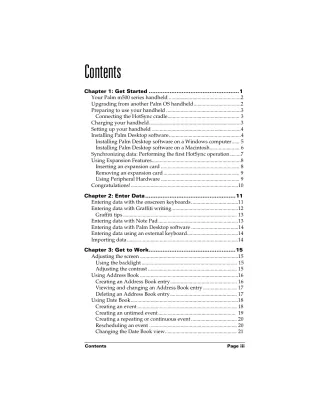
Contents
Chapters and sections
Each line opens the PDF at its page.
The whole text · 6 parts
Read the manual here as text
Its text as extracted from the PDF, unedited, in parts; each page opens the PDF at that page.
The file