Manual · Palm
Handbook for Palm m100 Series Handhelds
Manual210 pagesPDF 2.6 MB
User handbook for Palm m100 series handhelds: setup, Graffiti data entry, built-in applications, HotSync and preferences.
What this file really is
The old site listed this file as a manual for the HP m105, m130 and 2 more models. The file is named as an HP m105 manual, but the document is Palm's handbook for the m100 series handhelds and does not name the m105, the m130 or HP.
Filed with · 4 models
Also filed with these models on the old site
Summary
What is in it
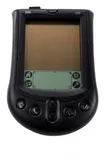
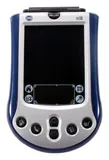
Palm's handbook for the m100 series handhelds. It explains the handheld's controls, system requirements for Windows and Mac computers, installing Palm Desktop software and connecting the HotSync cradle/cable, entering data with Graffiti writing or the onscreen keyboard, managing applications and expansion cards, using Date Book, Address Book, To Do List, Note Pad, Memo Pad, Calculator and Clock, advanced HotSync operations, and setting preferences, with maintenance tips and FAQs.
Its parts
- About This Book
- Introduction to Your Handheld
- Entering Data in Your Handheld
- Managing Your Applications
- Using Expansion Features
- Using Your Basic Applications
- Advanced HotSync Operations
- Setting Preferences for Your Handheld
From the manual
Key facts from this manual
Each line names its page in the PDF.
Palm's Handbook for Palm m100 Series Handhelds, the full user manual for the series; it does not name individual models. It covers the controls and ports, setting up the HotSync cradle and Palm Desktop software, charging, expansion cards, the built-in applications, preferences and HotSync options. Appendices explain care, battery life, soft and hard resets and answer common problems.
- Device
- Palm OS handheld of the m100 series with touch-sensitive screen, stylus and Graffiti writing area p. 11, 13
- Expansion slot
- Secure Digital (SD), MultiMediaCard and SDIO cards p. 15
- Universal connector
- Links to the cradle/cable for HotSync and charging, and to devices such as a modem, portable keyboard or GPS receiver p. 15, 63
- Infrared
- IR port for beaming to other Palm OS handhelds and for IR HotSync operations p. 15
- Cradle
- Supplied HotSync cradle/cable has a USB connector; a serial cradle/cable and 25-pin adapter can be ordered p. 18
- Charging
- In the cradle: at least two hours before first use, then ten to fifteen minutes a day p. 19
- Data retention
- About one week after the battery drains too low to operate p. 176
- Backlight
- Hold the power button about two seconds to set high or low brightness p. 13
- Auto-off
- Set to 30 seconds, or one, two or three minutes p. 183
- Desktop software (Windows)
- Pentium-class PC, Windows 95/98/Me/NT 4.0/2000/XP, 30 MB disk, USB or serial port p. 12
- Desktop software (Mac)
- PowerPC Mac, Mac OS 8.6 to 9.x, 25 MB disk, 6 MB RAM p. 12
- Optional equipment
- Modem, infrared device, SD or MultiMediaCard cards, HotSync cable with USB or serial connector, face plates p. 12, 15
What this manual walks you through
- Locating the front and back panel controls p. 13, 14, 15
- Connecting the HotSync cradle/cable and charging the handheld p. 18, 19
- Installing Palm Desktop software on Windows p. 21
- Upgrading from another Palm OS handheld p. 15, 16
- Changing the flip cover and face plate p. 17, 18
- Inserting and removing an expansion card p. 63, 64
- Performing a soft or hard reset p. 176, 177
- Restoring data after a hard reset p. 178, 179
- Fixing a blank screen, full memory or auto-off problems p. 183
- Solving local and modem HotSync problems p. 186, 187, 188
Good to know
- A hard reset erases all records and entries; use it only when a soft reset does not help. p. 177
- The handheld is not waterproof; keep it away from rain, moisture and temperature extremes. p. 175
- There are no serviceable parts inside; do not open the unit. p. 176
- Battery life may vary with the expansion card used. p. 63
- For modem HotSync, the handheld cannot wake a modem that has an auto-off feature. p. 188
Questions this manual answers
How do I hard reset a Palm m100 series handheld?
Hold the power button, press and release the reset button with an unfolded paper clip, wait for the Palm Powered logo, then press the upper scroll button to erase all data. p. 177
What expansion cards does the Palm m100 series take?
Secure Digital (SD), MultiMediaCard and SDIO cards. p. 15
How long will my Palm keep its data when the battery is dead?
About one week after it stops operating; leaving it uncharged longer can lose all stored data. p. 176
My Palm handheld memory is full, what can I do?
Purge old Date Book and To Do List records, delete unused memos and records, and remove added applications. p. 183
Contents
Chapters and sections
Each line opens the PDF at its page.
- Handbook for Palm™ m100 Series Handhelds1
- About This Book9
- Introduction to Your Handheld11
- Entering Data in Your Handheld35
- Managing Your Applications49
- Using Expansion Features63
- Using Your Basic Applications71
- Advanced HotSync® Operations131
- Setting Preferences for Your Handheld151
- Maintaining Your Handheld175
- Frequently Asked Questions181
- Non-ASCII Characters for Login Scripts195
- Product Regulatory Information197
- Index201
The whole text · 21 parts
Read the manual here as text
Its text as extracted from the PDF, unedited, in parts; each page opens the PDF at that page.
- Pages 1 to 101-10
- Pages 11 to 2011-20
- Pages 21 to 3021-30
- Pages 31 to 4031-40
- Pages 41 to 5041-50
- Pages 51 to 6051-60
- Pages 61 to 7061-70
- Pages 71 to 8071-80
- Pages 81 to 9081-90
- Pages 91 to 10091-100
- Pages 101 to 110101-110
- Pages 111 to 120111-120
- Pages 121 to 130121-130
- Pages 131 to 140131-140
- Pages 141 to 150141-150
- Pages 151 to 160151-160
- Pages 161 to 170161-170
- Pages 171 to 180171-180
- Pages 181 to 190181-190
- Pages 191 to 200191-200
- Pages 201 to 210201-210
The file