Manual · Palm
Getting Started with Palm m100 Series Handhelds
Manual30 pagesPDF 569 KB
Getting started guide for Palm m100 series handhelds: buttons, Graffiti writing, built-in applications, HotSync and troubleshooting.
What this file really is
The old site listed this file as “Getting Started Guide” for the HP m105, m130 and 2 more models. The file is filed under HP, but it is Palm's own getting started guide for the Palm m100 series and does not name the m105 or m130.
Filed with · 4 models
Also filed with these models on the old site
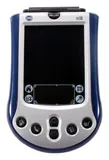
Summary
What is in it
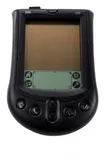
A short getting started guide for Palm m100 series handhelds. It shows the front and back panels, the Graffiti writing area and how to write Graffiti characters, the built-in applications (Address Book, Date Book, Memo Pad, Note Pad, HotSync and more), menus, using an expansion card, beaming by infrared, battery power, the flip cover and faceplate, Palm Desktop software and its system requirements, and troubleshooting for the screen, HotSync, communication, recharging and expansion cards.
Its parts
- Front panel of Palm m100 series handhelds
- Back panel of Palm m100 series handhelds
- Graffiti writing area and surrounding icons
- Graffiti writing
- Applications on your handheld
- Menus
- Expansion card
- Beaming information
- Battery Power
- Removing the flip cover
- Changing the faceplate
- Palm Desktop software
- Troubleshooting
From the manual · read page by page
Key facts from this manual
Each line names its page in the PDF.
Palm's Getting Started guide (2001-2002, PN 406-3996A-US) for the Palm m100 Series Handhelds; it does not name individual models. It tours the buttons, ports and Graffiti writing area, the built-in applications, expansion cards, beaming, charging and Palm Desktop software. It ends with troubleshooting for a blank screen, HotSync, charging and expansion card problems.
- Device
- Palm OS handheld of the m100 series, with stylus and Graffiti writing area p. 1, 5
- Connector
- Universal connector for the HotSync cradle/cable, modem, portable keyboard and other accessories p. 5
- Expansion slot
- Secure Digital (SD) or MultiMediaCard expansion card p. 14
- Infrared
- IR port for beaming records, applications and business cards; best at 10 cm to 1 m apart p. 15, 16
- Charging
- Recharges in the cradle: at least two hours first, then ten to fifteen minutes a day p. 16
- Applications
- Address Book, Calculator, Card Info, Clock, Date Book, HotSync, Memo Pad, Note Pad, Preferences, Security, To Do List, Welcome p. 9, 10, 11, 12, 13
- Memo length
- Up to 4,000 characters per memo p. 11
- Desktop software (Windows)
- Pentium-class PC, Windows 95/98/Me/NT 4.0/2000/XP, 30 MB disk, USB or serial port p. 19, 20
- Interchangeable faceplate
- Removable flip cover and faceplate p. 17
What this manual walks you through
- Finding the buttons, ports and expansion slot p. 5
- Writing with Graffiti strokes p. 7, 8
- Inserting and removing an expansion card p. 14, 15
- Beaming records and applications to another handheld p. 15, 16
- Charging the battery in the cradle p. 16
- Changing the flip cover and faceplate p. 17
- Installing applications with Palm Desktop and HotSync p. 19
- Soft and hard resets when the screen stays blank p. 21
- Fixing HotSync communication and synchronization problems p. 21, 22, 23, 24
- Fixing charging problems p. 25
Good to know
- A hard reset erases all records and entries; use it only if a soft reset does not help. p. 21
- After the handheld shuts down on a low battery, there is about a week to recharge before data is lost. p. 16
- Windows 95 and NT need a serial cradle/cable, sold separately. p. 19
- Keep the dummy card in the expansion slot when no card is in use. p. 15
Questions this manual answers
How do I reset a Palm m100 series handheld?
For a soft reset press the reset button on the back with a paperclip; for a hard reset hold the power button while doing a soft reset, which erases all data. p. 21
How long does a Palm m100 series handheld take to charge?
Give it at least two hours in the cradle before first use, then ten to fifteen minutes a day. p. 16
What memory cards work in the Palm m100 series?
The expansion slot takes Secure Digital (SD) or MultiMediaCard cards. p. 14
Contents
Chapters and sections
Each line opens the PDF at its page.
- Getting Started with Palm™ m100 Series Handhelds1
- Front panel of Palm™ m100 series handhelds5
- Back panel of Palm m100 series handhelds5
- Graffiti® writing area and surrounding icons6
- Graffiti writing7
- Applications on your handheld8
- Menus14
- Expansion card14
- Beaming information15
- Battery Power16
- Removing the flip cover17
- Changing the faceplate17
- Palm™ Desktop software18
- Troubleshooting20
- Index27
The whole text · 3 parts
Read the manual here as text
Its text as extracted from the PDF, unedited, in parts; each page opens the PDF at that page.
The file