Manual · Opticon
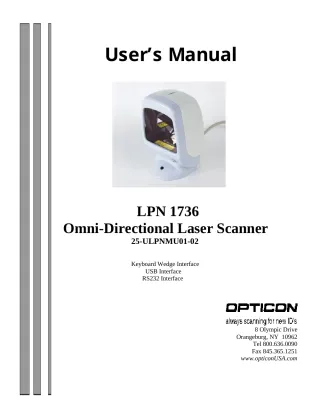
User's Manual LPN 1736 Omni-Directional Laser Scanner
Manual149 pagesPDF 572 KB
User's manual for the Opticon LPN1736 omni-directional laser scanner, with setup for keyboard wedge, RS232 and USB and programming bar codes.
Covers · 1 model
The models it covers
Summary
What is in it
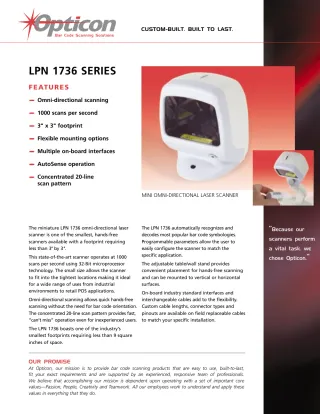
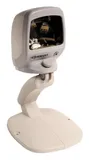
The user's manual for the Opticon LPN1736, a hands-free omni-directional laser bar code scanner. It covers unpacking, the parts of the scanner and its adjustable stand, then setup for each interface: keyboard wedge, RS232 and USB. The rest of the manual is programming bar codes for enabling symbologies (UPC, EAN, Code 39, Codabar, Code 128, 2 of 5, MSI/Plessey, IATA) and for options such as read mode, beeper, prefixes and suffixes, code identifiers and sleep mode, with default settings in an appendix.
Its parts
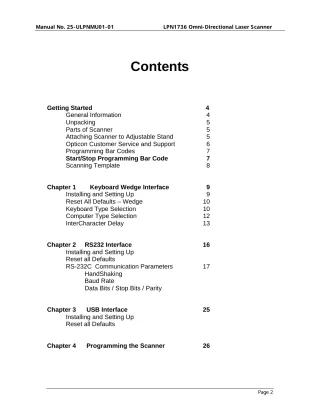
- Getting Started
- Keyboard Wedge Interface
- RS232 Interface
- USB Interface
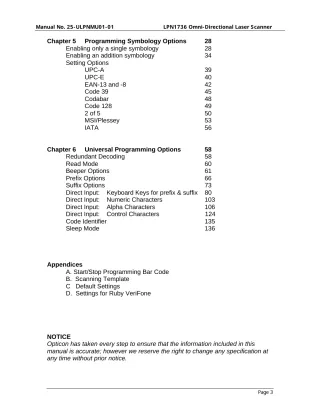
- Programming the Scanner
- Programming Symbology Options
- Universal Programming Options
From the manual
Key facts from this manual
Each line names its page in the PDF.
User's manual for the Opticon LPN1736 omni-directional laser scanner with keyboard wedge, RS232 and USB interfaces. It explains unpacking, attaching the adjustable stand and setting up each interface. Most of its pages are programming bar codes for communication settings, symbologies, prefixes and suffixes, sleep mode and the defaults for VeriFone Ruby SuperSystems.
- Device
- Omni-directional laser scanner for hands-free scanning; recognizes most common symbologies automatically p. 4
- Interfaces
- Keyboard Wedge (PS2 or AT/XT), RS 232, USB Type A p. 4
- RS232 connection
- DB9 female connector with a jack for the external +5VDC power supply p. 16
- RS232 defaults
- 9600 baud, 8 data bits, 1 stop bit, no parity, no handshaking p. 16
- Baud rates
- 600, 1200, 2400, 4800, 9600 or 19200 p. 20, 21
- Handshaking
- None (default), ACK/NAK or Xon/Xoff; flow control time unlimited, 100, 200 or 400 ms p. 17, 18, 19
- USB connection
- Type A USB connector; external +5VDC supply needed through a pig tail adapter; Windows 98 (or iMac Rev A) or higher p. 25
- Keyboard wedge
- IBM AT keyboard by default; XT and PS2 keyboards; IBM PC/XT or Macintosh computer types p. 9, 10, 11, 12
- Intercharacter delay
- No delay by default; delay settings 1 to 10 for keyboard buffer overrun p. 13, 14, 15
- Programming
- By scanning programming bar codes between Start/Stop Programming Mode codes; changes kept when power is off p. 7, 26
- Sleep mode
- Laser and motor turn off after an idle period of 10 seconds to 1 hour; scanner wakes when a bar code is presented p. 136
- Controls
- Reading window, trigger button, good read indicator, adjustable buzzer/beeper, cable, label with serial number p. 5
- Stand
- Adjustable mounting stand provided; plastic screw through the scanner base into the stand arm; cable clamp p. 5
- Auto sensor
- Adjustable for light or dark work surfaces around the bar code p. 140
What this manual walks you through
- Unpacking and attaching the scanner to the adjustable stand p. 4, 5
- Entering and leaving programming mode with a scanning template p. 7, 8
- Setting up the keyboard wedge, keyboard type, computer type and intercharacter delay p. 9, 10, 11, 12, 13
- Setting up RS232 handshaking, baud rate, data bits, stop bits and parity p. 16, 17, 18, 19, 20, 21, 22, 23
- Connecting the USB version p. 25
- Restoring factory default settings p. 10, 17, 27
- Enabling one symbology or all symbologies p. 28
- Programming sleep mode and motor speed when idle p. 136, 137, 138, 139, 141
- Restoring settings for VeriFone Ruby SuperSystems p. 145, 146, 147, 148
Good to know
- In programming mode the scanner reads only programming bar codes, not regular bar codes. p. 7
- Cover the other programming bar codes on a page, since the omni-directional scanner may read the wrong one. p. 7
- Reset All Defaults erases every change, including earlier programming. p. 27
- On a keyboard wedge, missing data, random read errors or lockups can come from keyboard buffer overrun. p. 13
Questions this manual answers
How do I reset the Opticon LPN1736 to factory defaults?
Scan Start/Stop Programming Mode, then the Reset All Defaults bar code for your interface, then Start/Stop Programming Mode again. p. 10, 17
What are the LPN1736 default RS232 settings?
9600 baud, 8 data bits, 1 stop bit, no parity and no handshaking. p. 16
Does the LPN1736 USB version need a power supply?
Yes. The manual says the external +5VDC supply is necessary, connected through a pig tail adapter at the USB connector. p. 25
How long before the LPN1736 goes to sleep?
Sleep is programmable from 10 seconds to 1 hour; by default the laser and motor stay on whenever power is applied. p. 136
My LPN1736 keyboard wedge drops characters or locks up. What can I change?
Try the intercharacter delay settings; the scanner may be sending data faster than the computer accepts it. p. 13
Contents
Chapters and sections
Each line opens the PDF at its page.
The whole text · 17 parts
Read the manual here as text
Its text as extracted from the PDF, unedited, in parts; each page opens the PDF at that page.
- Contents1-3
- Pages 4 to 64-6
- Programming Bar Codes7-16
- Handshaking Protocol17-25
- General Information, pages 26 to 3526-35
- General Information, pages 36 to 4536-45
- General Information, pages 46 to 5546-55
- General Information, pages 56 to 6556-65
- General Information, pages 66 to 7566-75
- General Information, pages 76 to 8576-85
- General Information, pages 86 to 9586-95
- General Information, pages 96 to 10596-105
- General Information, pages 106 to 115106-115
- General Information, pages 116 to 125116-125
- General Information, pages 126 to 135126-135
- General Information, pages 136 to 141136-141
- Appendix A142-149
The file