Manual · Opticon
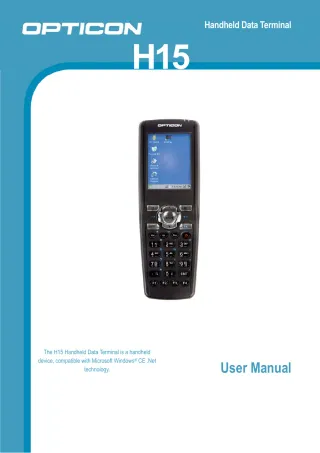
Handheld Data Terminal H15 User Manual
Manual101 pagesPDF 1.8 MB
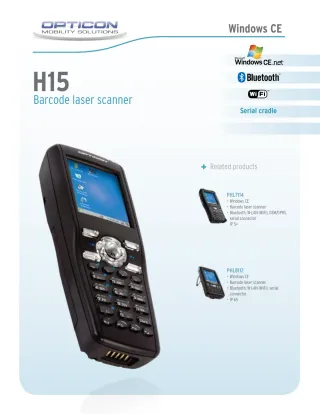
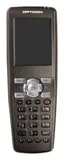
User manual for the Opticon H15 (H-15) handheld data terminal running Windows CE, with laser barcode reader, Wi-Fi and Bluetooth.
Covers · 1 model
The models it covers
Summary
What is in it
Opticon's user manual for the H15 handheld data terminal. It covers safety and regulatory information, full system specifications and environmental ratings, then getting started (battery, charging, touch screen, keypad, wireless LAN setup and reading barcodes), power management and resets, the Control Panel settings including Bluetooth, communication with a host PC through Microsoft ActiveSync, and the bundled software applications.
Its parts
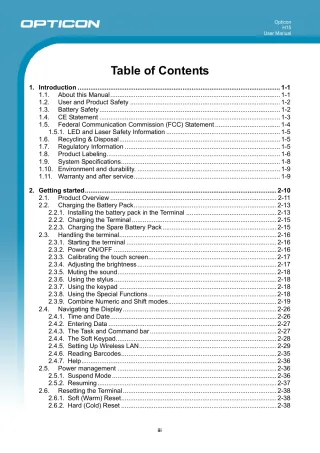
- Introduction
- Getting started
- Settings
- Communication
- Software Applications
From the manual
Key facts from this manual
Each line names its page in the PDF.
This is the Opticon user manual (edition 3, December 2009) for the H15 handheld data terminal, a Windows CE 5.0 device with a built-in 1D laser barcode reader. It covers specifications, installing and charging the battery, keys and indicators, scanning, power management, resets and connecting to a PC with ActiveSync through the CRD-15 cradle.
- Device
- Rugged Windows CE 5.0 handheld terminal with integrated 1D barcode reader p. 8
- Processor
- 312MHz Intel PXA270 32-bit RISC p. 15
- Memory
- 64 MB SDRAM; 128 MB or 256 MB Flash ROM; MicroSD slot (memory only, no SDIO) p. 15
- Display
- 240 x 320, 2.4 in 256K color TFT with LED backlight and touch panel p. 8, 15
- Radios
- 802.11b/g wireless LAN and Bluetooth V2.0 class II, built in p. 15
- USB
- USB v1.1 client, through the H-15 cradle only p. 15
- Battery
- Li-Ion pack 3.7V 1880mAh, plus a 3.7V/105mAh rechargeable backup battery p. 15
- Power adapter
- 100~240VAC, 50/60Hz input; 5VDC, 2.6A output p. 15
- Charge time
- About 6 hours for the first charge, about 4 hours after that p. 20
- Cradle
- CRD-15: charges the terminal or a spare battery and links to a PC by USB p. 22, 81
- Reading range
- 50 to 650mm p. 43
- Operating temperature
- -10 to 50 °C (14 to 122 °F) p. 16
- Durability
- IP54; 5ft (1.5m) drop onto concrete; vibration MIL STD 810F p. 16
- Weight
- About 224 g with standard battery pack p. 15
What this manual walks you through
- Checking the package contents p. 17
- Keys, LED indicators and ports of the terminal p. 19
- Installing the battery pack p. 20, 21
- Charging the terminal and a spare battery in the CRD-15 cradle p. 22
- Calibrating the touch screen and adjusting brightness p. 24
- Reading barcodes and aiming the laser p. 42, 43
- Suspend mode and resuming p. 43, 44
- Warm and cold reset p. 45
- Connecting to a PC with ActiveSync through the cradle p. 81
Good to know
- A cold reset closes all applications and clears working RAM and all files; back up first and try a warm reset before it. p. 45
- Leaving the battery out too long loses data held in SDRAM; power the terminal off before changing the main battery. p. 20
- Use only the original approved AC adapter. p. 9
- Avoid long exposure to rain or concentrated moisture, which exceeds the IP54 rating. p. 9
- The LED and laser are not user replaceable. p. 12
Questions this manual answers
How do I reset an Opticon H15?
For a warm reset press F1 and F4 together; for a cold reset, which clears all files, press Power, F1 and F4 together. p. 45
How long does the H15 battery take to charge?
About 6 hours for the first charge and about 4 hours for later charges. p. 20
How do I connect the H15 to a PC?
Seat it in the CRD-15 cradle, connect the cradle's USB cable to the PC and power, then use Microsoft ActiveSync. p. 81
What power adapter does the H15 use?
One with 100~240VAC, 50/60Hz input and 5VDC, 2.6A output, plugged into the cradle. p. 15, 22
How far can the H15 read a barcode?
The manual gives a reading range of 50 to 650mm, closer for small codes and farther for large ones. p. 43
The whole text · 11 parts
Read the manual here as text
Its text as extracted from the PDF, unedited, in parts; each page opens the PDF at that page.
The file