Manual · O'Neil
microFlash 4t Printer User's Guide
Manual22 pagesPDF 376 KB
User's guide for the O'Neil microFlash 4t portable thermal printer: batteries, charging, paper, self-test, radios and indicators.
Covers · 2 models
The models it covers
Summary
What is in it
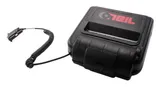
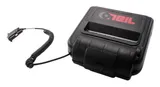
A short user's guide for the O'Neil microFlash 4t portable thermal printer. It shows the printer's parts, then covers installing and charging the batteries and checking their condition, loading paper, printing a self-test, configuring the printer, data cables, 802.11b and Bluetooth settings, the buttons, LEDs and beeps, the optional card reader and external charging, with agency approvals and certified supplies.
Its parts
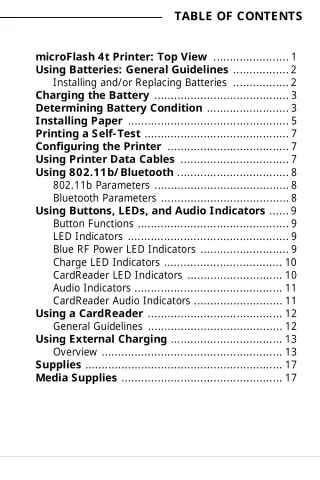
- microFlash 4t Printer: Top View
- Using Batteries: General Guidelines
- Charging the Battery
- Determining Battery Condition
- Installing Paper
- Printing a Self-Test
- Configuring the Printer
- Using Printer Data Cables
- Using 802.11b/Bluetooth
- Using Buttons, LEDs, and Audio Indicators
- Using a CardReader
- Using External Charging
- Supplies
- Media Supplies
From the manual · read page by page
Key facts from this manual
Some pages are scans or cannot be read; this says only what the readable text supports. Each line names its page in the PDF.
O'Neil's microFlash 4t Printer User's Guide (part number 110118-009, February 2007), a short guide to the microFlash 4t portable thermal printer. It shows how to fit and charge the batteries, load paper, print a self-test, connect a data cable and set up the optional 802.11b or Bluetooth radio. It also explains the buttons, LEDs and beeps, the card reader option and external charging.
- Device
- Portable thermal printer, model number MF4t-L p. 18
- Battery
- Two batteries, both required; voltage varies between 6.2 and 8.4 volts p. 5, 6
- Charging
- AC adapter; a complete charge takes about 2 to 4 hours p. 6
- Power supply
- O'Neil part number 220240-100 (US/Canada) p. 7
- Operating temperature
- 50° C; limited to 40° C when charging from the O'Neil power supply p. 7
- Radio options
- 802.11b or Bluetooth on radio-equipped printers p. 11
- Card reader option
- Magnetic or smart card reader p. 15
- Ports and controls
- Data port, power port, red self-test button, blue RF/power button, charge LED p. 4
- External charging
- Optional; two contact points on the back for the swivel lock bracket and external swivel lock depot charger p. 16
- Configuration software
- Windows configuration program from www.oneilprinters.com, for settings and firmware upgrades p. 10
- Media
- Paper rolls; seven certified paper grades; cleaning card or cleaning kit for linerless labels p. 8, 20
What this manual walks you through
- Installing and replacing the batteries p. 5
- Charging the battery and checking its condition p. 6
- Loading a paper roll p. 8, 9
- Printing a self-test p. 10
- Connecting a data cable to the printer p. 10
- Setting 802.11b and Bluetooth parameters p. 11
- Reading the buttons, LEDs and beeps p. 12, 13, 14
- Using the magnetic or smart card reader p. 15
- Charging through external charge contacts p. 16
Good to know
- Remove the red battery isolator labels before charging; refit them for long storage. p. 5, 6
- A new battery needs two to three charges to reach full capacity. p. 6
- The manual warns of a risk of explosion if the battery is replaced by an incorrect type. p. 6
- Charge the printer where the temperature stays within the 40° C charging limit. p. 7
- Use only accessories approved by O'Neil; others could damage the batteries or printer. p. 16
Questions this manual answers
How long does the microFlash 4t take to charge?
A complete charge takes about 2 to 4 hours; the charge LED is red while charging and green when full. p. 6
What power supply does the microFlash 4t use?
For the US and Canada the guide says to use only O'Neil power supply part number 220240-100. p. 7
How do I print a self-test on the microFlash 4t?
Open the cover, then press and hold the red self-test button for about five seconds until printing begins. p. 10
Why does my microFlash 4t beep three times?
Three short beeps when the printer wakes up mean the battery is low; plug in the AC adapter. p. 6
How do I upgrade the firmware on a microFlash 4t?
Download the Windows configuration program from www.oneilprinters.com; it configures the printer and upgrades firmware. p. 10
Contents
Chapters and sections
Each line opens the PDF at its page.
- microFlash 4t Printer: Top View4
- Using Batteries: General Guidelines5
- Charging the Battery6
- Determining Battery Condition6
- Installing Paper8
- Printing a Self-Test10
- Configuring the Printer10
- Using Printer Data Cables10
- Using 802.11b/Bluetooth11
- Using Buttons, LEDs, and Audio Indicators12
- Using a CardReader15
- Using External Charging16
- Supplies20
- Media Supplies20
The whole text · 3 parts
Read the manual here as text
Its text as extracted from the PDF, unedited, in parts; each page opens the PDF at that page.
The file