Manual · O'Neil
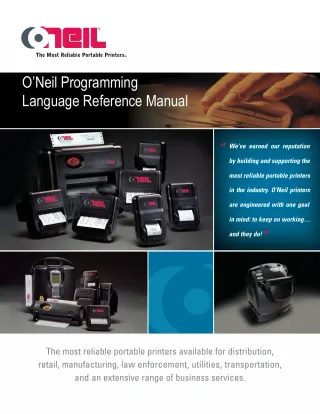
O'Neil Programming Language Reference Manual
Manual69 pagesPDF 2.1 MB
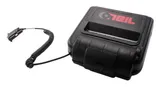
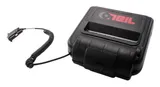
Programming language reference for O'Neil portable thermal printers such as the microFlash 4t: Line Printer, Easy Print and queries.
Covers · 2 models
The models it covers
Summary
What is in it
O'Neil's reference manual for the programming language of its portable thermal printers, including the microFlash 4t. It explains the two native printing modes: Line Printer mode, which prints text line by line with escape sequences, and Easy Print mode, which places text, bar codes (including PDF-417), graphics and lines anywhere on the image and accepts configuration commands. A final chapter lists the query commands for status, configuration, battery, memory, fonts, 802.11b, Bluetooth and magnetic card readers.
Its parts
- Introduction
- Using Line Printer Mode
- Using Easy Print Mode
- Querying the Printer
From the manual
Key facts from this manual
Each line names its page in the PDF.
O'Neil's Programming Language Reference Manual (part number 110200-001, revision 1.2, September 2006) for O'Neil thermal portable printers. Its tables name the microFlash2, microFlash3, microFlash4t/4tCR, microFlash2t/2tCR and microFlash2i/2iCR. It documents the Line Printer and Easy Print command languages and the query commands, so a programmer can lay out receipts and labels, print bar codes and graphics, and read printer status.
- Document
- Programming language reference for O'Neil thermal printers: Line Printer mode, Easy Print mode and printer queries p. 6
- Print width
- microFlash4t/4tCR: 832 dots (104 bytes) across at 203 dots per inch p. 11
- Resolution
- 8 dots per mm (about 200 dpi); one dotline is about .005 in. p. 16
- Host links for queries
- Infrared link or RS-232 data link p. 42
- Stored formats
- Up to 100 formats in internal Flash memory, depending on format size and memory (1M or 4M) p. 17
- Bar codes
- Code 39 (2:1 and 3:1), Codabar, Interleaved 2 of 5, Code 128, EAN-128, UPC-A, EAN-8, EAN-13, PDF-417 p. 25
- Fonts
- Five-character font names, for example MF055, MF102, MF204 and MF226; text widened or heightened 1 to 255 times p. 24
- Line Printer commands
- ESC codes for form length, line spacing, double wide and high print, font select, bit-mapped graphics and Q-mark advance p. 9, 10
- Easy Print syntax
- Commands in curly brackets, uppercase: {COMMAND:DATA}; dimensions in dotlines p. 16, 18
- Query commands
- Status, print job status, configuration, battery, version, memory, printhead, infrared, fonts, graphics, formats, 802.11b/TCP/IP, Bluetooth, magnetic card p. 43
- Firmware reload
- {IPL:0xAA55} erases the .BIN printer application file before loading a new one p. 20
What this manual walks you through
- Printing receipts line by line in Line Printer mode p. 9, 10, 11
- Printing bit-mapped graphics across the printhead p. 11
- Switching between Easy Print and Line Printer modes p. 18
- Building an Easy Print print command with row, column, font and data p. 21
- Choosing fonts and bar code symbologies and sizing them p. 24, 25
- Advancing or backing the paper and printing a self-test p. 19, 20
- Querying the printer and reading the status reply p. 42, 43, 44
Good to know
- Which commands work depends on the printer and its firmware version; a self-test printout shows the configuration. p. 6
- Line Printer commands are case-sensitive, and Easy Print commands must be in uppercase. p. 10, 18
- If the printer is asleep, null characters must come before a command; if it is awake, they must not. p. 18
- Not every query is available on every printer or firmware version. p. 42
Questions this manual answers
How many dots across does the microFlash 4t print?
The manual gives 832 dots (104 bytes) across at 203 dots per inch for the microFlash4t/4tCR. p. 11
How do I switch an O'Neil printer from Line Printer to Easy Print mode?
Send ESC EZ to go to Easy Print mode; send {LP} to return to Line Printer mode. p. 18
How do I check the battery on an O'Neil microFlash printer from the host?
Send the battery query ESC{BT?}; it returns the battery voltage, temperature and condition. p. 43
What bar codes can the microFlash printers print?
The Easy Print bar code names cover Code 39, Codabar, Interleaved 2 of 5, Code 128, EAN-128, UPC-A, EAN-8, EAN-13 and PDF-417. p. 25
How do I print a self-test on an O'Neil printer?
Send the Easy Print command {TP}; {TP1} prints a limited self-test. p. 20
Contents
Chapters and sections
Each line opens the PDF at its page.
The whole text · 10 parts
Read the manual here as text
Its text as extracted from the PDF, unedited, in parts; each page opens the PDF at that page.
- Pages 1 to 51-5
- Introduction6-8
- Using Line Printer Mode9-15
- Using Easy Print Mode, pages 16 to 2416-24
- Using Easy Print Mode, pages 25 to 3325-33
- Using Easy Print Mode, pages 34 to 4134-41
- Querying the Printer, pages 42 to 5042-50
- Querying the Printer, pages 51 to 5951-59
- Querying the Printer, pages 60 to 6660-66
- Table of Contents67-69
The file