Manual · Motorola
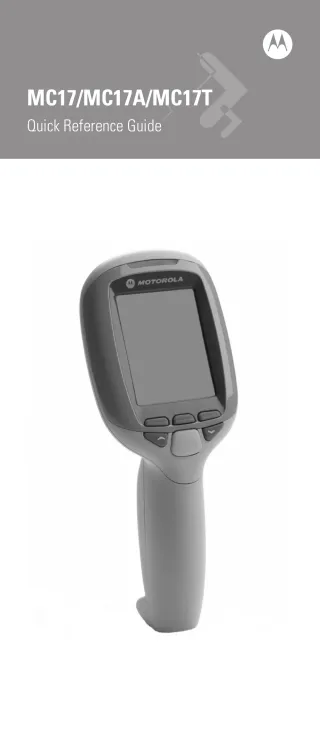
MC17/MC17A/MC17T Quick Reference Guide
Manual24 pagesPDF 1.1 MB
Quick reference guide for the Motorola MC17, MC17A and MC17T mobile computers: battery, charging, scanning, resets and troubleshooting.
Covers · 1 model
The models it covers
Summary
What is in it
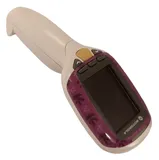
Motorola's quick reference guide for the MC17, MC17A and MC17T mobile computers (model numbers MC1770 and MC1790). It explains unpacking and the unit's features, installing and charging the battery in the charging cradle and releasing it by hand, scanning bar codes, warm and cold boots, maintenance and bezel replacement, and troubleshooting, followed by ergonomic recommendations, regulatory and RF exposure information, battery information and WEEE notes.
Its parts
- Introduction
- Unpacking
- Features
- Getting Started
- Scanning
- Resetting the Mobile Computer
- Maintenance
- Troubleshooting
- Ergonomic Recommendations
- Regulatory Information
- Country Roaming
- Warnings for Use of Wireless Devices
- RF Exposure Guidelines
- Battery Information
- Waste Electrical and Electronic Equipment (WEEE)
From the manual · read page by page
Key facts from this manual
Each line names its page in the PDF.
Quick reference guide for the Motorola MC17, MC17A and MC17T mobile computers (regulatory model numbers MC1770 and MC1790). It shows how to install and charge the battery, scan bar codes, reset the unit, replace the bezel and solve common problems. It also lists the charging cradle, cradle key and bezel kit part numbers.
- Device
- Mobile computer with a laser bar code scanner p. 8
- Battery
- 2400 mAh p. 3
- Charging cradle
- p/n PSS-3CR01-00R or PSS-3CR01-NLR p. 6
- Charge time
- About five hours for a full charge p. 7
- Cradle key
- Optional dispenser key p/n PSS-3KY01-00R unlocks cradle PSS-3CR01-00R by hand p. 7
- Bezel kits
- Standard and custom bezel kits, p/n KT-098273-XXR p. 9
- Scan distance
- 10 to 25 cm (4 to 10 inches) generally works, depending on bar code density p. 8
- Radio module
- WLAN SDIO Radio Module, Model: 21-92955 p. 12
- Wireless LAN
- 802.11 b/g at 2.4 GHz (US channels 1 to 11), plus 5 GHz band use p. 13
- Power supply
- Motorola approved, rated 12 VDC and minimum 9 A p. 15
- Charging temperature
- 0 to +40 C (32 to 104 F) p. 19
- LED
- Solid red: scanner enabled; solid green: decode successful p. 4
- Keys
- Scan key, Enter key and four scroll keys (up, down, left, right) p. 3
- Model numbers
- MC1770, MC1790 p. 11
What this manual walks you through
- Installing the battery under the screwed battery cover p. 4, 5, 6
- Charging the battery in the charging cradle p. 6, 7
- Releasing the unit from a locked cradle with the key p. 7, 8
- Scanning bar codes and scanning tips p. 8
- Warm boot and cold boot p. 9
- Replacing the bezel p. 9, 10
- Troubleshooting power, charging and scanning problems p. 10, 11
Good to know
- A cold boot erases user records and entries not saved in flash memory; try a warm boot first. p. 9
- After installing a new battery, wait about one minute before putting the unit in a cradle. p. 6
- Do not charge a damp or wet unit or battery. p. 12
- Batteries stored over six months may lose quality for good; store them discharged, cool and dry. p. 19
- Ad-hoc operation is limited to channels 36 to 48 and to indoor use. p. 13
Questions this manual answers
Which cradle charges the MC17 and how long does it take?
The charging cradle p/n PSS-3CR01-00R or PSS-3CR01-NLR. A full charge takes about five hours. p. 6, 7
How do I warm boot an MC17?
Hold the Up and Down Arrow keys for 10 seconds, press Scan, release the arrows, then release Scan one second later. p. 9
How do I get an MC17 out of a locked charging cradle?
If software cannot unlock the cradle, use the optional dispenser key p/n PSS-3KY01-00R to release it by hand. p. 7
MC17 does not turn on
Charge or replace the battery and check it is installed properly. If the system is not responding, warm boot, then cold boot. p. 10
What distance should I scan bar codes from with the MC17?
The guide says 10 to 25 cm (4 to 10 inches) generally works, farther for larger codes and closer for dense ones. p. 8
Contents
Chapters and sections
Each line opens the PDF at its page.
- Warranty2
- Patents2
- Introduction3
- Unpacking3
- Features3
- Getting Started4
- Scanning8
- Resetting the Mobile Computer9
- Maintenance9
- Troubleshooting10
- Ergonomic Recommendations11
- Regulatory Information11
- Country Roaming13
- Warnings for Use of Wireless Devices13
- RF Exposure Guidelines14
- Safety Information14
- Reducing RF Exposure - Use Properly14
- International14
- EU14
- US and Canada14
- Co-located statement14
- Handheld Devices (that cannot be body worn in a belt clip/holster)14
- Laser Devices14
- Power Supply15
- Taiwan - Recycling15
- Radio Frequency Interference Requirements-FCC16
- Marking and European Economic Area (EEA)17
- Battery Information18
- Waste Electrical and Electronic Equipment (WEEE)21
The whole text · 3 parts
Read the manual here as text
Its text as extracted from the PDF, unedited, in parts; each page opens the PDF at that page.
The file