Manual · Lipman
Nurit 2085 Easy User Guide: Retail and Restaurant Application POS 11.30
Manual5 pagesPDF 130 KB
Five-page easy user guide for the Nurit 2085 payment terminal: step-by-step credit, debit, check and cash transactions, returns, tips and batch.
Covers · 1 model
The models it covers
Summary
What is in it
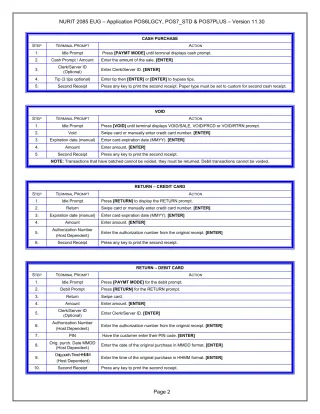
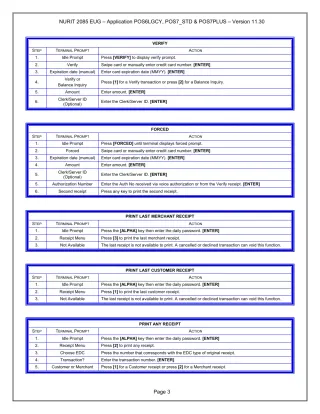
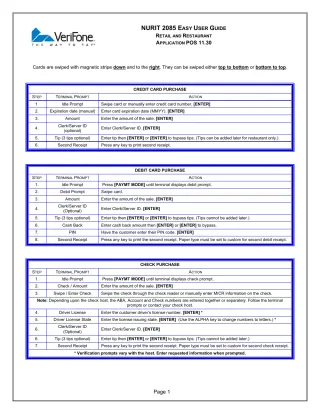
Five-page quick user guide for the Nurit 2085 payment terminal running the retail and restaurant application version 11.30. Step-by-step tables list each terminal prompt and the action to take for credit, debit, check and cash purchases, voids, credit and debit returns, verify and forced sales, reprinting receipts, adding and editing tips, opening and closing tabs, counter tips, driver's license verification, closing the batch and general functions such as power, reports and paper feed.
Its parts
- Credit Card Purchase
- Debit Card Purchase
- Check Purchase
- Cash Purchase
- Void
- Return - Credit Card
- Return - Debit Card
- Verify
- Forced
- Print Last Merchant Receipt
- Add Tips (Restaurant Only)
- Open Tab (Restaurant Only)
- Counter Tip
- Drivers License Verification
- Close Current Batch
From the manual · read page by page
Key facts from this manual
Each line names its page in the PDF.
Easy user guide for the NURIT 2085 terminal running the retail and restaurant application POS, version 11.30. It gives the step-by-step terminal prompts and keys for credit, debit, check and cash purchases, voids, returns, verifies, forced sales, receipt reprints, restaurant tips and tabs, driver's license checks and closing the batch.
- Application
- Retail and restaurant application POS 11.30 (POS6LGCY, POS7_STD and POS7PLUS) p. 1, 2
- Card swipe
- Magnetic stripe down and to the right, swiped top to bottom or bottom to top p. 1
- Payment types
- Credit, debit (with customer PIN and cash back), check and cash p. 1, 2
- Checks
- Swiped through a check reader, or MICR information entered by hand p. 1
- Power key
- Terminals with back-up batteries: press ON/OFF to power on, hold it five seconds to power off p. 5
- License checks
- Driver's license swipe for tobacco or liquor sales, or to scan the license p. 5
What this manual walks you through
- Making a credit card purchase p. 1
- Making a debit card purchase with PIN and cash back p. 1
- Taking a check payment p. 1
- Voiding a sale, forced sale or return p. 2
- Returning a credit or debit card sale p. 2
- Running a verify or balance inquiry p. 3
- Entering a forced sale with a voice authorization p. 3
- Reprinting the last or any receipt p. 3
- Adding tips and opening or closing tabs (restaurant) p. 4
- Closing the current batch p. 5
Good to know
- Transactions that have batched cannot be voided and must be returned; debit transactions cannot be voided. p. 2
- Tips can be added later only in the restaurant application; debit and check tips cannot be added later. p. 1
- A second debit, check or cash receipt needs the paper type set to custom. p. 1, 2
- The terminal will not power off while it is on external power. p. 5
- Check verification prompts vary with the host. p. 1
Questions this manual answers
How do I swipe a card on the NURIT 2085?
With the magnetic stripe down and to the right; the card can be swiped top to bottom or bottom to top. p. 1
How do I void a transaction on the NURIT 2085?
Press VOID until the VOID/SALE, VOID/FRCD or VOID/RTRN prompt shows, then follow the prompts; batched and debit transactions cannot be voided. p. 2
How do I close the batch on a NURIT 2085?
Press BATCH, close any open tabs and add needed tips, then press ENTER to batch all EDC types or choose one. p. 5
How do I turn off the NURIT 2085?
On terminals with back-up batteries, hold the ON/OFF key for five seconds; it will not power off while on external power. p. 5
Can I add a tip after a debit sale on the NURIT 2085?
No; on debit purchases tips cannot be added later. p. 1
The whole text · 1 part
Read the manual here as text
Its text as extracted from the PDF, unedited, in parts; each page opens the PDF at that page.
The file