Manual · Juniper Systems
Juniper Systems Allegro-DOS Quick Start
Manual4 pagesPDF 159 KB
All 4 pages are below, each with its text.
Covers · 1 model
The models it covers
From the manual · read page by page
Key facts from this manual
Each line names its page in the PDF.
A four-page Juniper Systems quick start guide for the Allegro DOS field computer. It shows how to install the NiMH battery pack, set the battery charge level on first start, open the Owner's Manual from the Distribution CD, and store the unit.
- Operating system
- MS-DOS p. 1
- Battery
- NiMH battery pack, 3800 mAh p. 2
- Charging
- AC wall charger into the external power input jack; full charge in about two to three hours p. 1, 2
- Documentation
- Owner's Manual (PDF) on the Allegro DOS Distribution CD p. 3
What this manual walks you through
- Installing the battery pack p. 1
- Setting the battery charge level on the Battery Change Detected screen p. 2
- Opening the Owner's Manual from the Distribution CD p. 3
- Storing the Allegro short and long term p. 3
Good to know
- The battery pack must be installed before the Allegro is turned on. p. 1
- The battery charge level must be set before the Allegro can be used. p. 2
- Save data to the C_Drive to avoid accidental data loss. p. 3
Questions this manual answers
What battery does the Allegro DOS use?
A NiMH battery pack; the one supplied is 3800 mAh, and a pack of another capacity needs its capacity set on the Battery Change Detected screen. p. 2
How long does the Allegro DOS take to charge?
About two to three hours on the AC wall charger for a full charge. p. 2
What do I set on the Allegro Battery Change Detected screen?
Set the charge percent to 10% with F1 or F2, set the capacity if the pack is not 3800 mAh, then press ESC or ENTER to save. p. 2
How should I store an Allegro DOS?
For under a week, keep it plugged into the AC wall adapter. For longer, fully charge the battery pack and remove it. p. 3
The file
Size and text
Every page · 4
Read it here
Each page as it is printed, and its words beside it, so a phone can search and copy them.
Page1of 4
Open in the PDF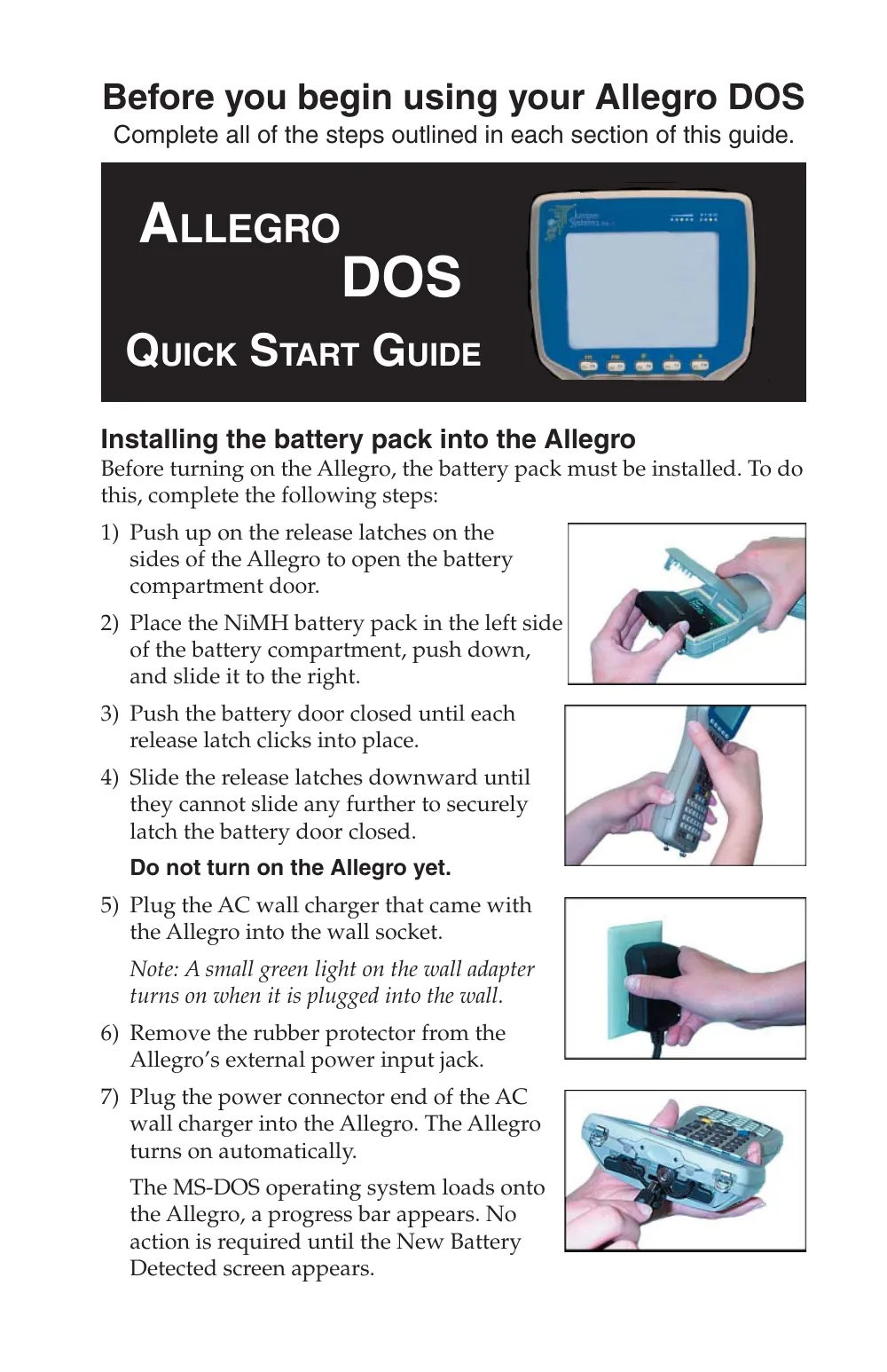
The text of page 1, from the PDF itself
Before you begin using your Allegro DOS Complete all of the steps outlined in each section of this guide.
ALLEGRO DOS QUICK START GUIDE Installing the battery pack into the Allegro Before turning on the Allegro, the battery pack must be installed. To do this, complete the following steps: 1) Push up on the release latches on the sides of the Allegro to open the battery compartment door. 2) Place the NiMH battery pack in the left side of the battery compartment, push down, and slide it to the right. 3) Push the battery door closed until each release latch clicks into place. 4) Slide the release latches downward until they cannot slide any further to securely latch the battery door closed. Do not turn on the Allegro yet. 5) Plug the AC wall charger that came with the Allegro into the wall socket. Note: A small green light on the wall adapter turns on when it is plugged into the wall. 6) Remove the rubber protector from the Allegro’s external power input jack. 7) Plug the power connector end of the AC wall charger into the Allegro. The Allegro turns on automatically. The MS-DOS operating system loads onto the Allegro, a progress bar appears. No action is required until the New Battery Detected screen appears.
Page2of 4
Open in the PDF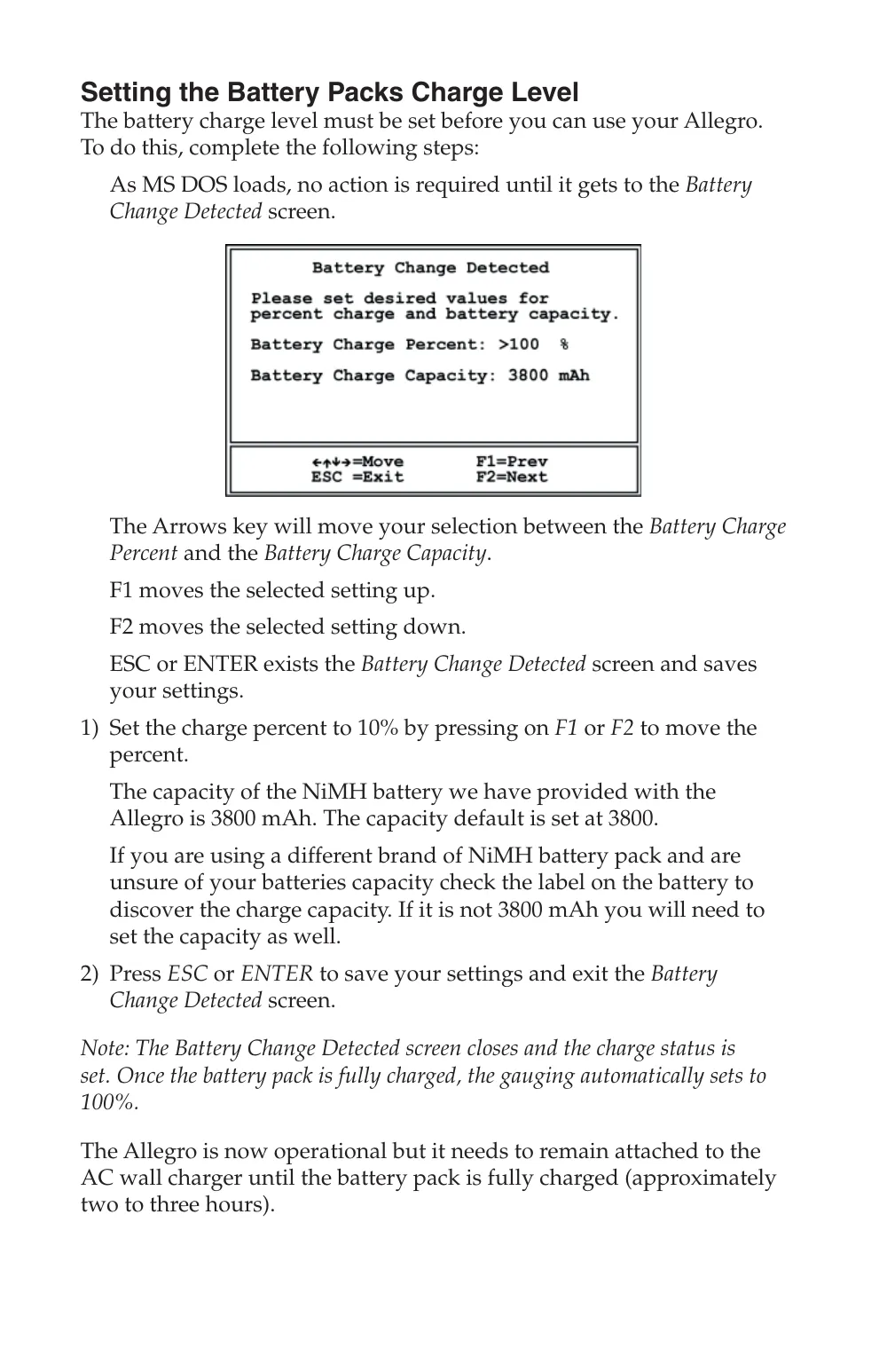
The text of page 2, from the PDF itself
Setting the Battery Packs Charge Level The battery charge level must be set before you can use your Allegro. To do this, complete the following steps: As MS DOS loads, no action is required until it gets to the Battery Change Detected screen.
The Arrows key will move your selection between the Battery Charge Percent and the Battery Charge Capacity. F1 moves the selected setting up. F2 moves the selected setting down. ESC or ENTER exists the Battery Change Detected screen and saves your settings. 1) Set the charge percent to 10% by pressing on F1 or F2 to move the percent. The capacity of the NiMH battery we have provided with the Allegro is 3800 mAh. The capacity default is set at 3800. If you are using a different brand of NiMH battery pack and are unsure of your batteries capacity check the label on the battery to discover the charge capacity. If it is not 3800 mAh you will need to set the capacity as well. 2) Press ESC or ENTER to save your settings and exit the Battery Change Detected screen. Note: The Battery Change Detected screen closes and the charge status is set. Once the battery pack is fully charged, the gauging automatically sets to 100%. The Allegro is now operational but it needs to remain attached to the AC wall charger until the battery pack is fully charged (approximately two to three hours).
Page3of 4
Open in the PDF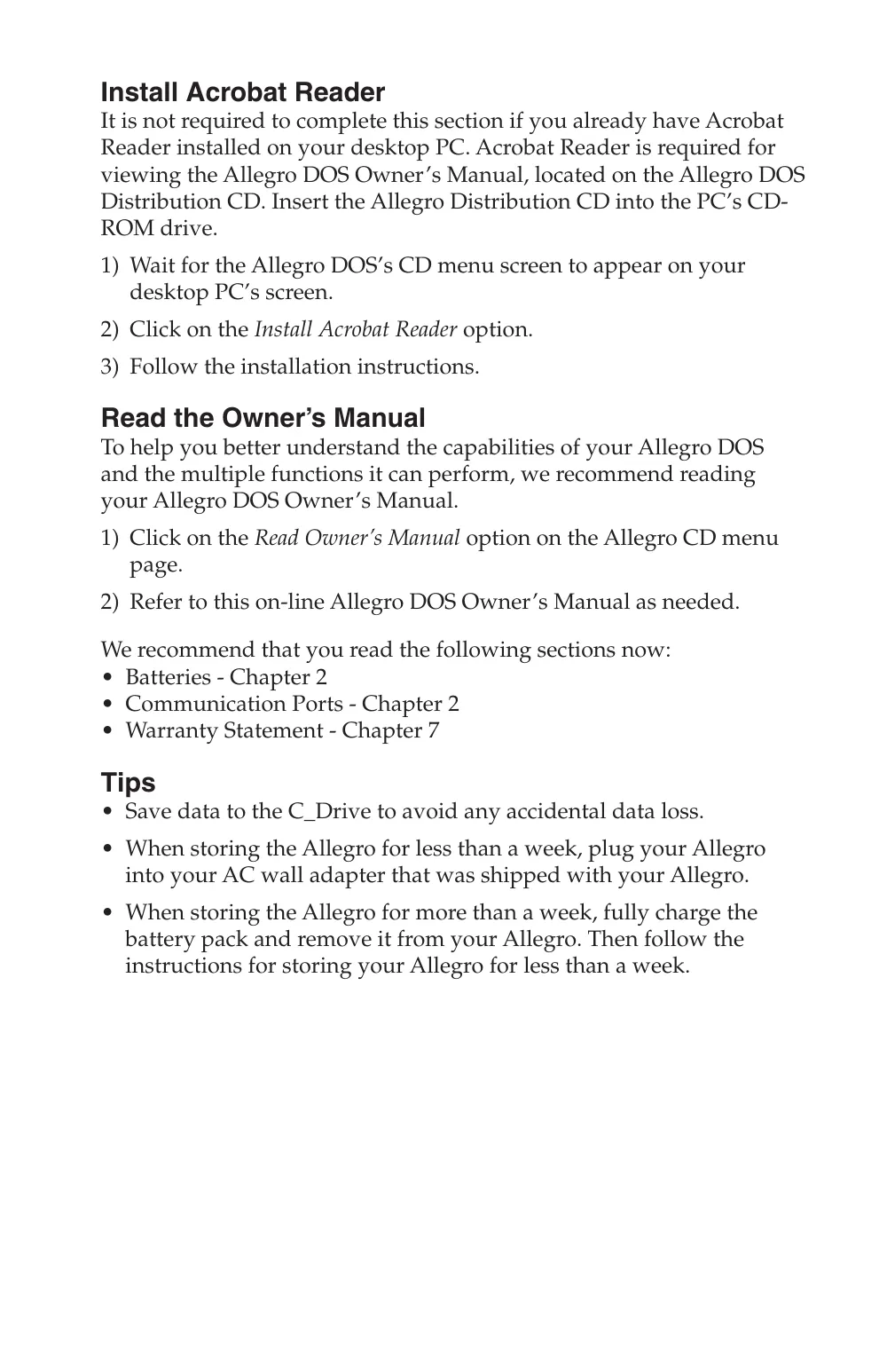
The text of page 3, from the PDF itself
Install Acrobat Reader It is not required to complete this section if you already have Acrobat Reader installed on your desktop PC. Acrobat Reader is required for viewing the Allegro DOS Owner’s Manual, located on the Allegro DOS Distribution CD. Insert the Allegro Distribution CD into the PC’s CDROM drive. 1) Wait for the Allegro DOS’s CD menu screen to appear on your desktop PC’s screen. 2) Click on the Install Acrobat Reader option. 3) Follow the installation instructions.
Read the Owner’s Manual To help you better understand the capabilities of your Allegro DOS and the multiple functions it can perform, we recommend reading your Allegro DOS Owner’s Manual. 1) Click on the Read Owner’s Manual option on the Allegro CD menu page. 2) Refer to this on-line Allegro DOS Owner’s Manual as needed. We recommend that you read the following sections now:
- Batteries - Chapter 2
- Communication Ports - Chapter 2
- Warranty Statement - Chapter 7
Tips
- Save data to the C_Drive to avoid any accidental data loss.
- When storing the Allegro for less than a week, plug your Allegro into your AC wall adapter that was shipped with your Allegro.
- When storing the Allegro for more than a week, fully charge the battery pack and remove it from your Allegro. Then follow the instructions for storing your Allegro for less than a week.
Page4of 4
Open in the PDF
The text of page 4, from the PDF itself
a Campbell Scientific Company
1740 North Research Park Way Logan, UT 84341-1977 USA Tel Fax Email Web
+1 435.753.1881 +1 435.753.1896 js@junipersys.com www.junipersys.com
Part # Released Editor
14651.00 08.2004 R Timothy
Mobile Field Computers and Mobile GIS/GPS HarvestMaster™ Brand Data Collection Tools for Agriculture