Manual · Janam
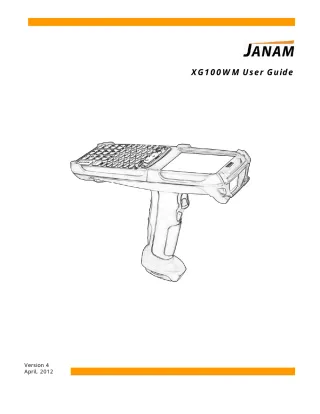
XG100WM User Guide
Manual63 pagesPDF 3.8 MB
User guide for the Janam XG100WM rugged gun-shaped Windows Mobile computer: setup, charging, scanning, ActiveSync, Wi-Fi and Bluetooth.
Names · 1 model
The models it names
Filed with · 1 model
Also filed with these models on the old site

Summary
What is in it
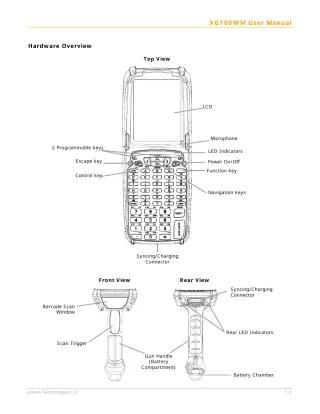
The user guide for the Janam XG100WM, a rugged gun-shaped mobile computer running Windows Mobile 6.1 with 1D and 2D barcode scanning. It shows the hardware, what comes in the box, host computer requirements, attaching the handstrap and stylus, installing and charging the battery by cable or single-slot and four-slot cradles, front and back panel controls, resetting, barcode scanning, entering data, exchanging data with ActiveSync, 802.11 wireless setup, Bluetooth, and regulatory and maintenance information.
Its parts
- Introduction
- Get Started
- Set up your Janam XG100WM
- How to Reset the XG100WM
- Barcode Scanning
- Enter Data
- Exchange and Update Data using ActiveSync
- 802.11 Wireless Configuration
- Bluetooth
- Regulatory and Maintenance
From the manual
Key facts from this manual
Each line names its page in the PDF.
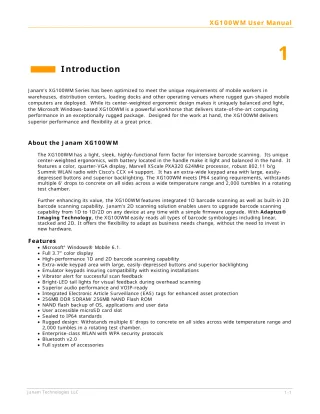
This is the Janam XG100WM User Guide (Version 4, April 2012) for the XG100WM, the Windows Mobile 6.1 version of the XG100 rugged gun-shaped mobile computer. It walks through unpacking, battery and charging, resets, barcode scanning and the 2D unlock, image capture, Wi-Fi and Bluetooth setup.
- Device
- XG100WM rugged gun-shaped mobile computer, Microsoft Windows Mobile 6.1 p. 2
- Processor
- Marvell XScale PXA320 624MHz p. 2
- Memory
- 256MB DDR SDRAM, 256MB NAND Flash ROM; microSD card slot p. 2
- Display
- 3.7” color quarter-VGA touch screen p. 2, 12
- Wireless
- Summit 802.11 b/g with Cisco CCX v4; Bluetooth v2.0, about 10 meters (30 feet) p. 2, 54
- Scanning
- 1D standard; 2D unlocked by firmware upgrade 2D-XP-1 with a six-digit key code p. 25
- Ruggedness
- IP64; multiple 6’ drops to concrete; 2,000 tumbles p. 2
- Charging options
- Single-slot or four-slot cradle kit, or USB or serial cable with AC adapter p. 6, 10
- Charge time
- About 5 hours; LED orange charging, green full, red fault p. 10
- Backup battery
- 72-hour initial charge before first use p. 9
- In the box
- Mobile computer, battery, handstrap, stylus, stylus tether; charging kit separate p. 6
- Host PC
- Windows XP or 2000, serial or USB port, ActiveSync 4.5 or later p. 6
- SDK
- Janam XG Series SDK, for Windows Mobile 6 SDK or Visual Studio 2005 p. 6
What this manual walks you through
- Attaching the handstrap and stylus tether p. 7, 8
- Installing, removing and charging the battery p. 9, 10
- Charging a spare battery in a cradle p. 10
- Soft reset, hard reset and clean boot p. 23
- Testing the scanner and choosing symbologies in ScanDemo p. 24
- Sending scans into any application with ScanWedge p. 25
- Unlocking 2D scanning with a key code p. 25, 26
- Capturing images and signatures with ScanCapture p. 26, 27, 28
- Setting up a Wi-Fi network profile p. 51
- Turning Bluetooth on and making the device visible p. 54
Good to know
- Use only Janam-approved batteries; the wrong type risks explosion. p. 9
- Until the backup battery has its first 72-hour charge, user data is lost if the main battery is removed. p. 9
- The device will not power up until the battery is completely in place. p. 23
- Use only the stylus on the touch screen, never a pen or pencil. p. 12
- The 2D unlock code survives soft and hard resets but must be re-entered after a clean reset. p. 26
Questions this manual answers
How do I reset a Janam XG100?
For a soft reset, press the trigger and ESC together. For a hard reset, press and release CTRL, BKSP and the trigger, wait 5 seconds, then press Power. p. 23
How do I enable 2D scanning on the XG100?
Buy the 2D-XP-1 upgrade from a Janam dealer, give the imager serial number, then enter the six-digit key code on the Scanner tab of the XG100 Panel. p. 25, 26
How long does the XG100 battery take to charge?
About 5 hours in a cradle; the backup battery needs an initial 72-hour charge. p. 9, 10
Why won't my XG100 power on after a battery change?
A battery removal detection feature keeps the device off until the battery is fully locked in place. p. 23
What host PC is recommended for the XG100?
An IBM-compatible PC running Windows XP or Windows 2000 with a free serial or USB port, plus ActiveSync 4.5 or later. p. 6
The whole text · 7 parts
Read the manual here as text
Its text as extracted from the PDF, unedited, in parts; each page opens the PDF at that page.
The file