Spec sheet · Intermec
Intermec WA22 Quick Start
Spec sheet2 pagesPDF 945 KB
Both pages are below, each with its text.
Covers · 1 model
The models it covers
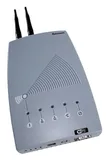
From the sheet · read page by page
Key facts from this sheet
Each line names its page in the PDF.
Intermec quick start guide (2002) for the MobileLAN access WA22 wireless access point. It explains the ports and LEDs, mounting the unit, connecting it to the network and to power over Ethernet, and setting an initial IP address with the MobileLAN access Utility. Full instructions are in the MobileLAN access System Manual (P/N 067150).
- Device
- MobileLAN access wireless access point, powered by power over Ethernet p. 1
- Radios
- Up to two radios installed; 802.11b and 802.11a radio configurations p. 1
- Power
- Only from an IEEE 802.3af power over Ethernet host, such as a MobileLAN power bridge p. 1, 2
- Ports
- 10BaseT/100BaseTX Ethernet port, serial port, optional fiber optic port p. 2
- LEDs
- Power, Wireless #1, Wireless #2, Wired LAN, Root/error p. 2
- Antennas
- None included, except one 802.11a configuration with non-removable antennas; custom antenna connector for approved antennas p. 1
- Size
- 4.6 cm x 16.0 cm x 25.0 cm (1.81 in x 6.27 in x 9.84 in) p. 1
- Included
- Mounting bracket with four shoulder screws; CD with the MobileLAN access Utility p. 1, 2
- Configuration
- Initial IP address set with the MobileLAN access Utility, then a Web browser or Telnet session p. 1, 2
- Full manual
- MobileLAN access System Manual (P/N 067150) p. 1
What this sheet walks you through
- Reading the LEDs and ports p. 2
- Mounting the WA22 on a wall or beam with the bracket p. 2
- Connecting the WA22 to the network and to a power bridge p. 2
- Setting an initial IP address with the MobileLAN access Utility p. 2
- Upgrading the access point software p. 1
Good to know
- Only approved antennas may be used; the WA22 has a custom antenna connector for that reason. p. 1
- The WA22 is meant to be powered only from an IEEE 802.3af power over Ethernet host. p. 1
- To set the IP address, the PC must be on the same Ethernet segment as the access point, or have an active radio connection to it. p. 2
Questions this sheet answers
How is the Intermec WA22 powered?
By power over Ethernet: an Ethernet cable from its Ethernet port to a MobileLAN power bridge or another 802.3af-compliant power over Ethernet network. p. 2
Does the WA22 come with antennas?
No, except one 802.11a radio configuration that ships with non-removable antennas. p. 1
How do I set the IP address of a WA22?
In the MobileLAN access Utility choose Set IP Address, enter the access point's Ethernet MAC address and the new IP address, click Set, then reboot the access point by cycling its power. p. 2
What radios can the WA22 have?
Up to two radios; the guide mentions 802.11b and 802.11a radio configurations. p. 1
The file
Size and text
Every page · 2
Read it here
Each page as it is printed, and its words beside it, so a phone can search and copy them.
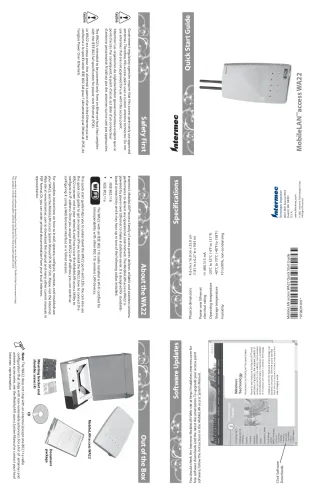
Page1of 2
Open in the PDF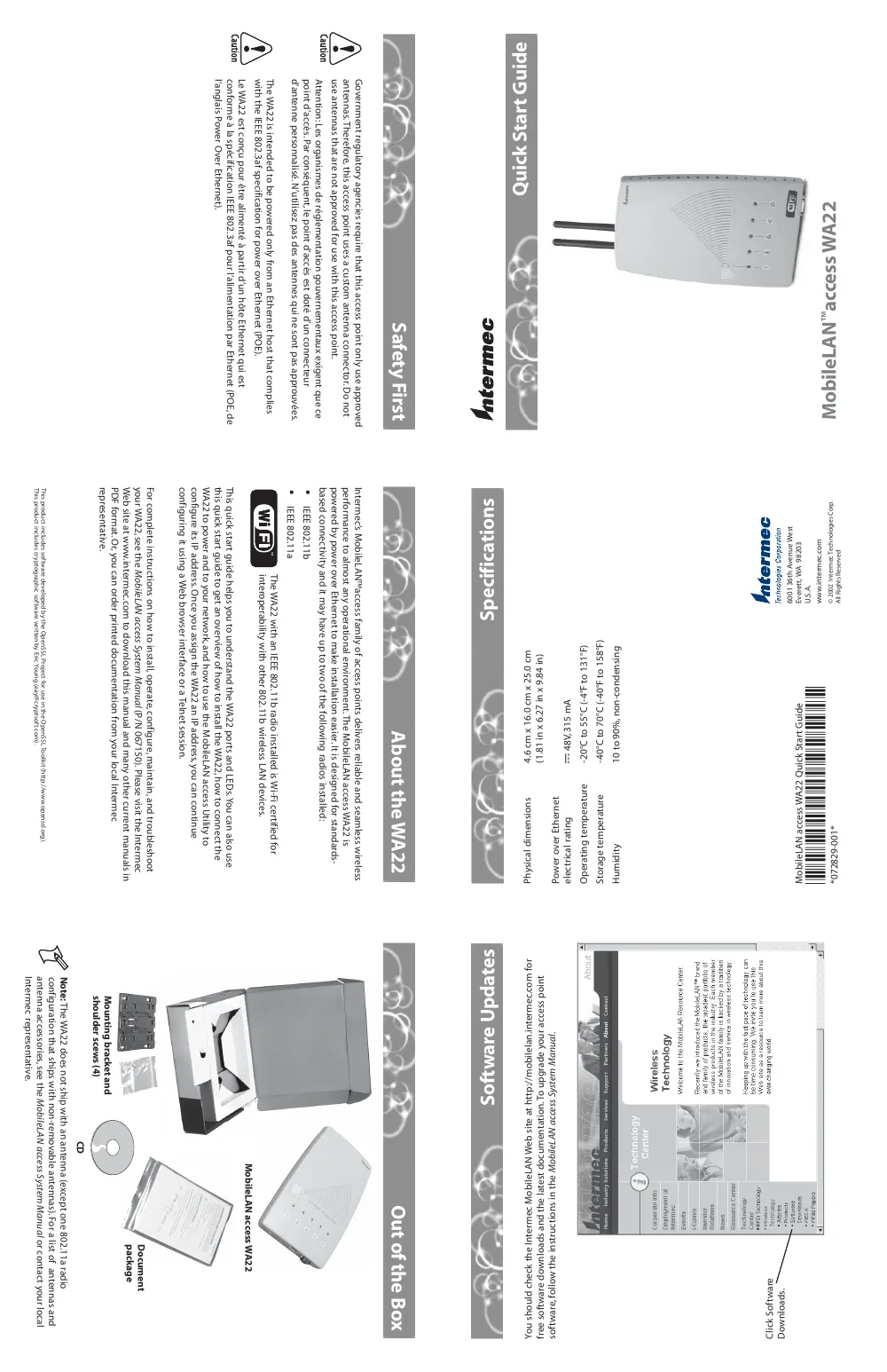
The text of page 1, from the PDF itself
Heading 1
Click Software Downloads.
*072829-001*
*072829-001* N 48V, 315 mA
-20°C to 55°C (-4°F to 131°F)
-40°C to 70°C (-40°F to 158°F)
10 to 90%, non-condensing
Power over Ethernet electrical rating
Operating temperatureStorage temperatureHumidity
MobileLAN access WA22 Quick Start Guide 4.6 cm x 16.0 cm x 25.0 cm (1.81 in x 6.27 in x 9.84 in)
Physical dimensionsAbout the WA22Document packageMobileLAN access WA22Out of the Box
You should check the Intermec MobileLAN Web site at http://mobilelan.intermec.com for free software downloads and the latest documentation. To upgrade your access point software, follow the instructions in the MobileLAN access System Manual.
© 2002 Intermec Technologies Corp. All Rights Reserved
6001 36th Avenue West Everett, WA 98203 U.S.A. www.intermec.com
Specifications IEEE 802.11a
IEEE 802.11b
Intermec’s MobileLAN™access family of access points delivers reliable and seamless wireless performance to almost any operational environment. The MobileLAN access WA22 is powered by power over Ethernet to make installation easier. It is designed for standardsbased connectivity and it may have up to two of the following radios installed:
The WA22 with an IEEE 802.11b radio installed is Wi-Fi certified for interoperability with other 802.11b wireless LAN devices.
CD
Note: The WA22 does not ship with an antenna (except one 802.11a radio configuration that ships with non-removable antennas). For a list of antennas and antenna accessories, see the MobileLAN access System Manual or contact your local Intermec representative.
Mounting bracket and shoulder scews (4)
Software UpdatesMobileLAN™access WA22Safety First
Quick Start Guide Government regulatory agencies require that this access point only use approved antennas. Therefore, this access point uses a custom antenna connector. Do not use antennas that are not approved for use with this access point. Attention: Les organismes de réglementation gouvernementaux exigent que ce point d’accès. Par conséquent, le point d’accès est doté d’un connecteur d’antenne personnalisé. N’utilisez pas des antennes qui ne sont pas approuvées. The WA22 is intended to be powered only from an Ethernet host that complies with the IEEE 802.3af specification for power over Ethernet (POE). Le WA22 est conçu pour être alimenté à partir d’un hôte Ethernet qui est conforme à la spécification IEEE 802.3af pour l’alimentation par Ethernet (POE, de l’anglais Power Over Ethernet).
This quick start guide helps you to understand the WA22 ports and LEDs. You can also use this quick start guide to get an overview of how to install the WA22, how to connect the WA22 to power and to your network, and how to use the MobileLAN access Utility to configure its IP address. Once you assign the WA22 an IP address, you can continue configuring it using a Web browser interface or a Telnet session. For complete instructions on how to install, operate, configure, maintain, and troubleshoot your WA22, see the MobileLAN access System Manual (P/N 067150). Please visit the Intermec Web site at www.intermec.com to download this manual and many other current manuals in PDF format. Or, you can order printed documentation from your local Intermec representative.
This product includes software developed by the OpenSSL Project for use in the OpenSSL Toolkit (http://www.openssl.org). This product includes cryptographic software written by Eric Young (eay@cryptsoft.com).
Page2of 2
Open in the PDF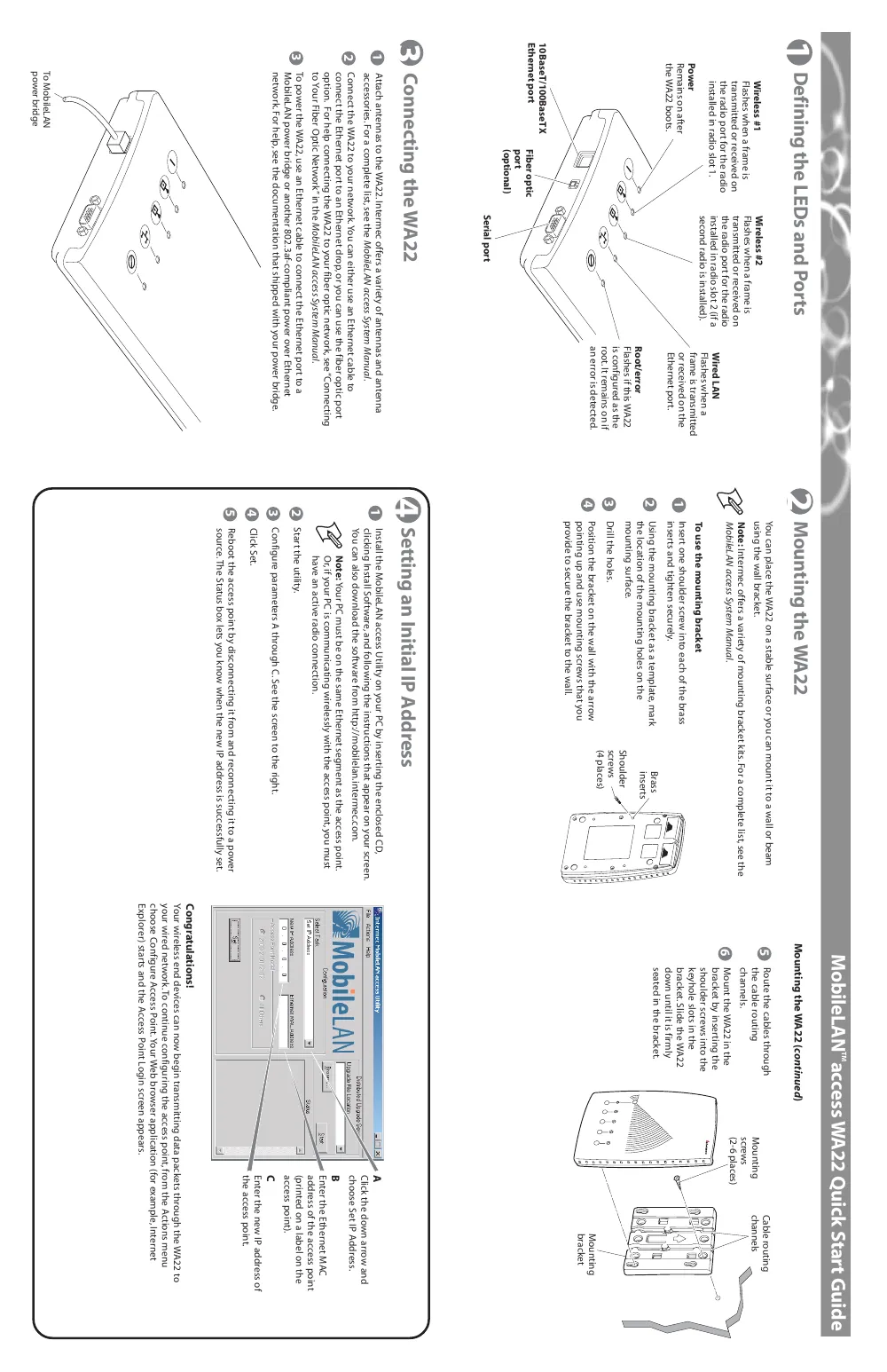
The text of page 2, from the PDF itself
Wireless #2 Flashes when a frame is transmitted or received on the radio port for the radio installed in radio slot 2 (if a second radio is installed).
1 Defining the LEDs and Ports Wireless #1 Flashes when a frame is transmitted or received on the radio port for the radio installed in radio slot 1. Power Remains on after the WA22 boots.
10BaseT/100BaseTX Ethernet port Fiber optic port (optional) Serial port
Wired LAN Flashes when a frame is transmitted or received on the Ethernet port.
1
Attach antennas to the WA22. Intermec offers a variety of antennas and antenna accessories. For a complete list, see the MobileLAN access System Manual.
Root/error Flashes if this WA22 is configured as the root. It remains on if an error is detected.
2
Connect the WA22 to your network. You can either use an Ethernet cable to connect the Ethernet port to an Ethernet drop, or you can use the fiber optic port option. For help connecting the WA22 to your fiber optic network, see “Connecting to Your Fiber Optic Network” in the MobileLAN access System Manual.
3 Connecting the WA22 3
To power the WA22, use an Ethernet cable to connect the Ethernet port to a MobileLAN power bridge or another 802.3af-compliant power over Ethernet network. For help, see the documentation that shipped with your power bridge.
To MobileLAN power bridge
1
Using the mounting bracket as a template, mark the location of the mounting holes on the mounting surface.
Insert one shoulder screw into each of the brass inserts and tighten securely.
Shoulder screws (4 places)
Mounting screws (2-6 places)
Mounting bracket
Cable routing channels
MobileLAN™access WA22 Quick Start Guide
5
Route the cables through the cable routing channels.
Mounting the WA22 (continued)
You can place the WA22 on a stable surface or you can mount it to a wall or beam using the wall bracket.
6
2 Mounting the WA22 Note: Intermec offers a variety of mounting bracket kits. For a complete list, see the MobileLAN access System Manual.
2 Drill the holes.
To use the mounting bracket
3
Brass inserts
Mount the WA22 in the bracket by inserting the shoulder screws into the keyhole slots in the bracket. Slide the WA22 down until it is firmly seated in the bracket.
4
Position the bracket on the wall with the arrow pointing up and use mounting screws that you provide to secure the bracket to the wall.
3
4 Setting an Initial IP Address
A
Click the down arrow and choose Set IP Address.
2
Configure parameters A through C. See the screen to the right.
Start the utility.
Enter the new IP address of the access point.
C
1
Install the MobileLAN access Utility on your PC by inserting the enclosed CD, clicking Install Software, and following the instructions that appear on your screen. You can also download the software from http://mobilelan.intermec.com.
B3Click Set.
Note: Your PC must be on the same Ethernet segment as the access point. Or, if your PC is communicating wirelessly with the access point, you must have an active radio connection.
4
Reboot the access point by disconnecting it from and reconnecting it to a power source. The Status box lets you know when the new IP address is successfully set.
Enter the Ethernet MAC address of the access point (printed on a label on the access point).
5
Congratulations!
Your wireless end devices can now begin transmitting data packets through the WA22 to your wired network. To continue configuring the access point, from the Actions menu choose Configure Access Point. Your Web browser application (for example, Internet Explorer) starts and the Access Point Login screen appears.