Manual · Intermec
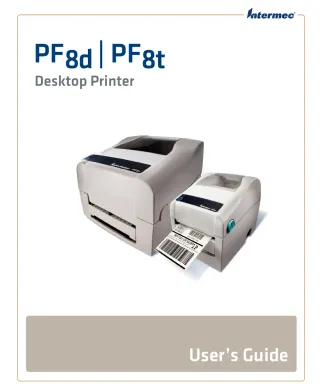
PF8d and PF8t Desktop Printer User's Guide
Manual94 pagesPDF 4.8 MB
User's guide for the Intermec PF8d and PF8t desktop label printers: loading media and ribbon, connecting, configuring and maintenance.
Covers · 1 model
The models it covers
Summary
What is in it
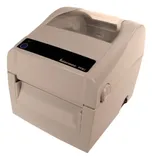
The user's guide for the Intermec PF8 desktop label printers: the PF8d direct thermal model and the PF8t direct thermal or thermal transfer model. It explains the controls and LED, loading media and thermal transfer ribbon, test prints and creating labels, connecting to a PC or network, configuring the printer and upgrading the firmware and Ethernet firmware, troubleshooting, installing the CompactFlash card, cleaning and adjusting, with full specifications and default settings.
Its parts
- Before You Begin
- Using the PF8 Printers
- Connecting the Printer
- Troubleshooting and Maintaining the Printer
- Printer Specifications
- Default Settings
From the manual
Key facts from this manual
Each line names its page in the PDF.
The Intermec user's guide for the PF8d and PF8t desktop label printers. It walks through loading media, turning on and test printing, connecting to a PC or network, upgrading firmware, installing a CompactFlash card and troubleshooting. Appendices give the specifications, interface pinouts, media and ribbon types, accessories and default settings.
- Printer type
- Desktop label printer; PF8d: 203 dpi direct thermal; PF8t: direct thermal or thermal transfer, 203 or 300 dpi p. 14
- Interfaces
- Serial RS-232, USB device (Type B), IEEE 1284 parallel; Ethernet optional (PF8d with Ethernet has no parallel port) p. 17, 74, 77
- Memory
- 4 MB Flash and 8 MB SDRAM p. 74, 75
- CompactFlash
- PF8t: memory expandable with a CompactFlash card in a CompactFlash adapter p. 14, 65
- Print speed
- Variable: 2, 3 and 4 ips; default 2 in/sec p. 74, 90
- Print width
- Max. 104 mm (4.09 in) at 8 dot/mm (203 dpi) p. 74
- PF8d size and weight
- PF8d: 218 x 166 x 168 mm (8.58 x 6.53 x 6.61 in); 2.0 kg (4.4 lbs) p. 74
- PF8t size and weight
- PF8t: 285 x 172 x 226 mm (11.2 x 6.8 x 8.9 in); 2.5 kg (5.5 lb) p. 75
- Power supply
- Intermec power supply adapter P/N 1-092363-xx, for 100 to 240 VAC, 50 to 60 Hz p. 42
- Temperature
- Operating 5°C to 40°C (41°F to 104°F), 30 to 85% humidity non-condensing; storage -20°C to 50°C (-4°F to 122°F) p. 74
- Serial port
- DB9; default 9600 baud, 8 data bits, no parity, 1 stop bit; the port supplies +5V, max 500 mA p. 76, 77
- Network
- Optional internal Ethernet card; DHCP by default; raw TCP on port 9100 p. 52
- Transfer ribbons
- General Purpose GP/TMX1500, High Performance HP/TMX2200, High Resistance HR/TMX3201/TMX3202 p. 85
- Accessories
- Cutter Kit, Stripper Module (self-strip), serial and parallel cables, media and transfer ribbons p. 85, 86
What this manual walks you through
- Reading the status LED p. 19
- Removing a partly used transfer ribbon p. 42
- Turning on the printer and printing a test label p. 42, 43
- Connecting to a PC by USB or serial cable p. 48, 49
- Connecting the printer to an Ethernet network p. 52
- Upgrading the printer and Ethernet firmware p. 59, 60
- Troubleshooting printing problems p. 64, 65
- Installing a CompactFlash card in the PF8t p. 65, 66
- Choosing labels, tags and continuous stock p. 82, 84
- Restoring factory default settings p. 88
Good to know
- Only the Intermec power supply adapter P/N 1-092363-xx is to be used, and the printer must not get wet. p. 42
- The Cutter Kit and Stripper Module must be installed only by an authorized service technician. p. 85
- No Ethernet cable ships with the PF8. p. 52
- Turn the printer off before installing or removing the CompactFlash card. p. 66
- Continuous stock cannot be used in Auto-Sensing mode. p. 84
Questions this manual answers
What does a blinking red LED mean on the Intermec PF8?
A media jam, an overheated printhead or stepper motor, or a firmware download. If overheated, wait until the LED turns green and printing resumes. p. 19, 65
How do I print a test label on the PF8?
Load media, then hold the Feed button while turning the printer on, and release it when the LED blinks green (gap or continuous media) or red (black mark media). p. 43
What are the PF8 default serial port settings?
9600 baud, 8 data bits, no parity and 1 stop bit. p. 76
How do I update the firmware on a PF8 printer?
Connect the printer to the PC, open the ESim Config Tool from the PrinterCompanion CD and run the firmware update wizard with the .ufz files. p. 59, 60
What power supply does the PF8 need?
The Intermec power supply adapter P/N 1-092363-xx, which works on 100 to 240 VAC, 50 to 60 Hz. p. 42
Contents
Chapters and sections
Each line opens the PDF at its page.
The whole text · 11 parts
Read the manual here as text
Its text as extracted from the PDF, unedited, in parts; each page opens the PDF at that page.
- Pages 1 to 81-8
- Before You Begin9-12
- Chapter 1 - Using the PF8 Printers, pages 13 to 2113-21
- Chapter 1 - Using the PF8 Printers, pages 22 to 3022-30
- Chapter 1 - Using the PF8 Printers, pages 31 to 3931-39
- Chapter 1 - Using the PF8 Printers, pages 40 to 4640-46
- Chapter 2 - Connecting the Printer, pages 47 to 5447-54
- Chapter 2 - Connecting the Printer, pages 55 to 6255-62
- Chapter 3 - Troubleshooting and Maintaining the Printer63-72
- Appendix A - Printer Specifications73-86
- Appendix B - Default Settings87-94
The file