Manual · Intermec
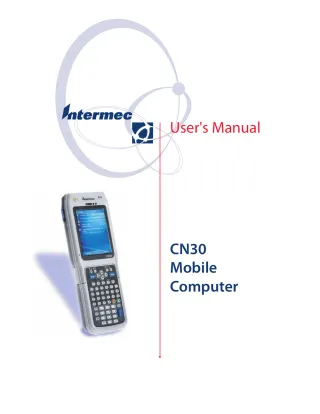
CN30 Mobile Computer User's Manual
Manual196 pagesPDF 5.8 MB
User's manual for the Intermec CN30 mobile computer: operation, Windows Mobile, configuration, networking, maintenance and specifications.
Covers · 1 model
The models it covers
Summary
What is in it
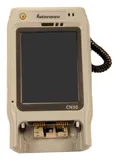
The user's manual for the Intermec CN30 mobile computer, a Windows Mobile 5.0 handheld with a built-in imager for bar code scanning. It covers the battery, keypads, screen, resetting, scanning and SD card storage, physical and environmental specifications and accessories, the Windows Mobile programs, installing and auto-launching applications, configuring serial, 802.11b/g, Ethernet and Bluetooth communications and security, reprogramming the keypad, the SF51 scanner, troubleshooting and network setup.
Its parts
- Before You Begin
- Using the CN30 Mobile Computer
- Windows Mobile
- Configuring the CN30 Computer
- Maintaining the CN30 Computer
- Network Support
From the manual
Key facts from this manual
Each line names its page in the PDF.
An Intermec user's manual (2005-2006) for the CN30 Mobile Computer, a hand-held computer running Windows Mobile Version 5.0 with a 14-key or 56-key keypad module and a bar code imager. It covers the battery, keypads, scanning, SD cards, specifications and accessories, then Windows Mobile use, configuration, security and troubleshooting.
- Device
- Hand-held mobile computer running Microsoft Windows Mobile Version 5.0 p. 14
- Processor
- Intel X Scale PXA272, 520 MHz p. 36
- Memory
- 64 or 128 MB RAM; 64 MB Flash ROM; 128 MB persistent storage p. 36
- Display
- Transflective TFT VGA color touch screen, 640x480 pixels, 9.7 cm (3.7 in) diagonal p. 38
- Keypad
- 14-key with large numeric keys or 56-key full alphanumeric, both LED backlit p. 36
- Scanning
- Integrated 2D area imager or 1D & PDF417 linear imager p. 36
- Wireless LAN
- IEEE 802.11b/g, up to 54 Mbps (802.11g) or 11 Mbps (802.11b); WEP, WPA, 802.11i, 802.1x p. 37
- Other connections
- USB Host and Client, Bluetooth Class 1 V2.0 + EDR, RS232 Serial p. 36
- Battery
- Lithium-ion; 14-key module: internal 3.7V 2400 MAh, not user replaceable; 56-key module: removable 3.7V 4800 MAh p. 16
- Electrical rating
- 3.7-5VDC, 2A p. 38
- Charging
- AC9 Quad charger or AD9 charge dock; full charge in approximately 4 hours p. 17
- Size and weight
- Length 24.1 cm (9.5 in) with 56-key module, 16.5 cm (6.5 in) with 14-key; width 8.9 cm (3.5 in); depth 3.3 cm (1.3 in); 538-595g (19-21oz) with 56-key, 340.1-396.9g (12-14oz) with 14-key p. 37
- Operating temperature
- -10°C to 50°C; humidity 10 to 95% non-condensing p. 38
- Storage cards
- SD card slot for storage cards, SanDisk SD cards only; MultiMediaCards not supported p. 34, 35
What this manual walks you through
- Charging and installing the battery p. 17
- Checking battery status and swapping the main battery p. 18
- Using the color-coded keys and keypad overlays p. 21, 22
- Rotating the display and turning on the backlight p. 23
- Scanning bar codes with the 2D area imager p. 33
- Inserting and removing an SD card p. 35
- Upgrading the operating system p. 174
- Troubleshooting power, lock-ups and the battery light p. 175
- Troubleshooting 802.1x security and wireless connections p. 176, 177
- Troubleshooting the serial port and bar code scanning p. 178, 179
Good to know
- Removing the main battery while the backup battery low icon shows may cold boot the CN30 and lose data. p. 16
- Do not disassemble the lithium-ion battery, heat it above 100°C (212°F) or incinerate it. p. 16
- The CompactFlash slot holds only the factory-installed 802.11b or 802.11b/g radio, which cannot be removed. p. 34
- Upgrading the operating system erases the current configuration; network parameters must be set again. p. 174
- A cold boot does not keep the date and time, which 802.1x certificates need. p. 177
Questions this manual answers
What does a steady amber battery light on the CN30 mean?
If it stays steady amber for more than 12 hours, the manual says to replace the battery pack. p. 175
How do I warm-boot a frozen CN30?
Press and hold the I (power) key for ten seconds. p. 175
How long does a CN30 battery take to charge?
Approximately 4 hours, in the AC9 Quad charger or in the CN30 in the AD9 charge dock. p. 17
What operating system does the Intermec CN30 run?
Microsoft Windows Mobile Version 5.0. p. 36
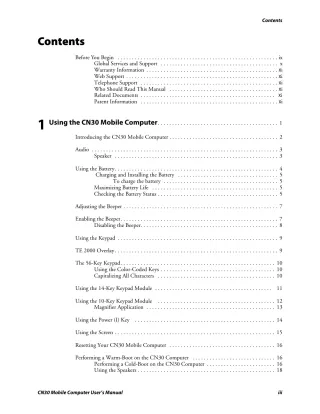
Contents
Chapters and sections
Each line opens the PDF at its page.
- Chapter 1 - Using the CN30 Mobile Computer13
- Audio15
- Using the Battery16
- Adjusting the Beeper19
- Using the Keypad21
- The 56-Key Keypad22
- Using the 14-Key Keypad Module23
- Using the Power (I) Key26
- Using the Screen27
- Resetting Your CN30 Mobile Computer28
- Using the Speakers30
- Using the Status Lights31
- StorageMedia34
- Using the SD Card35
- Physical and Environmental Specifications36
- Accessories for the CN30 Computer39
- Chapter 2 - Windows Mobile41
- Chapter 3 - Configuring the CN30 Computer107
- Developing Applications for the CN30 Computer108
- Converting Older Computer Applications to CN30 Applications108
- Packaging Applications for the CN30 Computer109
- Installing Applications on the CN30 Computer110
- Launching Your Application Automatically112
- Customizing How Applications Load on the CN30 Computer118
- Configuring CN30 Parameters119
- Configuring the CN30 Computer for Your Network123
- Reprogramming the CN30 Keypad135
- Configuring the SF51 Scanner138
- Configuring Security141
- Using Configuration Parameters171
- Chapter 4 - Maintaining the CN30 Computer173
8 more lines, from page 176 on
The whole text · 21 parts
Read the manual here as text
Its text as extracted from the PDF, unedited, in parts; each page opens the PDF at that page.
- Contents1-12
- Chapter 1 - Using the CN30 Mobile Computer, pages 13 to 2213-22
- Chapter 1 - Using the CN30 Mobile Computer, pages 23 to 3223-32
- Chapter 1 - Using the CN30 Mobile Computer, pages 33 to 4033-40
- Chapter 2 - Windows Mobile, pages 41 to 5041-50
- Chapter 2 - Windows Mobile, pages 51 to 6051-60
- Chapter 2 - Windows Mobile, pages 61 to 7061-70
- Chapter 2 - Windows Mobile, pages 71 to 8071-80
- Chapter 2 - Windows Mobile, pages 81 to 9081-90
- Chapter 2 - Windows Mobile, pages 91 to 10091-100
- Chapter 2 - Windows Mobile, pages 101 to 106101-106
- Chapter 3 - Configuring the CN30 Computer, pages 107 to 116107-116
- Chapter 3 - Configuring the CN30 Computer, pages 117 to 126117-126
- Chapter 3 - Configuring the CN30 Computer, pages 127 to 136127-136
- Chapter 3 - Configuring the CN30 Computer, pages 137 to 146137-146
- Chapter 3 - Configuring the CN30 Computer, pages 147 to 156147-156
- Chapter 3 - Configuring the CN30 Computer, pages 157 to 166157-166
- Chapter 3 - Configuring the CN30 Computer, pages 167 to 172167-172
- Chapter 4 - Maintaining the CN30 Computer173-180
- Chapter 5 - Network Support181-186
- Index187-196
The file