Manual · Intermec
Intermec CN2 Quick Start Guide
Manual2 pagesPDF 1.6 MB
Both pages are below, each with its text.
Covers · 1 model
The models it covers
From the manual · read page by page
Key facts from this manual
Each line names its page in the PDF.
The Intermec quick start guide (P/N 075480-002) for the CN2 Handheld Computer, a semi-rugged Windows CE .NET computer with a 1D linear imager. It covers installing and charging the battery, turning the CN2 on and using its keypads, first setup, a test scan and basic troubleshooting.
- Device
- Semi-rugged, lightweight handheld computer on Microsoft Windows CE .NET, for client/server and web-based applications p. 1
- Processor and memory
- 400 MHz Intel XScale; 64MB flash, 128MB RAM p. 1
- Radio
- 802.11b/g p. 1
- Scanner
- 1D linear imager with a Scan button and two Side Scan buttons p. 1, 2
- Display
- Color display with touch screen and stylus p. 1
- Keypad
- 18-key numeric keypad or 10-key scroll keypad p. 2
- Battery
- Rechargeable 2150 mAh lithium-ion; a rechargeable NiMH 20 mAh battery is also listed p. 1
- Charging
- In the CN2 communications dock, P/N 225-696-001, sold separately; full charge in about 4 hours p. 2
- Size and weight
- 14.7 x 8.6 x 3.5 cm (5.8 x 3.4 x 1.4 in); 370 g (11.9 oz) p. 1
- Port
- USB/Serial port p. 1
- Software
- .NET Compact Framework; Setup Assistant and Intermec Settings for configuration; ScanDemo for test scans p. 1, 2
- Sealing
- IP64 p. 1
- Related manuals
- CN2 Handheld Computer User's Manual P/N 075464; Intermec Computer Command Reference Manual P/N 073529 p. 1
What this manual walks you through
- Installing, charging and removing the battery p. 2
- Turning the CN2 on and off and using the keypad functions p. 2
- Setting time, date and network settings with the Setup Assistant p. 2
- Scanning a test bar code with ScanDemo p. 2
- Troubleshooting power, touch screen and wireless network problems p. 2
Good to know
- Use only the stylus to remove the battery; other tools may damage the battery or the CN2. p. 2
- The communications dock needed for charging is sold and ordered separately. p. 2
Questions this manual answers
How do I charge the Intermec CN2 battery?
Place the CN2 in the CN2 communications dock (P/N 225-696-001) connected to AC power; it charges fully in about 4 hours. p. 2
Why won't my CN2 turn on?
The battery door may be missing or open, or the battery may be discharged and need charging in the dock. p. 2
How do I turn off the CN2?
Press and hold the Power key for 2 seconds, then release it. p. 2
Why can't my CN2 connect to the wireless network?
Check that its network name matches the access point SSID, that it has an IP address, and that it is within range of an access point. p. 2
The file
Size and text
Every page · 2
Read it here
Each page as it is printed, and its words beside it, so a phone can search and copy them.
Page1of 2
Open in the PDF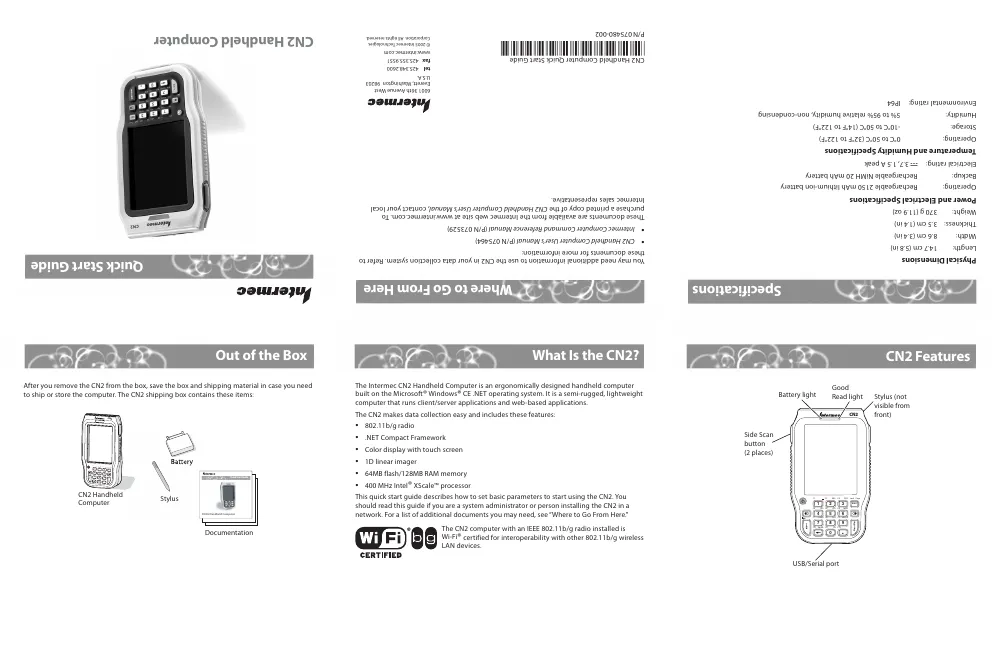
The text of page 1, from the PDF itself
P/N 075480-002Heading 1*075480-002*
Corporation. All rights reserved.
6001 36th Avenue West Everett, Washington 98203 U.S.A. tel 425.348.2600 fax 425.355.9551 www.intermec.com © 2005 Intermec Technologies
CN2 Handheld Computer Quick Start Guide IP64
- Environmental rating
- 5% to 95% relative humidity, non-condensing
- Humidity
- -10°C to 50°C (14°F to 122°F)
- Storage
- 0°C to 50°C (32°F to 122°F)
- Operating
- CN2 Handheld Computer
Temperature and Humidity Specifications x 3.7, 1.5 A peak
- Electrical rating
- Rechargeable NiMH 20 mAh battery
- Backup
- Rechargeable 2150 mAh lithium-ion battery
- Operating
- Power and Electrical Specifications 370 g (11.9 oz)
Thickness: 3.5 cm (1.4 in)
You may need additional information to use the CN2 in your data collection system. Refer to these documents for more information:
Quick Start Guide
Where to Go From Here .
Quick Start GuideE N T E RCN2 Handheld ComputerSpecificationsWXYZ9 Alt F120ESCMNO6TUV F9Physical DimensionsDEF Lock Caps3 JKL F65 8
Stylus CN2G Handheld Computer
CN2 Features
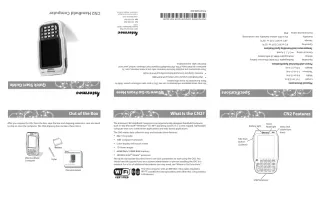
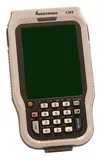
The Intermec CN2 Handheld Computer is an ergonomically designed handheld computer built on the Microsoft® Windows® CE .NET operating system. It is a semi-rugged, lightweight computer that runs client/server applications and web-based applications.
Good Read light
Battery light
- 802.11b/g radio
- .NET Compact Framework
- Color display with touch screen
- 1D linear imager
- 64MB flash/128MB RAM memory
- 400 MHz Intel® XScale™ processor
CN2
Side Scan button (2 places)
This quick start guide describes how to set basic parameters to start using the CN2. You should read this guide if you are a system administrator or person installing the CN2 in a network. For a list of additional documents you may need, see “Where to Go From Here.”
F1
The CN2 computer with an IEEE 802.11b/g radio installed is Wi-Fi® certified for interoperability with other 802.11b/g wireless LAN devices.
F2GHI F54 F7A BABC F3JKL F65PQRS F87ESCMNO6 TUV F98F10 Space F11DEF Lock Caps321 F4TDocumentation14.7 cm (5.8 in)ABC F32 GHI F5PQRS F87 F10 Space F11
- Length
- • CN2 Handheld Computer User’s Manual (P/N 075464) • Intermec Computer Command Reference Manual (P/N 073529) F2
1 4 TAB8.6 cm (3.4 in)F1F4F7What Is the CN2?
The CN2 makes data collection easy and includes these features:
CN2
Width:
After you remove the CN2 from the box, save the box and shipping material in case you need to ship or store the computer. The CN2 shipping box contains these items:
- Weight
- These documents are available from the Intermec web site at www.intermec.com. To purchase a printed copy of the CN2 Handheld Computer User’s Manual, contact your local Intermec sales representative.
Out of the BoxWXYZ9 Alt F120USB/Serial port.E N T E R
Stylus (not visible from front)
Page2of 2
Open in the PDF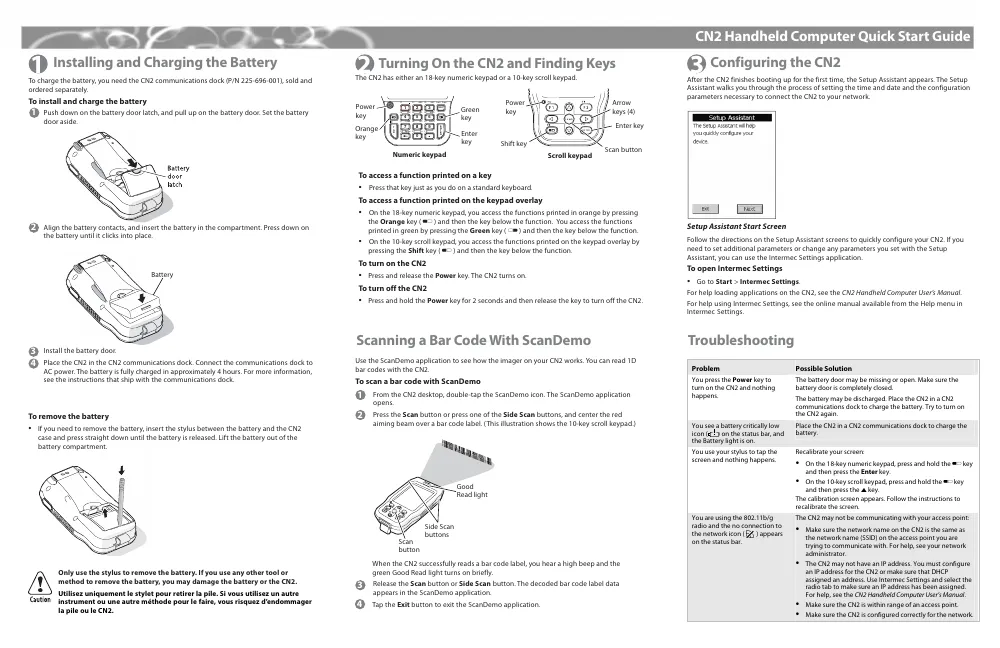
The text of page 2, from the PDF itself
CN2 Handheld Computer Quick Start Guide
1 Installing and Charging the Battery
To charge the battery, you need the CN2 communications dock (P/N 225-696-001), sold and ordered separately.
To install and charge the battery
1
2 Turning On the CN2 and Finding Keys
The CN2 has either an 18-key numeric keypad or a 10-key scroll keypad.
F1
Push down on the battery door latch, and pull up on the battery door. Set the battery door aside.
Power keyF2GHI F54 F7Orange keyA5ESCMNO6 TUV F98F10 Space F11BDEF Lock Caps3 JKL F6PQRS F87TABC F321 F4WXYZ9 Alt F120E N T E R.Green keyPower keyArrow keys (4) ESCEnter keyENTERShift keyNumeric keypadScroll keypad3 Configuring the CN2
After the CN2 finishes booting up for the first time, the Setup Assistant appears. The Setup Assistant walks you through the process of setting the time and date and the configuration parameters necessary to connect the CN2 to your network.
Enter key Scan button
To access a function printed on a key
- Press that key just as you do on a standard keyboard. To access a function printed on the keypad overlay
- On the 18-key numeric keypad, you access the functions printed in orange by pressing 2
Align the battery contacts, and insert the battery in the compartment. Press down on the battery until it clicks into place.
the Orange key ( B ) and then the key below the function. You access the functions printed in green by pressing the Green key ( C ) and then the key below the function.
- On the 10-key scroll keypad, you access the functions printed on the keypad overlay by pressing the Shift key ( B ) and then the key below the function.
To turn on the CN2 Battery
- Press and release the Power key. The CN2 turns on. To turn off the CN2
- Press and hold the Power key for 2 seconds and then release the key to turn off the CN2.
3 4
Install the battery door. Place the CN2 in the CN2 communications dock. Connect the communications dock to AC power. The battery is fully charged in approximately 4 hours. For more information, see the instructions that ship with the communications dock.
To remove the battery
Setup Assistant Start Screen Follow the directions on the Setup Assistant screens to quickly configure your CN2. If you need to set additional parameters or change any parameters you set with the Setup Assistant, you can use the Intermec Settings application.
To open Intermec Settings
- Go to Start > Intermec Settings. For help loading applications on the CN2, see the CN2 Handheld Computer User’s Manual. For help using Intermec Settings, see the online manual available from the Help menu in Intermec Settings.
Scanning a Bar Code With ScanDemo
Troubleshooting
Use the ScanDemo application to see how the imager on your CN2 works. You can read 1D bar codes with the CN2.
Problem
Possible Solution
You press the Power key to turn on the CN2 and nothing happens.
The battery door may be missing or open. Make sure the battery door is completely closed.
You see a battery critically low icon ( ) on the status bar, and the Battery light is on.
Place the CN2 in a CN2 communications dock to charge the battery.
To scan a bar code with ScanDemo
1
From the CN2 desktop, double-tap the ScanDemo icon. The ScanDemo application opens.
2
Press the Scan button or press one of the Side Scan buttons, and center the red aiming beam over a bar code label. (This illustration shows the 10-key scroll keypad.)
- If you need to remove the battery, insert the stylus between the battery and the CN2 case and press straight down until the battery is released. Lift the battery out of the battery compartment.
You use your stylus to tap the screen and nothing happens.
The battery may be discharged. Place the CN2 in a CN2 communications dock to charge the battery. Try to turn on the CN2 again.
- Recalibrate your screen
- • On the 18-key numeric keypad, press and hold the key and then press the Enter key.
CN 2
- On the 10-key scroll keypad, press and hold the key
Good Read light
and then press the key. The calibration screen appears. Follow the instructions to recalibrate the screen.
F1 SCF2ANENTER
Scan button Only use the stylus to remove the battery. If you use any other tool or method to remove the battery, you may damage the battery or the CN2. Utilisez uniquement le stylet pour retirer la pile. Si vous utilisez un autre instrument ou une autre méthode pour le faire, vous risquez d’endommager la pile ou le CN2.
Side Scan buttons
When the CN2 successfully reads a bar code label, you hear a high beep and the green Good Read light turns on briefly.
3
Release the Scan button or Side Scan button. The decoded bar code label data appears in the ScanDemo application.
4
Tap the Exit button to exit the ScanDemo application.
You are using the 802.11b/g radio and the no connection to the network icon ( ) appears on the status bar.
The CN2 may not be communicating with your access point:
- Make sure the network name on the CN2 is the same as
the network name (SSID) on the access point you are trying to communicate with. For help, see your network administrator. The CN2 may not have an IP address. You must configure an IP address for the CN2 or make sure that DHCP assigned an address. Use Intermec Settings and select the radio tab to make sure an IP address has been assigned. For help, see the CN2 Handheld Computer User’s Manual. Make sure the CN2 is within range of an access point. Make sure the CN2 is configured correctly for the network.