Spec sheet · Intermec
681/682/781T/782 40-Column Printers Quick Start Guide
Spec sheet12 pagesPDF 739 KB
Quick start guide for the Intermec 681, 682, 781T and 782 portable 40-column printers: charging, use and wireless setup.
Covers · 2 models
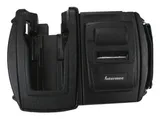
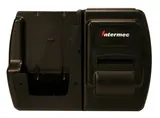
The models it covers
Summary
What is in it
A quick start guide for the Intermec 681, 682, 781T and 782 portable 40-column printers. It lists the packing contents and accessories with part numbers, shows the printer components, explains charging the lithium ion batteries and the charge LED and beep indicators, attaching or docking the mobile computer, using the card reader and changing paper, setting up the 781T for wireless printing with a 700 mobile computer, and gives general specifications.
Its parts
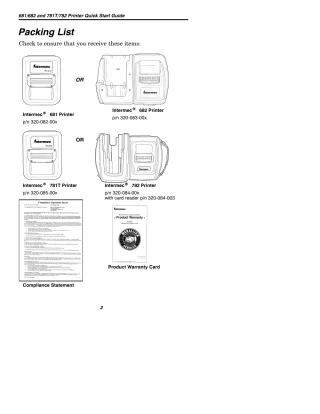
- Packing List
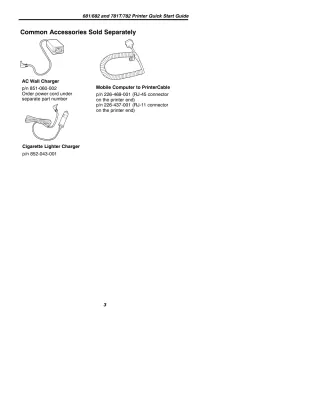
- Common Accessories Sold Separately
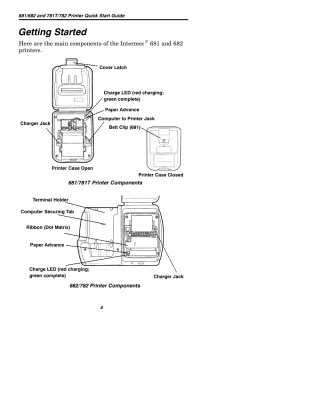
- Getting Started
- Charging the Lithium Ion Batteries
- Beep Indicators
- Using Your Printer
- Using the Card Reader
- 781T Printer using Wireless Printing
- 700 Mobile Computer Preparation
- General Specifications
From the sheet · read page by page
Key facts from this sheet
Each line names its page in the PDF.
Quick start guide (962018010 Rev I, March 2002) for the Intermec 681, 682, 781T and 782 40-column printers. It lists the packing list and accessories, then covers charging, connecting or docking the mobile computer, the card reader and paper, wireless printing on the 781T, and general specifications.
- Device
- 40-column printer for a mobile computer, with lithium ion batteries p. 5, 12
- Computer connection
- 682 and 782: the mobile computer slides into a holder on the printer; 681 and 781T: Mobile Computer to Printer cable p. 7
- Chargers
- AC Wall Charger p/n 851-060-002 (power cord ordered separately); Cigarette Lighter Charger p/n 852-043-001 p. 3
- Charge time, both
- About 8 hours to charge the mobile computer and printer batteries together p. 5
- Charge LED
- Red while charging, green when complete p. 4
- Run time off charge
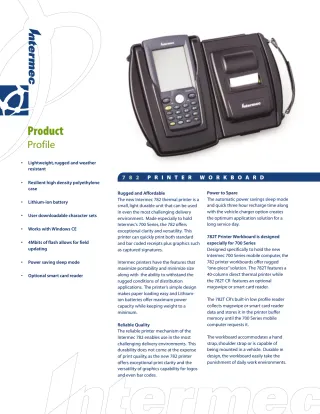
- Thermal over 8 hours; dot matrix over 4 hours p. 11
- Printer cables
- 681 and 781T: Mobile Computer to Printer cable p/n 226-469-001 (RJ-45 at printer) or p/n 226-437-001 (RJ-11 at printer) p. 3, 7
- Drop test
- 6 foot to concrete p. 11
- Storage temperature
- Thermal and dot matrix: -30 to +65°C (-22 to +149°F) p. 11
- Document
- 962018010 Rev I, March 2002 p. 12
- 781T modes
- 781T: ships in IrDA mode; each self-test toggles between IrDA and wireless printing p. 9
- 781T wireless link
- 781T: Bluetooth Serial Port service to a 700 Mobile Computer, used as virtual port COM6 p. 10, 11
- Radio operating temp
- Wireless printing radio option: 0 to +40°C (32 to +104°F) p. 11
What this sheet walks you through
- Checking the packing list p. 2
- Charging the printer and mobile computer batteries p. 5
- Reading the battery LED states p. 5
- Docking or removing the mobile computer on a 682 or 782 p. 7
- Attaching the cable on a 681 or 781T p. 7
- Using the card reader and changing the paper roll p. 8
- Running a printer self-test p. 9
- Pairing a 781T with a 700 Mobile Computer over Bluetooth p. 10, 11
Good to know
- Before shipping a 781T by air freight, turn wireless printing off and set IrDA so the radio is not powered. p. 9
- On the 781T, holding the red button until it beeps drops any active wireless printing sessions. p. 9
- For the 681 and 781T, the printer will not run once its battery runs down until it is recharged. p. 7
- Magnetic cards for the card reader must meet ISO 7810, 7811 and 7816. p. 8
Questions this sheet answers
What charger does the Intermec 682 printer use?
The guide lists the AC Wall Charger p/n 851-060-002 (power cord ordered separately) and the Cigarette Lighter Charger p/n 852-043-001. p. 3
How do I attach a mobile computer to an Intermec 682 or 782?
Slide the mobile computer into the holder on the printer; to remove it, lift it slightly past the securing tab and pull it out. p. 7
How long does it take to charge the printer and mobile computer together?
About 8 hours when both are charged at the same time with the AC or cigarette lighter charger. p. 5
Why does my 781T printer beep every 5 minutes?
The serial port service refreshes every five minutes and wakes the printer; the beep can be turned off in the printer configuration utility. p. 9
The whole text · 2 parts
Read the sheet here as text
Its text as extracted from the PDF, unedited, in parts; each page opens the PDF at that page.
The file