Manual · Intermec
6642 Pen Computer Technical Reference
Manual140 pagesPDF 1.1 MB
Technical reference for the Intermec 6642 Pen Computer: CMOS setup, the 6642 Toolkit drivers, pen software and system recovery procedures.
Covers · 1 model
The models it covers
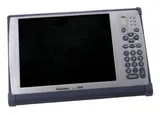
Summary
What is in it
Intermec's technical reference for the 6642 Pen Computer, written for application programmers and information systems engineers. It explains the indicator LEDs, the CMOS setup pages, and the 6642 Toolkit: pen drivers, the APM Guard driver, recovery diskettes, the Battery Gauge utility and the 802.11 DS radio driver. It also covers the pen recognition desktop applications and the procedures for BIOS recovery, reimaging and cloning an image across several units.
Its parts
- Introduction
- CMOS Setup
- Toolkit for the 6642 Computer
- Desktop Applications
- Recovery Procedures
From the manual
Key facts from this manual
Some pages are scans or cannot be read; this says only what the readable text supports. Each line names its page in the PDF.
Technical reference for the Intermec 6642 Pen Computer, written for application programmers and systems engineers. It explains the PhoenixBIOS setup pages, the Toolkit drivers and utilities for Windows 98, the pen recognition software, and how to recover or clone the hard drive image over a network.
- Device
- Pen computer shipped with Windows 98 loaded on its boot media p. 26
- Indicator LEDs
- Three two-color LEDs for external power, main battery and hard disk drive p. 9
- IR port modes
- FIR (default), Normal, IrDA, ASK-IR p. 17
- Parallel port modes
- Output only, Bidirectional (default), EPP or ECP p. 18
- Floppy support
- 1.44 MB floppy drive p. 14
- Default boot order
- PCMCIA-SRAM, floppy, PCMCIA-ATA, hard drive, CD-ROM p. 23
- Toolkit components
- Pen installation, PenX Recognition Services, APM Guard Driver, Create Recovery Media (optional), Battery Gauge, 802.11 DS Radio Driver p. 26
- Radio driver installer
- 802_11DS.EXE for the 802.11 DS radio p. 70
- Network recovery card
- NetGear PCMCIA Ethernet Card 410TA p. 127
- Recovery software
- PowerQuest Drive Image (PQDI) with MS-DOS networking p. 125, 127
- Companion manual
- 6642 Computer User's Guide, P/N 961-054-019 p. 7
What this manual walks you through
- Moving through the BIOS setup with the keypad p. 13
- Setting ports, passwords, power management and boot order in BIOS setup p. 16, 19, 21, 23
- Reading the power, battery and disk indicator LEDs p. 9
- Installing Toolkit drivers and utilities p. 26, 29
- Updating the battery gauge when it shows the wrong capacity after recharge p. 63, 64, 65
- Installing the 802.11 DS radio driver p. 70
- Restoring the hard drive image from a shared network location p. 125, 127, 128
Good to know
- Reimaging destroys all existing partitions and data on the drive. p. 126
- A stored main partition cannot be made smaller: it needs a drive with at least as much free space. p. 126
- The indicator LEDs work only while the computer is turned on. p. 9
- The Toolkit holds no application software; that must come from Intermec, other suppliers, or be written by the user. p. 26
Questions this manual answers
What do I need to recover a 6642 hard drive over the network?
The 6642, Ethernet cables and a hub, a NetGear PCMCIA Ethernet Card 410TA, the 6642 Recovery Toolkit CD-ROM, and a host computer sharing its CD-ROM drive. p. 127
What does a steady red battery LED mean on the 6642?
The main battery voltage has dropped and its capacity is very low. p. 9
Contents
Chapters and sections
Each line opens the PDF at its page.
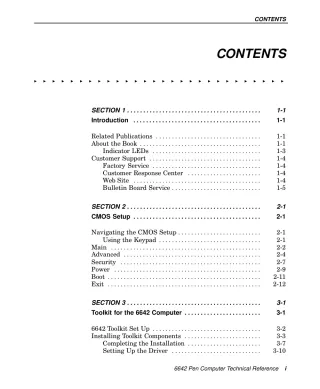
- Section 1- Introduction7
- Section 2 CMOS Setup13
- Section 3-Toolkit25
- 6642 Toolkit Setup26
- Installing Toolkit Components27
- Completing the Installation31
- Loading Pen Drivers35
- Loading Microsoft Pen Windows 2.035
- Loading APM Guard Driver45
- Setting Up to Create Recovery Media46
- Bootable Network Recovery Diskette47
- Bootable Network Cloning Diskette53
- Bootable Network Diskette58
- Battery Gauge Utility62
- Creating an Installation Floppy Disk63
- Installing to Flash Memory Card64
- Installing to the 664265
- Error Messages66
- Running the Utility from Windows 9867
- 802.11 DS Radio Driver Installation70
- 802.11 DS Utility76
- Pop-Up Menu Options78
- Reinstalling the Radio Driver94
- Section 4- Desktop Applications111
17 more lines, from page 123 on
- Recognition Tuner123
- Section 5-Recovery Procedures125
- Assumptions126
- Required Components127
- Shared Location Recovery Process128
- Determine Server Name128
- Ensure Enabled File-Sharing128
- Determine Name of Shared Location129
- Ensure Protocols are Available130
- Create Network Recovery Media131
- Shared Location Reimaging Process132
- System Cloning Process134
- Create an Image134
- Clone Source Computer Image135
- Image Target Computer135
- Index137
The whole text · 15 parts
Read the manual here as text
Its text as extracted from the PDF, unedited, in parts; each page opens the PDF at that page.
- Pages 1 to 61-6
- Section 1- Introduction7-12
- Section 2 CMOS Setup13-24
- Section 3-Toolkit, pages 25 to 3425-34
- Section 3-Toolkit, pages 35 to 4435-44
- Section 3-Toolkit, pages 45 to 5445-54
- Section 3-Toolkit, pages 55 to 6455-64
- Section 3-Toolkit, pages 65 to 7465-74
- Section 3-Toolkit, pages 75 to 8475-84
- Section 3-Toolkit, pages 85 to 9485-94
- Section 3-Toolkit, pages 95 to 10495-104
- Section 3-Toolkit, pages 105 to 110105-110
- Section 4- Desktop Applications111-124
- Section 5-Recovery Procedures125-136
- Index137-140
The file