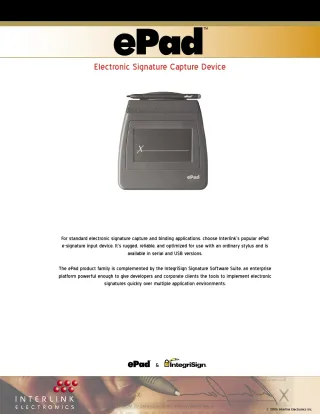
Manual · Interlink
ePad User's Guide: Product Family Reference
Manual50 pagesPDF 245 KB
User's guide for the ePadLink ePad family of electronic signature pads, including ePad-POS and ePad LS, plus IntegriSign Desktop.
Names · 3 models
The models it names
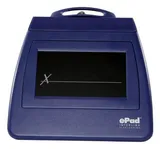 Interlink ePadElectronic signature capture device from$75.0032 in stock
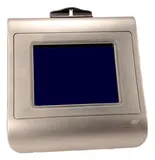 Interlink ePad LSSignature capture pad from$325.0010 in stock
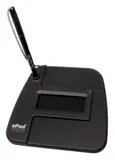 Interlink ePad POS VP9501Signature capture POS terminal from$100.0064 in stock
Filed with · 1 model
Also filed with these models on the old site
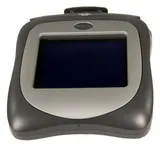
Summary
What is in it
ePadLink's user's guide for its family of electronic signature pads: the standard ePad, ePad-POS, ePad-ink, ePad-i.d., ePad II, ePad-ink Pro, ePad-i.d. Pro and ePad LS. Part I describes each model, the package contents, system requirements and how to install the serial and USB pads and drivers, with specifications, a thin client support matrix, troubleshooting and care. Part II is the user manual for the IntegriSign Desktop signature software.
Its parts
- Introduction
- Installing your ePad
- Miscellaneous
- Troubleshooting
- Care and Maintenance
- ePad-ink FCC Certification
- IntegriSign Desktop User Manual
From the manual
Key facts from this manual
Each line names its page in the PDF.
The 2009 ePad Product Family User's Guide from ePadLink (P/N 94-21488 Rev B) for its electronic signature pads, including the standard ePad, ePad-POS, ePad-ink, ePad II, ePad-ink Pro, ePad LS and the ePad-i.d fingerprint models. It covers installing each pad and its drivers, power, replacing the protective screen film, specifications, thin client support, troubleshooting and cleaning, followed by the IntegriSign Desktop software manual.
- Device
- Pen input pad that captures handwritten signatures for PC applications p. 5
- Interface
- Standard ePad and ePad-POS: serial (RS232) or USB versions. ePad LS: USB only, through one combined data and power cable p. 5, 16, 20
- Power
- Standard ePad and ePad-POS: powered from the RS232 or USB port. ePad LS: external power supply (included) needed at all times p. 16, 20
- Touchpad technology
- Standard ePad and ePad-POS: VersaPad Semiconductive. ePad LS: ITO resistive analog touchpad p. 19
- Resolution and rate
- Standard ePad and ePad-POS: 300 counts per inch, 100 reports/second, 128 levels of pressure. ePad LS: 300 dpi, 100 to 400 reports/second p. 19, 20
- Weight
- Standard ePad and ePad-POS: 0.26kg (0.58 lbs.). ePad LS: 0.65 kg (1.43 lbs) p. 21
- Stylus
- ePad-POS: tethered ballpoint pen, for signing over paper receipts. Other models: tethered passive stylus p. 8, 19
- Display
- ePad LS: full color 5.7 in. diagonal LCD with programmable scrolling text window p. 7, 20
- Signing area
- ePad Serial and USB: 88.91mm x 38.15mm (3.5 x 1.5 in.). ePad LS: 114.3mm x 88.9mm (4.5 x 3.5 in.) p. 21
- Dimensions
- ePad LS: 212.7mm x 187.3mm x 50mm (8.4 x 7.4 x 2 in.) p. 20
- Operating temperature
- ePad Serial and USB: 0°C to +45°C. ePad LS: 0°C to +40°C p. 21
- Humidity
- ePad USB and ePad-POS: 10-95% RH non-condensing. ePad LS: 10-80% RH non-condensing p. 21
- Encryption
- ePad LS: 256-bit AES (optional) p. 19
- Operating system
- Windows 2000 SP4, XP and Vista; serial ePads need Windows 2000 or XP p. 19, 23
What this manual walks you through
- Installing a serial ePad and its drivers from the CD-ROM p. 9
- Installing a USB ePad or ePad II and its drivers p. 10
- Installing the ePad-i.d. and ePad-i.d. Pro, software first, and using the optional power supply p. 11, 12, 13
- Installing the ePad-ink and ePad-ink Pro p. 14, 15
- Connecting the ePad LS data and power cable and installing its drivers p. 16, 17
- Replacing the worn protective screen film on the ePad LS, ePad-ink Pro and ePad-i.d. Pro p. 15, 16, 17, 18
- Uninstalling the ePad software p. 15
- Using ePads with thin clients, Terminal Services and Citrix p. 22
- Troubleshooting installation and connection problems p. 23
- Cleaning and caring for the pad p. 24, 25
Good to know
- Only the ePad-POS is built for a ballpoint pen; on other models use only the supplied stylus. p. 25
- Use only the power adapter supplied with the unit. p. 25
- Do not use denatured alcohol for cleaning; it damages the plastic case. p. 25
- Before installing a serial ePad, disable infrared and other serial devices; they can be re-enabled afterward. p. 23
- Do not plug in the ePad-i.d. or ePad-i.d. Pro until its software drivers are installed. p. 11
Questions this manual answers
Does the ePad LS need a power supply?
Yes. The ePad LS needs its included external power supply at all times; it joins the single data/power cable between the pad and the USB connector. p. 16
Can I sign on the ePad-POS with a ballpoint pen?
Yes. The ePad-POS is the only model built for a ballpoint pen and is meant for signing paper receipts. p. 5, 25
What Windows versions does the ePad work with?
Windows 2000 SP4, XP and Vista; the troubleshooting page says serial ePads need Windows 2000 or XP. p. 19, 23
How do I clean an ePad signature pad?
Put a mild household cleaner or rubbing alcohol on a soft, non-abrasive cloth, wipe the pad, and remove all residue. Never pour cleaner on the pad or use denatured alcohol. p. 24, 25
How do I replace the protective film on an ePad LS?
Push the button below the front to release the bezel, peel off the old layer from the upper right corner, seat the new layer in its dovetails, and snap the bezel back. p. 18
The whole text · 5 parts
Read the manual here as text
Its text as extracted from the PDF, unedited, in parts; each page opens the PDF at that page.
The file