Manual · HP
Getting Started with Your Zire 72 Handheld
Manual150 pagesPDF 2.9 MB
Getting started guide for the palmOne Zire 72 handheld: controls, syncing, expansion cards, camera, music, Bluetooth, e-mail and settings.
Covers · 2 models
The models it covers
Summary
What is in it
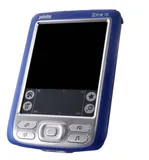
The getting started guide for the palmOne Zire 72 handheld (PDA). It shows the controls and how to enter information, synchronize with a computer, use expansion cards, and work with Contacts, Calendar, Tasks, Memos, Notes and voice memos. It also covers the built-in camera for photos and video, playing music, Bluetooth connections to phones and other devices, e-mail, text and multimedia messages, web browsing, customizing the handheld, common questions and regulatory information.
Its parts
- Exploring Your Handheld
- Synchronizing Your Handheld with Your Computer
- Expanding Your Handheld
- Managing Your Contacts
- Managing Your Calendar
- Managing Your Tasks
- Writing Memos
- Writing Notes
- Recording Voice Memos
- Taking and Viewing Photos and Videos
- Listening to Music
- Connecting Wirelessly to Other Devices
- Sending and Receiving E-mail Messages
- Sending and Receiving Text and Multimedia Messages
- Browsing the Web
From the manual
Key facts from this manual
Some pages are scans or cannot be read; this says only what the readable text supports. Each line names its page in the PDF.
This is the palmOne Getting Started guide for the Zire 72 handheld, which has a built-in camera and Bluetooth. It locates the controls and ports, lists the included software, and walks through entering information, syncing, expansion cards, photos, music, wireless use and common problems.
- Device
- palmOne Zire 72 handheld with a built-in camera p. 10
- Camera
- Built-in digital camera for photos and videos; videos save to an expansion card p. 14, 72
- Wireless
- Internal Bluetooth radio p. 14, 15
- Expansion cards
- SDIO, SD and MultiMediaCard p. 35
- Sync port
- Mini-USB connector for the HotSync cable p. 14
- Charging
- Separate power connector for the power adapter p. 14
- Headphone jack
- Standard 3.5 mm stereo p. 13
- Screen
- Touch-sensitive; Graffiti 2 writing or onscreen keyboard p. 11
- Application buttons
- Calendar, Contacts, Camera and Music p. 11
- Audio
- Speaker, microphone and Voice Memo button p. 13, 14
- Music
- RealOne Mobile Player plays MP3 files stored on an SD or MultiMediaCard card p. 80
- IR port
- Beams information to devices with an IR port p. 12
- Data when drained
- Kept for close to a week p. 129
- CD software
- Includes Documents To Go, palmOne VersaMail, palmOne Messages and palmOne WebPro p. 16, 17
What this manual walks you through
- Locating the controls and ports p. 11, 12, 13, 14, 15
- Installing extra software from the CD p. 16
- Entering information with Graffiti 2 or the onscreen keyboard p. 19, 20
- Caring for the handheld p. 27
- Choosing expansion cards p. 35
- Adjusting the camera settings p. 72
- Using Keylock to stop accidental turn-on p. 120
- Upgrading from another Palm OS handheld p. 128
- Fixing problems synchronizing with a computer p. 130
- Doing a soft reset when the handheld freezes p. 131
Good to know
- Charge only with the supplied power adapter. p. 27
- Keep the handheld dry and away from damp places. p. 27
- Use only 3.5 mm stereo headphones in the headphone jack. p. 27
- Discharge static electricity before connecting any cable or accessory. p. 27
- Do not open the handheld; there are no serviceable parts inside. p. 131
Questions this manual answers
Does the Zire 72 have a camera?
Yes. It has a built-in digital camera for photos and videos; videos must be saved to an expansion card. p. 14, 72
What memory cards does the Zire 72 take?
SDIO, SD and MultiMediaCard cards; SDIO cards add accessories, SD and MMC cards store information and applications. p. 35
Can the Zire 72 play MP3 music without a card?
No. Music files must be saved on an SD or MultiMediaCard expansion card to play on the handheld. p. 80
Will the Zire 72 lose my data if the battery runs flat?
Information is stored for close to a week once it is too drained to turn on; recharge it right away, for a few hours. p. 129
How do I reset a frozen Zire 72?
Press the reset button in the hole on the back panel with the stylus tip; a soft reset keeps your information and applications. p. 131
Contents
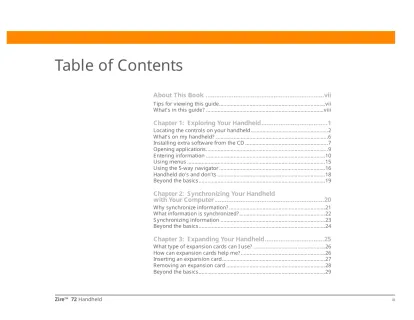
Chapters and sections
Each line opens the PDF at its page.
- Getting Started with Your Zire™ 72 Handheld1
- About This Book7
- Exploring Your Handheld10
- Synchronizing Your Handheld with Your Computer29
- Expanding Your Handheld34
- Managing Your Contacts39
- Managing Your Calendar45
- Managing Your Tasks51
- Writing Memos56
- Writing Notes60
- Recording Voice Memos64
- Taking and Viewing Photos and Videos68
- Listening to Music80
- Connecting Wirelessly to Other Devices89
- Sending and Receiving E-mail Messages99
- Sending and Receiving Text and Multimedia Messages106
- Browsing the Web114
- Customizing Your Handheld117
- Common Questions128
- Product Regulatory Information133
- Index139
The whole text · 15 parts
Read the manual here as text
Its text as extracted from the PDF, unedited, in parts; each page opens the PDF at that page.
- Pages 1 to 101-10
- Pages 11 to 2011-20
- Pages 21 to 3021-30
- Pages 31 to 4031-40
- Pages 41 to 5041-50
- Pages 51 to 6051-60
- Pages 61 to 7061-70
- Pages 71 to 8071-80
- Pages 81 to 9081-90
- Pages 91 to 10091-100
- Pages 101 to 110101-110
- Pages 111 to 120111-120
- Pages 121 to 130121-130
- Pages 131 to 140131-140
- Pages 141 to 150141-150
The file