Manual · HP
User Guide for the LifeDrive Mobile Manager
Manual724 pagesPDF 6.9 MB
User guide for the palmOne LifeDrive Mobile Manager: setup, syncing with a computer, built-in applications, Wi-Fi and Bluetooth connections.
Covers · 2 models
The models it covers
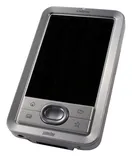
Summary
What is in it
The full user guide for the LifeDrive Mobile Manager from palmOne. It walks through charging the device, installing the desktop software and connecting to a computer, then covers moving files with LifeDrive Manager and Drive Mode, synchronizing, entering text with Graffiti 2 writing or the onscreen keyboard, and the built-in Contacts, Calendar, Tasks, Memos, Note Pad, photo, video and music applications, followed by Wi-Fi and Bluetooth connections and email.
Its parts
- Setting Up Your Device and Your Computer
- Your Mobile Manager
- Moving Around in Applications
- Entering Information on Your Device
- Moving and Managing Info Between Your Device and Your Computer
- Managing Your Contacts
- Managing Your Calendar
- Your Microsoft Office Manager
- Viewing Your Photos and Videos
- Managing Your Camera Card Media
- Listening to Music
- Managing Your Tasks
- Writing Memos
- Writing Notes in Note Pad
- Recording Voice Memos
From the manual
Key facts from this manual
Each line names its page in the PDF.
This is the full palmOne User Guide for the LifeDrive mobile manager, a handheld with a 4GB hard drive. It covers setup and computer requirements, the buttons and ports, syncing, media, Wi-Fi and Bluetooth, email and web, expansion cards, resets and common problems.
- Device
- palmOne LifeDrive mobile manager p. 24
- In the box
- USB sync cable, pouch, AC charger, software installation CD p. 25
- Hard drive
- 4GB internal p. 46
- Wireless
- Internal Wi-Fi radio and internal Bluetooth radio p. 46
- Bluetooth range
- About thirty feet p. 335
- Expansion cards
- SDIO, SD and MultiMediaCard p. 637
- Multi-connector
- USB sync cable (included), cradle (sold separately) or AC charger p. 47
- Headphone jack
- Standard 3.5mm stereo p. 47
- Screen
- Touch-sensitive; rotates between portrait and landscape p. 43, 45
- Windows PC needs
- Pentium II or later, Windows 2000 or XP, Internet Explorer 5.0 or later, 32MB available RAM (64MB recommended), 170MB disk, one USB port p. 25, 26
- Mac needs
- PowerPC processor, Mac OS X 10.2 or 10.3, 128MB total RAM, 190MB disk, 800 X 600 monitor, one USB port p. 26
- First charge
- Three hours p. 27
- Low battery
- Wi-Fi and card slot turn off at Low battery; Bluetooth and IR turn off at Critically low battery p. 28
- Auto-off
- 30 seconds, or one, two or three minutes p. 661
What this manual walks you through
- Checking the box contents and computer requirements p. 25, 26
- Charging and turning on the device the first time p. 27, 29
- Installing the desktop software from the CD p. 30
- Identifying the buttons, ports and indicator light p. 42, 43, 44, 45, 46, 47
- Kinds of Wi-Fi connections the device can make p. 313
- Kinds of Bluetooth connections the device can make p. 335
- Choosing expansion cards p. 637
- Doing a hard reset with Quick Erase or Secure Erase p. 650, 651
- Fixing charging, a frozen device or a blank screen p. 659, 660
- Freeing program memory when storage is full p. 660
Good to know
- A hard reset deletes all records and entries on the device; do a full sync first. p. 650
- Use Secure Erase before passing the device to a new owner. p. 651
- Installing Palm Desktop on Windows 2000/XP or Mac OS X needs administrator rights. p. 30
- Avoid drops and strong impacts while the indicator light blinks, as the hard drive may be damaged. p. 42
- After a dropped network connection the device may not respond for up to 30 seconds; wait before a soft reset. p. 659
Questions this manual answers
What computer does the LifeDrive desktop software need?
Windows: a Pentium II or later with Windows 2000 or XP. Mac: a PowerPC Mac with Mac OS X 10.2 or 10.3; both need a free USB port. p. 25, 26
How long should I charge a new LifeDrive?
Charge it for three hours before first use, then at least half an hour every day. p. 27
My LifeDrive does not charge on the AC charger. What should I check?
Check that the device is firmly connected and the outlet has power; a fully drained battery needs a few minutes of charge before it turns on. p. 659
What is the difference between Quick Erase and Secure Erase?
Quick Erase is the regular hard reset and takes about 5 minutes; Secure Erase deletes all user info on the drive and takes about 20-25 minutes. p. 651
What memory cards work in the LifeDrive?
SDIO, SD and MultiMediaCard cards, plus memory cards from a digital camera. p. 637
Contents
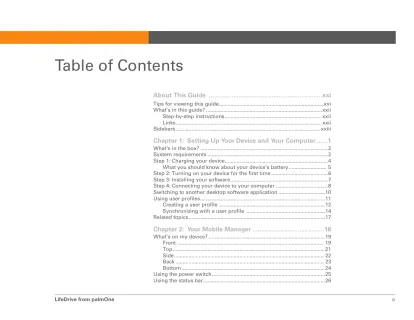
Chapters and sections
Each line opens the PDF at its page.
- User Guide for the LifeDrive™ Mobile Manager1
- About This Guide21
- Setting Up Your Device and Your Computer24
- Your Mobile Manager41
- Moving Around in Applications61
- Entering Information on Your Device79
- Moving and Managing Info Between Your Device and Your Computer103
- Managing Your Contacts154
- Managing Your Calendar174
- Your Microsoft Office Manager211
- Viewing Your Photos and Videos215
- Managing Your Camera Card Media241
- Listening to Music247
- Managing Your Tasks267
- Writing Memos282
- Writing Notes in Note Pad289
- Recording Voice Memos298
- Making Wi-Fi® Wireless Connections312
- Making Bluetooth® Wireless Connections334
- Sending and Receiving Email Messages357
- Sending and Receiving Text Messages459
- Browsing the Web469
- Dialing Phone Numbers from Your Device500
- Sharing Information508
- Managing Your Expenses520
- Performing Calculations532
- Keeping Your Information Private537
- Using Categories to Organize Information560
- Managing Clock Settings569
- Customizing Your Device581
- Expanding Your Device636
- Maintaining Your Device647
- Common Questions656
- Getting Help687
- Product Regulatory Information689
- Index695
The whole text · 73 parts
Read the manual here as text
Its text as extracted from the PDF, unedited, in parts; each page opens the PDF at that page.
- Pages 1 to 101-10
- Pages 11 to 2011-20
- Pages 21 to 3021-30
- Pages 31 to 4031-40
- Pages 41 to 5041-50
- Pages 51 to 6051-60
- Pages 61 to 7061-70
- Pages 71 to 8071-80
- Pages 81 to 9081-90
- Pages 91 to 10091-100
- Pages 101 to 110101-110
- Pages 111 to 120111-120
- Pages 121 to 130121-130
- Pages 131 to 140131-140
- Pages 141 to 150141-150
- Pages 151 to 160151-160
- Pages 161 to 170161-170
- Pages 171 to 180171-180
- Pages 181 to 190181-190
- Pages 191 to 200191-200
- Pages 201 to 210201-210
- Pages 211 to 220211-220
- Pages 221 to 230221-230
- Pages 231 to 240231-240
- Pages 241 to 250241-250
- Pages 251 to 260251-260
- Pages 261 to 270261-270
- Pages 271 to 280271-280
- Pages 281 to 290281-290
- Pages 291 to 300291-300
- Pages 301 to 310301-310
- Pages 311 to 320311-320
- Pages 321 to 330321-330
- Pages 331 to 340331-340
- Pages 341 to 350341-350
- Pages 351 to 360351-360
- Pages 361 to 370361-370
- Pages 371 to 380371-380
- Pages 381 to 390381-390
- Pages 391 to 400391-400
- Pages 401 to 410401-410
- Pages 411 to 420411-420
- Pages 421 to 430421-430
- Pages 431 to 440431-440
- Pages 441 to 450441-450
- Pages 451 to 460451-460
- Pages 461 to 470461-470
- Pages 471 to 480471-480
- Pages 481 to 490481-490
- Pages 491 to 500491-500
- Pages 501 to 510501-510
- Pages 511 to 520511-520
- Pages 521 to 530521-530
- Pages 531 to 540531-540
- Pages 541 to 550541-550
- Pages 551 to 560551-560
- Pages 561 to 570561-570
- Pages 571 to 580571-580
- Pages 581 to 590581-590
- Pages 591 to 600591-600
- Pages 601 to 610601-610
- Pages 611 to 620611-620
- Pages 621 to 630621-630
- Pages 631 to 640631-640
- Pages 641 to 650641-650
- Pages 651 to 660651-660
- Pages 661 to 670661-670
- Pages 671 to 680671-680
- Pages 681 to 690681-690
- Pages 691 to 700691-700
- Pages 701 to 710701-710
- Pages 711 to 720711-720
- Pages 721 to 724721-724
The file