Manual · HP
Getting Started with Your LifeDrive by palmOne
Manual201 pagesPDF 2.9 MB
Getting started guide for the palmOne LifeDrive mobile manager: hard drive, sync, media, organizer, Wi-Fi, Bluetooth and settings.
Covers · 2 models
The models it covers
Summary
What is in it
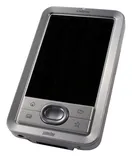
The getting started guide for the LifeDrive mobile manager from palmOne, a handheld with a built-in 4GB hard drive. It walks through the device's buttons and screen, Graffiti 2 entry, LifeDrive Manager, Drive Mode and synchronizing, photos and videos, the MP3 player, Office files, contacts, calendar and tasks, notes and voice memos, Wi-Fi and Bluetooth connections, email, text messages, the web browser, expansion cards, personal settings, common questions and regulatory information.
Its parts
- About This Guide
- Your Mobile Manager
- Your 4GB Hard Drive
- Your Photo and Video Organizer
- Your MP3 Player
- Your Microsoft Office File Manager
- Your Personal Information Organizer
- Your Notes and Memos
- Your Wireless Connection
- Your Email
- Your Text Messaging Tool
- Your Web Browser
- Your Expandable Storage
- Your Personal Settings
- Common Questions
From the manual
Key facts from this manual
Each line names its page in the PDF.
This is the palmOne Getting Started guide for the LifeDrive mobile manager, a Palm OS handheld with a 4GB hard drive. It identifies the buttons, ports and indicator light, explains program memory and the hard drive, and covers syncing, Wi-Fi and Bluetooth, media, expansion cards and common problems.
- Device
- palmOne LifeDrive mobile manager with an internal hard drive p. 10
- Hard drive
- 4GB internal p. 15
- Program memory
- 64MB for Palm OS applications p. 44
- Wireless
- Internal Wi-Fi radio and internal Bluetooth radio p. 15
- Expansion cards
- SDIO, SD and MultiMediaCard p. 158
- Multi-connector
- USB sync cable (included), cradle (sold separately) or AC charger p. 16
- Charging
- AC charger, or from a computer over the USB sync cable p. 16
- Headphone jack
- Standard 3.5mm stereo p. 16
- Screen
- Touch-sensitive; rotates between portrait and landscape p. 12, 14
- Text entry
- Graffiti 2 writing or onscreen keyboard p. 12
- IR port
- Beams information to other devices with an IR port p. 13
- Audio
- Built-in microphone for voice memos and a speaker p. 14, 15
- Indicator light
- Solid amber charging, solid green fully charged, flashing amber hard drive busy p. 11
- Desktop software
- Palm Desktop on CD; LifeDrive Manager (Windows) or Drive Mode (Mac and Windows) p. 2, 44
What this manual walks you through
- Identifying the buttons, ports and controls p. 11, 12, 13, 14, 15, 16
- Understanding program memory and the hard drive p. 44
- Caring for the device p. 39, 40
- Conserving battery power p. 40, 41
- Choosing expansion cards p. 158
- Upgrading from another Palm Powered device p. 175
- Fixing problems synchronizing with a computer p. 178
- Switching sync from Palm Desktop to Outlook p. 178, 179
- Fixing file copy problems in LifeDrive Manager p. 179
- Doing a soft reset when the device stops responding p. 180
Good to know
- Do not open the device; there are no user-serviceable parts inside. p. 40
- Avoid drops and strong impacts, which can damage the hard drive, especially while the amber light flashes. p. 40
- Keep the device away from strong magnetic fields, which can cause loss of information on the hard drive. p. 40
- Charge only with the supplied AC charger. p. 39
- For long Drive Mode sessions or a low battery in Drive Mode, keep the AC charger plugged in. p. 39
Questions this manual answers
How much storage does the LifeDrive have?
It has a 4GB hard drive plus 64MB of program memory for Palm OS applications. p. 44
What memory cards work in the LifeDrive?
SDIO, SD and MultiMediaCard expansion cards; SDIO cards add accessories, SD and MMC cards store information and applications. p. 158
Will I lose my data if the LifeDrive battery runs flat?
No. The guide says information in program memory and on the drive should reappear once the device is recharged. p. 176
How do I reset a frozen LifeDrive?
Check that Keylock is off, then press the reset button on the bottom with the stylus tip for a soft reset, which keeps your information. p. 180
How do I charge the LifeDrive?
Connect the AC charger to the Multi-connector, directly or through the USB sync cable, or connect the sync cable to a computer. p. 16
Contents
Chapters and sections
Each line opens the PDF at its page.
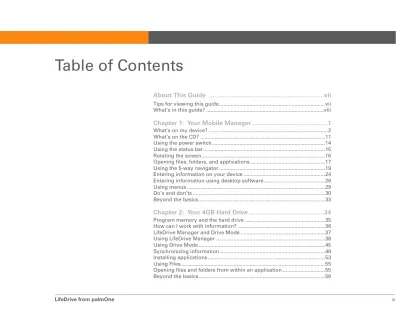
- Getting Started with Your LifeDrive by palmOne1
- About This Guide7
- Your Mobile Manager10
- Your 4GB Hard Drive43
- Your Photo and Video Organizer66
- Your MP3 Player77
- Your Microsoft Office File Manager86
- Your Personal Information Organizer90
- Your Notes and Memos104
- Your Wireless Connection113
- Your Email134
- Your Text Messaging Tool150
- Your Web Browser154
- Your Expandable Storage157
- Your Personal Settings162
- Common Questions175
- Product Regulatory Information183
- Index189
The whole text · 21 parts
Read the manual here as text
Its text as extracted from the PDF, unedited, in parts; each page opens the PDF at that page.
- Pages 1 to 101-10
- Pages 11 to 2011-20
- Pages 21 to 3021-30
- Pages 31 to 4031-40
- Pages 41 to 5041-50
- Pages 51 to 6051-60
- Pages 61 to 7061-70
- Pages 71 to 8071-80
- Pages 81 to 9081-90
- Pages 91 to 10091-100
- Pages 101 to 110101-110
- Pages 111 to 120111-120
- Pages 121 to 130121-130
- Pages 131 to 140131-140
- Pages 141 to 150141-150
- Pages 151 to 160151-160
- Pages 161 to 170161-170
- Pages 171 to 180171-180
- Pages 181 to 190181-190
- Pages 191 to 200191-200
- Page 201201
The file