Manual · DLI
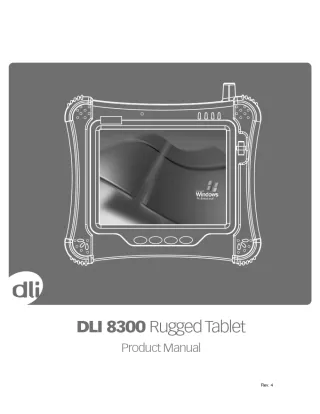
DLI 8300 Rugged Tablet Product Manual
Manual50 pagesPDF 2.7 MB
Product manual for the DLI 8300 rugged tablet: hardware, setup, battery, radios, scanner, GPS and the vehicle mount cradle.
Covers · 1 model
The models it covers
Summary
What is in it
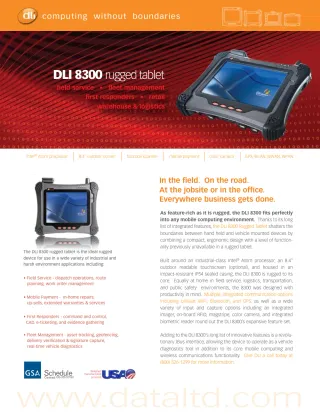
Data Ltd.'s product manual for the DLI 8300 rugged industrial tablet computer. It lists the peripherals and accessories, walks through the hardware, setup, battery status LEDs and charging, power management, backlight, stylus and programmable keys, and explains the WiFi, Bluetooth, camera, RS-232, bar code scanner, biometric reader and GPS options. It also covers installing the vehicle cradle, shipping the device, service, warranty and regulatory approvals.
Its parts
- Thank You!
- DLI 8300 Peripherals and Accessories
- Hardware Overview
- Setting Up the DLI 8300 Terminal
- Unpack the Carton and Verify its Contents
- Battery Status LED's
- Charging the Battery in the DLI 8300
- Power Management Utility
- Adjusting the Backlight
- Using the Stylus
- Using the Programmable Keys
- Using the WiFi Radio
- Summit Data Communications PCMICA 802.11b/g Radio
- Ralink USB Integrated Radio
- Using the Bluetooth Radio
From the manual
Key facts from this manual
Each line names its page in the PDF.
Data Ltd. (DLI) product manual, Rev. 4, for the DLI 8300 rugged tablet. It shows the hardware and ports, and walks through charging, the stylus, programmable keys, radios, the serial port, the barcode imager, GPS and the vehicle cradle.
- Device
- Rugged industrial tablet with WiFi, Bluetooth, GPS and cellular radios; boots from SSD or HDD p. 3, 9
- Ports
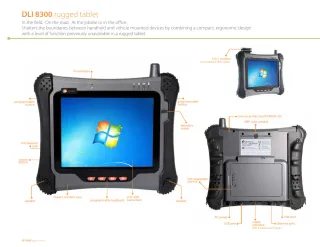
- RJ-45 Ethernet, USB (rated 1A), cradle interface connector, external antenna ports for GPS and cellular or 802.11 p. 5, 6
- Serial port
- Optional RS-232 port; pin 9 carries +5V p. 32
- Batteries
- Main battery inside the terminal plus a hot-swappable extended pack; spare 2600mAh Lithium-Ion pack 2214014240000P p. 3, 9
- Accessories
- 8300-VMC-1 vehicle mount cradle, 8300-DTC desktop cradle, 8300-3B-CHG 3-bay battery charger, 5421112020900P AC wall adapter p. 3
- Barcode imager
- Optional integrated Honeywell 5300 standard range imager with cross hairs; 2 to 15 inches from the code p. 34
- Camera
- 2MP color camera on the back panel, for pictures and streaming video p. 32
- GPS
- Optional SiRFstar III module with Geohelix active antenna (25db gain), on Comm 6 at 9600 baud p. 35, 36
- Keys
- 6 function keys, set with the DLI KeyMon utility p. 14
- 8300-VMC-1 cradle
- 3 locking USB, 3 RS232, locking power, RAM 202U mounting ball p. 3
- Cradle power
- External DC source of 18VDC~22VDC; optional internal regulated supply p. 40
- Cradle data
- USB 2.0, serial up to 115K baud, 10/100 Ethernet; FME (cellular) and SMA (GPS) RF connectors p. 39, 41
- Touchscreen
- PenMount 6000 USB touch panel, used with a stylus p. 12
- Charge time
- 3 hours; in the cradle both batteries charge in 3 hours p. 9, 39
What this manual walks you through
- Setting up the tablet and charging the batteries p. 8, 9
- Reading the battery status LEDs p. 9
- Adjusting the screen backlight p. 11
- Calibrating the stylus p. 12, 13, 14
- Assigning the programmable keys with DLI KeyMon p. 14
- Setting up the serial port for an external barcode scanner p. 32, 33, 34
- Scanning barcodes with the integrated imager p. 34
- Testing the GPS module with VisualGPS p. 35, 36, 37, 38
- Mounting the vehicle cradle and wiring its DC converter p. 42
- Packing the device for shipping p. 43, 44
Good to know
- Do not plug in or unplug serial devices while the tablet is powered on. p. 32
- Keep cradle input within range and polarity; above 22VDC on the standard input, or reversed, can damage the power circuitry. p. 40
- The optional cradle DC converter must be wired directly to the battery terminals with a 10AMP in-line fuse. p. 42
- Never connect cradle power to a fork truck's hydraulics. p. 42
- Charge the lithium ion batteries periodically; months of inactivity shorten battery life. p. 9
Questions this manual answers
How long does the DLI 8300 take to charge?
Three hours; seated in the cradle, both batteries charge in 3 hours. p. 9, 39
What is the spare battery for the DLI 8300?
The 2600mAh lithium-ion battery pack, part 2214014240000P. p. 3
How do I use an external barcode scanner on the DLI 8300 serial port?
In Control Panel, Accessibility Options, check Use Serial Keys and set the port to Com1 at 9600 baud, then apply. p. 32, 33, 34
How far from a barcode should the DLI 8300 imager be?
2 to 15 inches, with the cross hairs lined up with the bar code. p. 34
What power does the DLI 8300 vehicle cradle need?
An external DC source of 18VDC~22VDC; an optional internal regulated supply is available. p. 40
Contents
Chapters and sections
Each line opens the PDF at its page.
- Thank You!3
- DLI 8300 Peripherals and Accessories3
- Hardware Overview4
- Setting Up the DLI 8300 Terminal8
- Unpack the Carton and Verify its Contents9
- Battery Status LED’s9
- Charging the Battery in the DLI 83009
- Power Management Utility10
- Adjusting the Backlight11
- Using the Stylus12
- Using the Programmable Keys14
- Using the WiFi Radio19
- Summit Data Communications PCMICA 802.11b/g Radio19
- Ralink USB Integrated Radio23
- Using the Bluetooth Radio24
- Using the Camera Option32
- Using the RS-232 DB9M32
- Using the Barcode Scanner34
- Using Biometric Reader35
- Using GPS35
- DLI 8300 Vehicle Cradle39
- Installing the Vehicle Cradle42
- Cradle Power Filtering DC Converter42
- Shipping your DLI Device43
- Technical Assistance45
- Product Service and Repair45
- Limited Warranty45
- Regulatory and Safety Approvals for the DLI 830046
- FCC Compliance48
The whole text · 5 parts
Read the manual here as text
Its text as extracted from the PDF, unedited, in parts; each page opens the PDF at that page.
The file